On this page
Before you start
A product in e-tailize is one main product plus one version per marketplace you sell it on. "Bulk edit" opens them as a table: one row per product and one column per field, so you see every product side by side instead of opening them one at a time.
It works in two places:
| Main Tab | PIM Tab | |
|---|---|---|
| Where | "Bulk edit" on your products page | "Bulk edit" on a marketplace tab of a product |
| What you edit | your Main Tab data | the marketplace data |
| Which products | all products, or one category | the products in that marketplace category |
| Images | replace, upload or add by URL | image URLs only |
| After "Save changes" | your Main Tab data is updated | your PIM Tab data is updated |
This article covers the Main Tab. Bulk edit a PIM tab in a table covers the other.
Steps
Click "Bulk edit" on your products page. The table shows your Main Tab data.
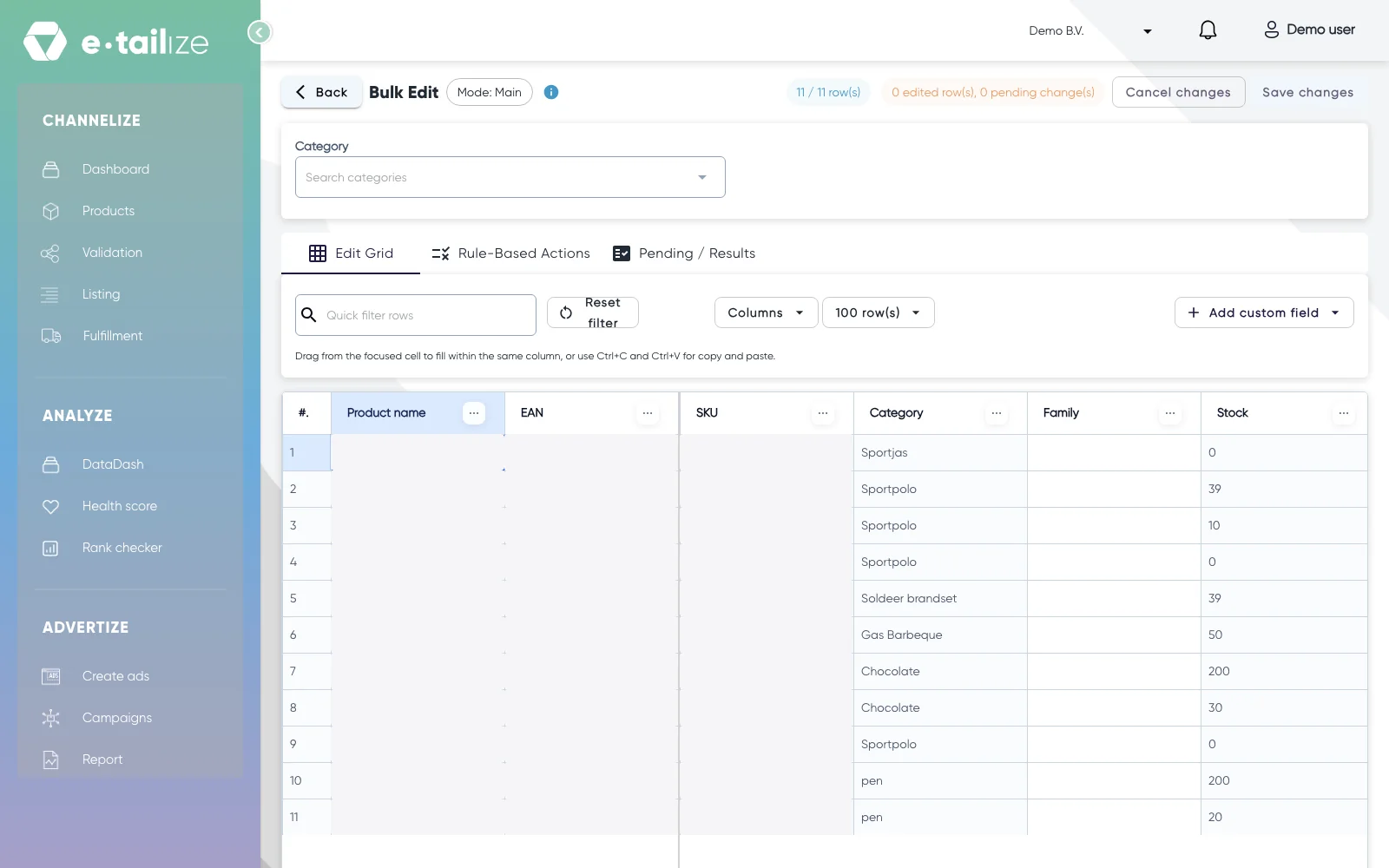
The table with your Main Tab data, with "Category" at the top, the tabs "Edit Grid", "Rule-Based Actions" and "Pending / Results", and "Save changes" at the top right Narrow the table down. Pick a "Category", type in "Quick filter rows", or click the menu next to a column name and choose a condition such as "Blank" to find every product where that field is still empty. "Reset filter" clears the quick filter.
Click a cell and type the new value.
To fill more cells in the same column, drag from the selected cell, or copy and paste with Ctrl+C and Ctrl+V, for example from a spreadsheet or an AI tool. Changed cells turn green.
To change images, click the image cell. You can replace images, upload new ones or add them by URL.
Open the "Pending / Results" tab and check "Staged grid edits": per product, the fields you changed and their new value.
Click "Save changes", or "Cancel changes" to undo them.
To add a field your import did not bring along, click "Add custom field", type a name and click "Add field". It appears as a new column that you fill in like any other.
What happens next
"Save changes" updates your Main Tab data right away and the cells turn white again. A marketplace tab only follows the change where its field is a reference to that main field, see Link Main Tab fields to your PIM tab. Every other value on the tab stays as it is.
Common problems
I cannot change the "Category" cell. Once a product has a marketplace tab, its category is locked in the table. Change it with a .csv import instead, see Change the category of your products.
FAQ
When do I use a rule instead of the table?
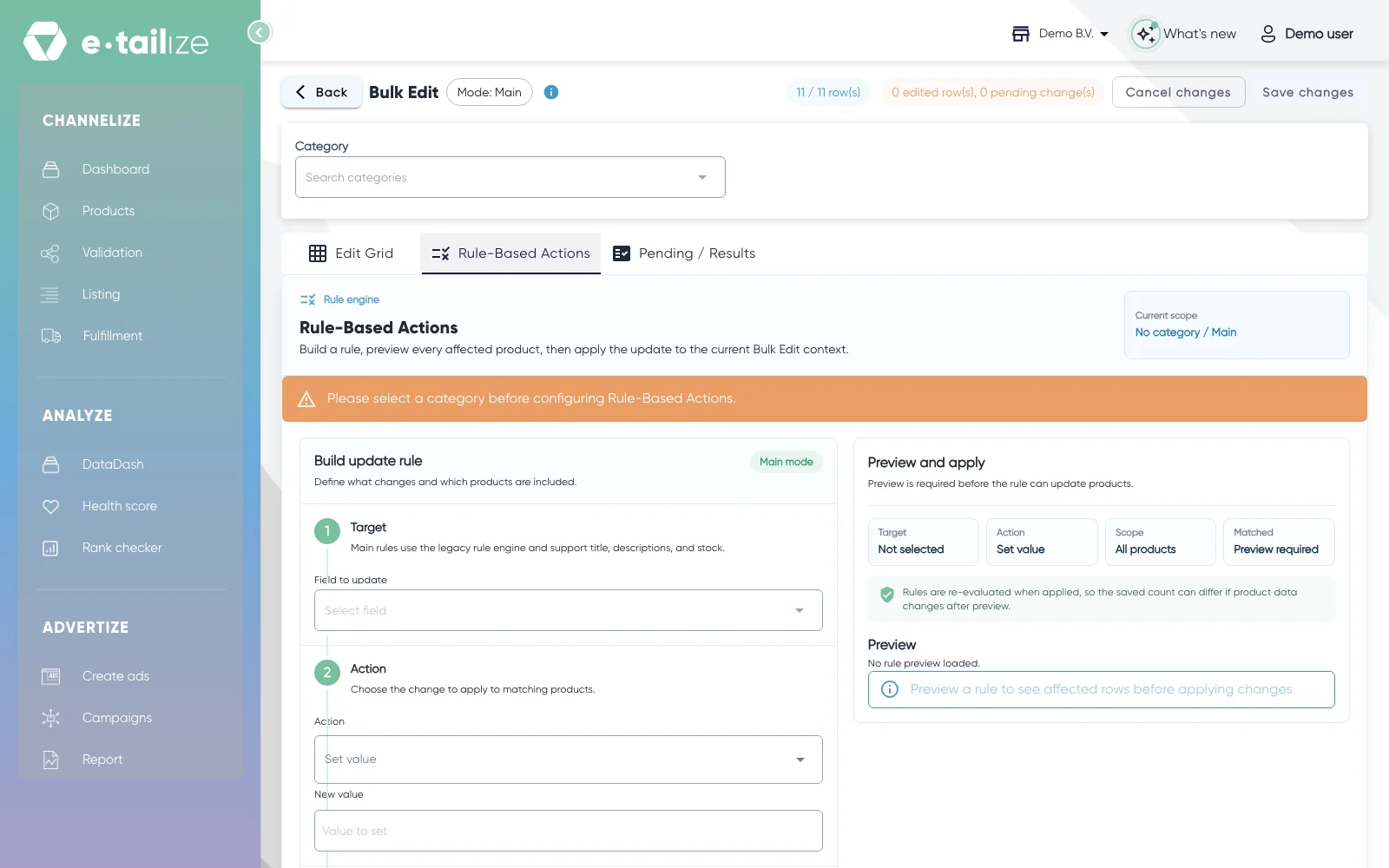
When a whole group of products gets the same value. Save or cancel your table edits, pick a "Category", then open "Rule-Based Actions". Pick the "Field to update" (title, short description, description or "Stock"), choose "Set value" or "Replace text", and pick the "Scope": every product, or "Products matching conditions" on title, descriptions, "Stock", "EAN" or "SKU". Click "Preview result", then apply.
Can the applied count differ from the preview?
Yes. Rules are checked again when you apply them, so if product data changed after the preview, the number of products updated can differ.
Is this the same as bulk edit on the listing page?
No. That one changes offer values such as price, discount and stock margin, see Adjust offers. This one changes product content.
Was this useful?