On this page
Before you start
Click "Products" in the left sidebar. The page opens with the heading "Product information management" and holds your whole catalog. Two counters stand at the top: "Total products:" is your product count, "Total product versions:" counts the marketplace tabs on top of them.
The toolbar above the table holds "Bulk edit", "Manage categories", "Import products" and "New product".
Steps
Type in the box "Start typing to filter products" to narrow the list as you type.
Click a filter tab to open its panel: "Marketplace", "Listing status", "Category", "Product family", "EAN", "Stock" or "Price". A tab with a filter on it shows the number of values you picked, for example "Stock (1)".
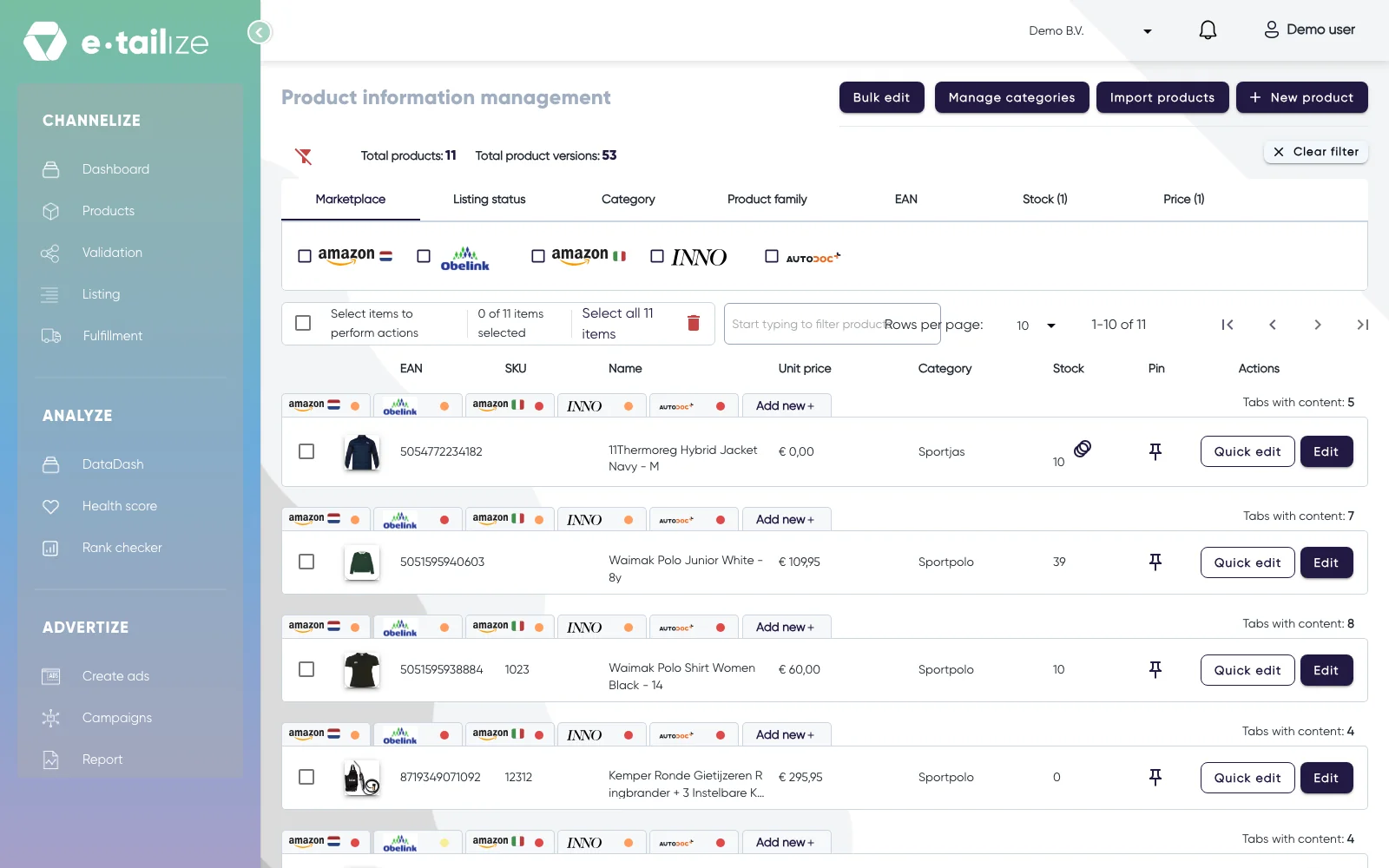
The filter tabs above the table on "Product information management", with the marketplace logos and the buttons "Quick edit" and "Edit" on every row Combine filters and the search box freely. "Category" and "Product family" also offer "Blank", which finds the products that have none.
Click the arrow next to a column header to sort on it. Every column sorts except "Actions".
Use "Rows per page" and the page buttons under the table to walk through the list.
Click "Clear filter" to drop every filter and the search box at once.
What happens next
Each row shows "EAN", "SKU", "Name", "Unit price", "Category", "Stock", a "Pin" button and an "Actions" cell. "Quick edit" makes the SKU, the name, the unit price and the stock editable in the row itself. The change is not kept until you save it: the check button in the "Actions" cell (tooltip "Update") keeps it, the cancel button (tooltip "Cancel") drops it. On a save you get the toast "Product with EAN, [the EAN], has been updated.". "EAN" and "Category" stay text only, so those two you change with "Edit", which opens the full product. The first cell holds the marketplace icons of that product plus an "Add new" link, which creates a marketplace tab and not a new product.
Next to every marketplace icon sits a small coloured dot: the status of that product on that marketplace.
| Dot | "Listing status" | What it means |
|---|---|---|
| red | "No PIM tab" | no tab for this marketplace yet |
| orange | "Missing mandatory fields" | the tab exists, required fields are empty |
| yellow | "Pending validation" | filled in, waiting for validation |
| green | "Validated" | validated and ready to list |
The "Listing status" filter uses those same four states, so you can pull up exactly the products that are stuck at one of them. What the colours of a PIM tab mean goes through them one by one.
FAQ
Why is my product count higher than the number of rows?
The list is paged. "Rows per page" decides how many rows you see, and the range under the table tells you where you are, for example "1-10 of 597".
What is the difference between the two counters?
"Total products:" counts your own products. "Total product versions:" counts the marketplace tabs you created for them, so a catalog on three marketplaces has far more versions than products.
How do I remove a product?
Tick the products you want to remove and use the delete button. The "Delete confirmation" dialog appears: click "Confirm" to delete or "Cancel" to keep the products. The dialog notes that deleting a product only removes it from the e-tailize platform if it is listed. Without a selection you get "No products selected.".
Was this useful?