On this page
Before you start
Most products arrive by import. Adding one by hand is for the single product you are putting in now, and the form you fill is the same one you get when you edit an existing product: the "Main product" page. This is your own master data, the source every marketplace tab takes its values from.
Only two fields are required to save: "Ean" and "Main title". Everything else can wait, though a fuller product lists better.
Steps
Click "New product" on your products page, or "Edit" on the row of the product you want to change.
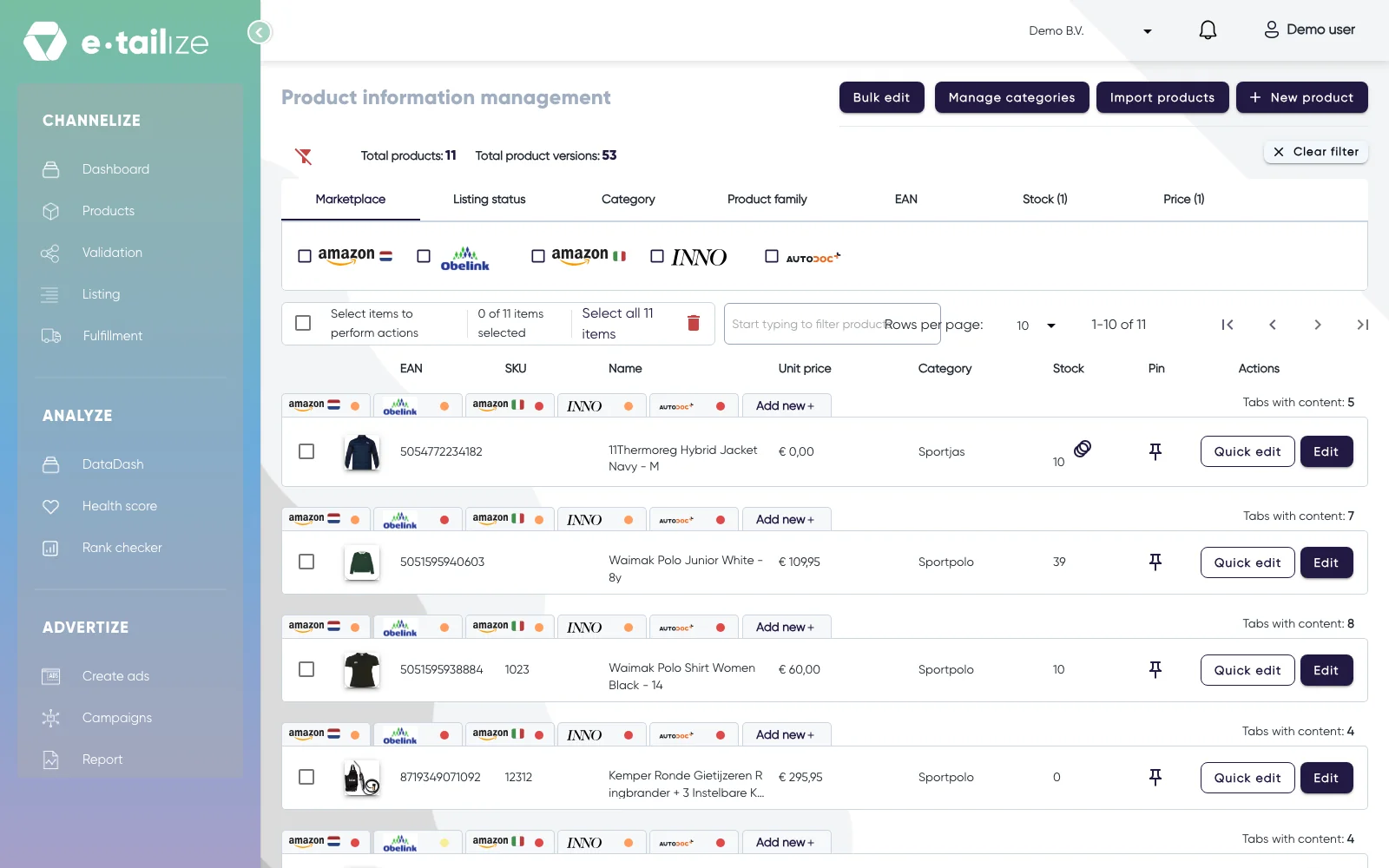
The products page with "New product" above the table and "Edit" on every row Fill "Ean". It has to be unique in your project.
Fill "Main title".
Add your own codes in "Sku" and "Gtin", plus a shorter name in "Main short name".
Pick a "Category" in the box "Search categories". You can save without one, but you need a category before you can create a marketplace tab.
Set "Stock" and "Base price".
Click "Upload images" and add your photos, up to 25 per product with the note "Maximum image size: 5MB" next to the panel.
Write "Main description" and "Main short description" in the two text editors. Each field counts your characters as you type.
Open "Add price margins", "Add dimensions" or "Add warranty" for your cost, size and warranty fields, and "Imported custom fields" with "Add custom field" for anything that has no field of its own.
Click "Save product" and pick "Save & continue" to stay on the form or "Save & close" to go back to the list.
What happens next
The product stands on your products page and your "Total products:" counter goes up. From here you give it a marketplace tab, fill the marketplace's own fields, validate and list. What is a PIM tab explains that next step.
For a small change you do not need the full form: "Quick edit" on a row changes the SKU, the name, the unit price and the stock straight in the list. The EAN and the category are shown as plain text there, so those two you change with "Edit".
Common problems
"EAN is required" or "Product name is required". One of the two required fields is empty. Both messages appear in red under the field itself.
"A product with this EAN already exists in this project". That EAN is already on another product. Open the existing product instead, or use the EAN that belongs to this one.
"SKU already exist". SKUs are unique across your products, so pick one that is not in use.
FAQ
What is the difference between "Save & continue" and "Save & close"?
"Save & continue" saves and keeps you on the form, handy while you are still adding images or details. "Save & close" saves and returns you to the product list. "Back" and "Cancel" leave without saving.
Why fill in more than the two required fields?
Because the marketplace tabs read from this page. Colour, material, manufacturer, dimensions and a real description are what the marketplace asks for later, and a field you fill once here serves every marketplace you sell on.
Was this useful?