On this page
Before you start
"Bulk edit" on a marketplace tab opens every product in that marketplace category as a table: one row per product, one column per marketplace field. Use it to fill in what a marketplace still misses, to check what AI enrichment wrote, or to paste titles, descriptions and attribute values you prepared in a spreadsheet or an AI tool.
The category is fixed by the tab you start from. "Category" at the top is your Main Tab category, "Marketplace category" is the category the product sits in on the marketplace.
Steps
Open a product and click the marketplace tab you want to work on.
Click "Bulk edit" at the top right.
Filter the table with "All products", "Missing mandatory", "Missing optional" or "Any missing". The number next to each shows how many products it holds.
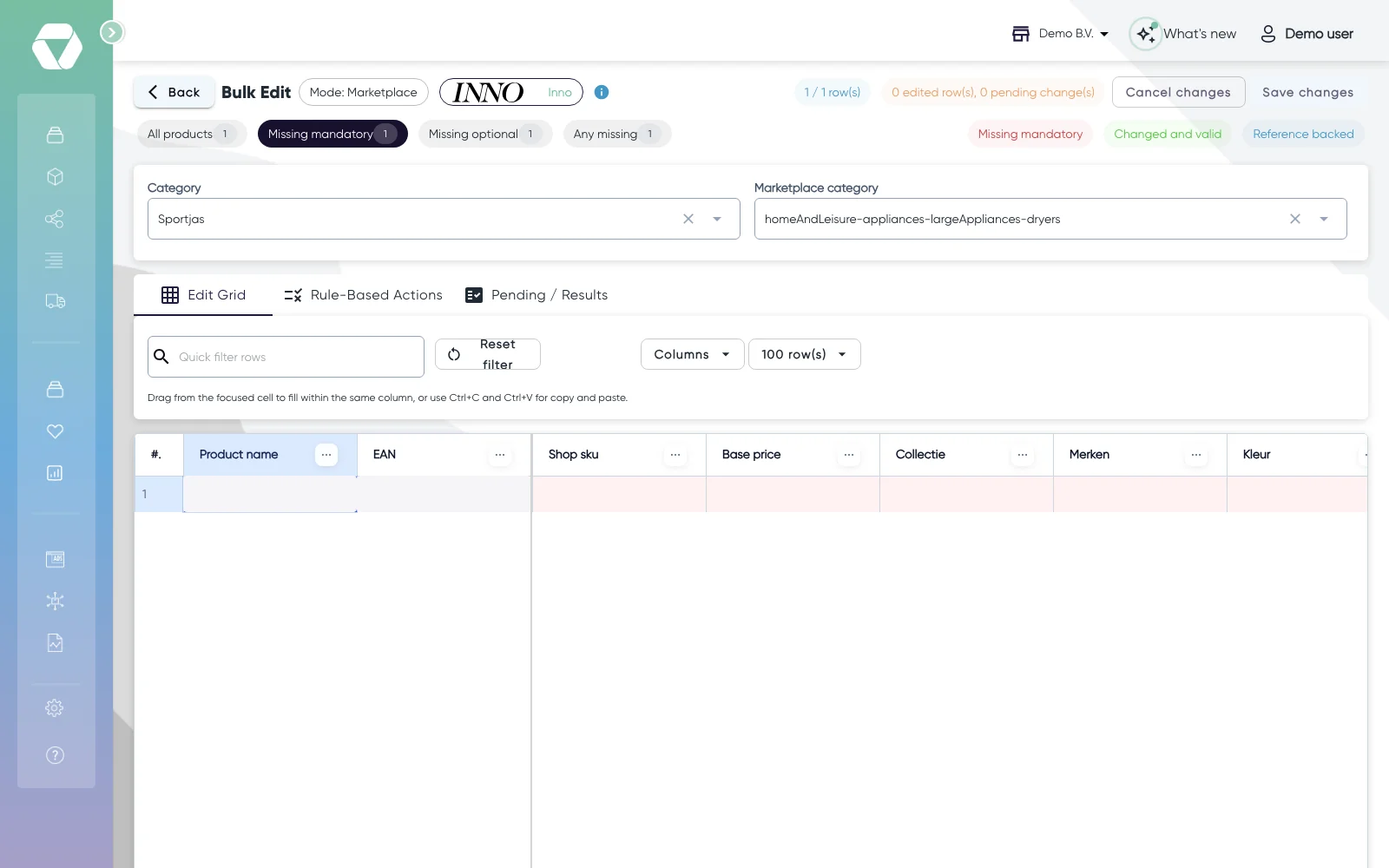
The table of a PIM tab with "Missing mandatory" selected: the empty mandatory cells are red Read the cells: a red outline is a mandatory field that is still empty, a white outline is an optional field, green is changed and valid, and "Ref" means the value follows a reference field, for example from your Main Tab.
Click a cell and type the new value, or drag and paste the same way as in a spreadsheet. Fields with a dropdown only accept the values the marketplace allows.
For images, fill in the image URL. Marketplaces ask for URLs, so you cannot upload here.
Check your changes in the "Pending / Results" tab.
Click "Save changes".
What happens next
"Save changes" updates this tab only. Nothing is sent to the marketplace yet. Products whose mandatory fields are now filled leave "Missing mandatory". Validate the products and list them to send the changes, see Get a product live: validate and list it.
Common problems
I cannot type in a cell with "Ref". That value follows a reference field. Click the cell: a window shows the source field and its value. Click "Convert to textual value" and the cell holds its own value that you can edit.
I want to remove a reference from many products. Overwrite the field with "Set value" in "Rule-Based Actions". Then empty one cell and drag it down the column to empty the rest.
FAQ
When do I use a rule instead of the table?
When every product in a selection gets the same value. Save or cancel your table edits first, then open "Rule-Based Actions" and pick the "Field to update". "Set value" writes a value, "Replace text" swaps text inside it and "Set reference field" links it to a Main Tab field. Tick "Apply only to empty target values" to fill only the empty fields. Click "Preview result", then apply.
Which products does a rule touch?
"All products in current marketplace category", or "Products matching conditions" when you add a condition. The preview lists every product the rule will change before anything is saved.
Was this useful?