On this page
Before you start
A marketplace tab holds one marketplace's own version of your product: its title, its description and every attribute that marketplace asks for. What is a PIM tab explains where it comes from; this article is about filling one in.
Open a tab and the required mapping fields stand at the top, with the optional ones in a fold below them. The placeholder of the empty box tells three of the four kinds apart: a box you fill in yourself reads "Enter" and the field's name, a list of the marketplace's own values reads "Select a value", and a reference to a field on your "Main product" tab reads "Select a reference". A list you may pick several values from also starts out as "Select a value": the info button next to it says "This field accepts multiple values to be passed", and after your first pick the box reads "Select more...".
Steps
Open the product with "Edit" on your products page, then click the marketplace tab you want to fill.
Start with the required fields. One that is still empty carries a red message under it with the field's own name in front, for example "Merk is required.".
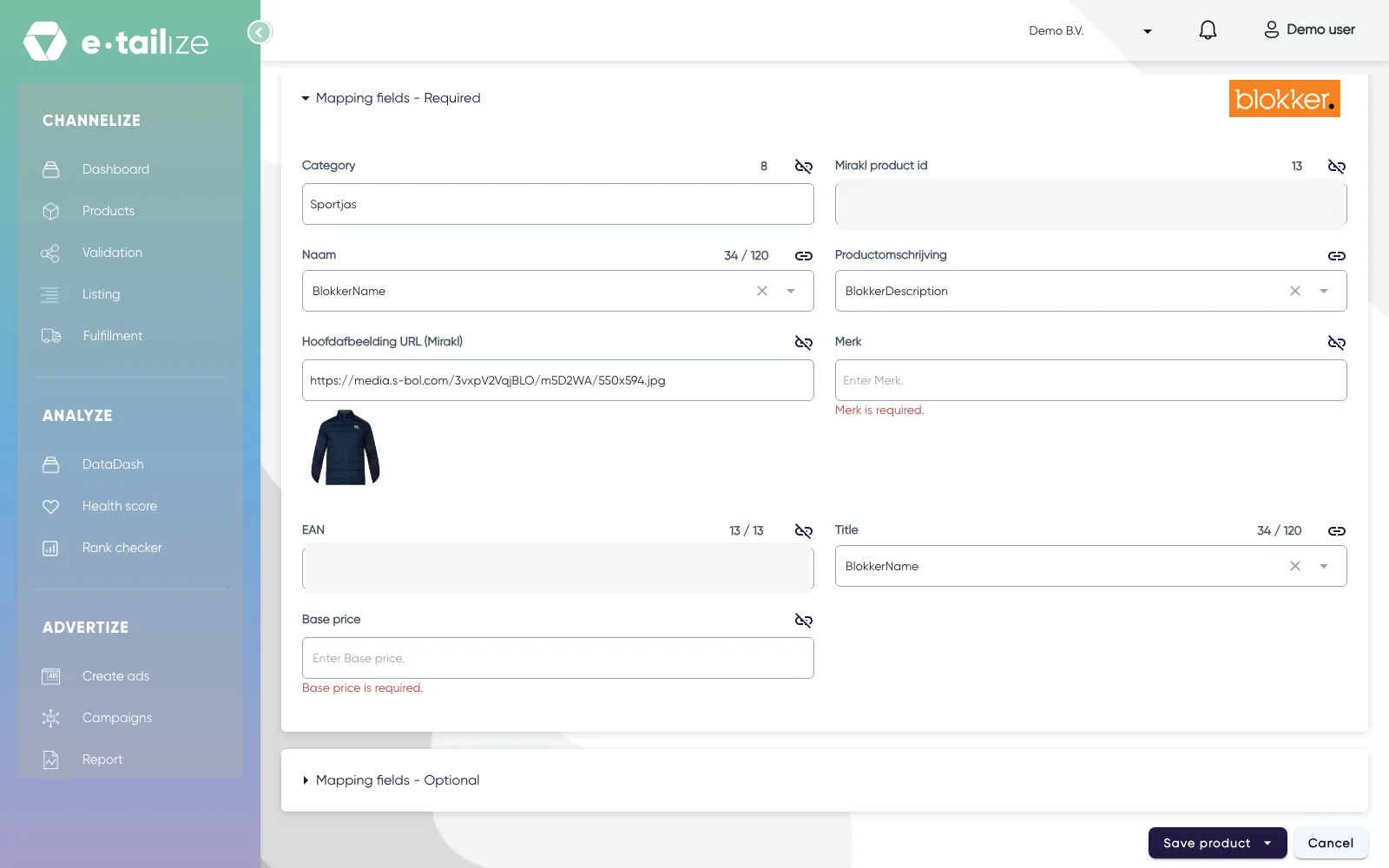
The required mapping fields of a marketplace tab, with typed text in "Category", references in "Naam" and "Productomschrijving", and "Merk is required." under an empty box Type your own text into a field whose placeholder starts with "Enter" and ends with the field's name, such as "Enter Merk.". The counter above the box shows the length you used, and the maximum when the field has one. Over that maximum the field says "exceeds the maximum length" behind its name.
Pick one of the marketplace's own values where the placeholder reads "Select a value". You cannot type anything else there. The info button next to the field lists them under "Valid values for this field are:".
Keep picking on a field that holds more than one value: after your first pick the placeholder changes to "Select more...", and your choices stay in the box.
Point a field at your own data where the placeholder reads "Select a reference", and choose the field of the "Main product" tab it should follow. Link Main Tab fields to your PIM tab walks through that.
Use the chain icon next to a field label to move between typed text and a reference. Its tooltip reads "Switch to reference field" while the field holds text you typed, and "Switch to value field" while it holds a reference.
Save with "Save product" and then "Save & continue" to stay on the tab, or "Save & close" to go back to the list.
What happens next
Saving works while required fields are still empty, so those red messages stay until the fields really have a value and the tab keeps its warning colour: What the colours of a PIM tab mean.
Once nothing on the tab is required any more, you send the product through validation and listing: Get a product live: validate and list it.
Common problems
A reference points at an empty field. The tab then shows, with your own field's name in it: The "Manufacturer" field is empty. Please enter a value first in the main tab. Fill that field on the "Main product" tab, or click the chain icon and type the text into the marketplace tab instead.
A field has no chain icon. A field with a fixed list of values from the marketplace cannot point at your own data. Pick one of the allowed values.
The "Ean", "Sku" and "Gtin" boxes are grey. They sit at the top of every tab, they hold the main product's identifiers, and you change them on the "Main product" tab.
FAQ
A box says "Select True/False". What is that?
A yes or no field, one of the boxes you fill in yourself. Open it and pick "True", "False" or "None".
Can I leave the optional fields empty?
Yes. Only a field with a message ending in "is required." holds you up.
Why do two tabs of the same product show different fields?
Because the field set comes from the marketplace and from the category the tab was built on. Another marketplace, or another category, asks for other attributes.
Can the AI write a field for me?
Some fields carry a button for AI that writes the value from your product data. See AI enrichment and translation.
Related
Was this useful?