On this page
Before you start
Your offer values live on the "Listing" page, under the heading "List product content & offers". Click the tile of one marketplace first: everything below the tiles belongs to that marketplace alone.
Only validated products show up in the "Product listing status" grid. If a product is missing, use the "Validate" button in the bar "Created a PIM Tab but missing products? Click here:".
Which offer columns you get comes from the marketplace, so it differs per marketplace. bol has "Shipping time" and "Fulfillment method", Kaufland has neither, Amazon has a "Fulfillment center" column, and the Mirakl marketplaces add "Discount start date" and "Discount end date".
Steps
Open "Listing" in the left sidebar and click the tile of the marketplace you want to work on.
Narrow the grid if you need to. Type in "Start typing to filter products", or click "Filter" and set "Name", "EAN", "Listing price", "Mapping name", "Stock", "Discount", "Shipping", "Base price" or "Stock margin" in the "Filters" dialog. "Filter" applies your choice, "Cancel" closes without applying.
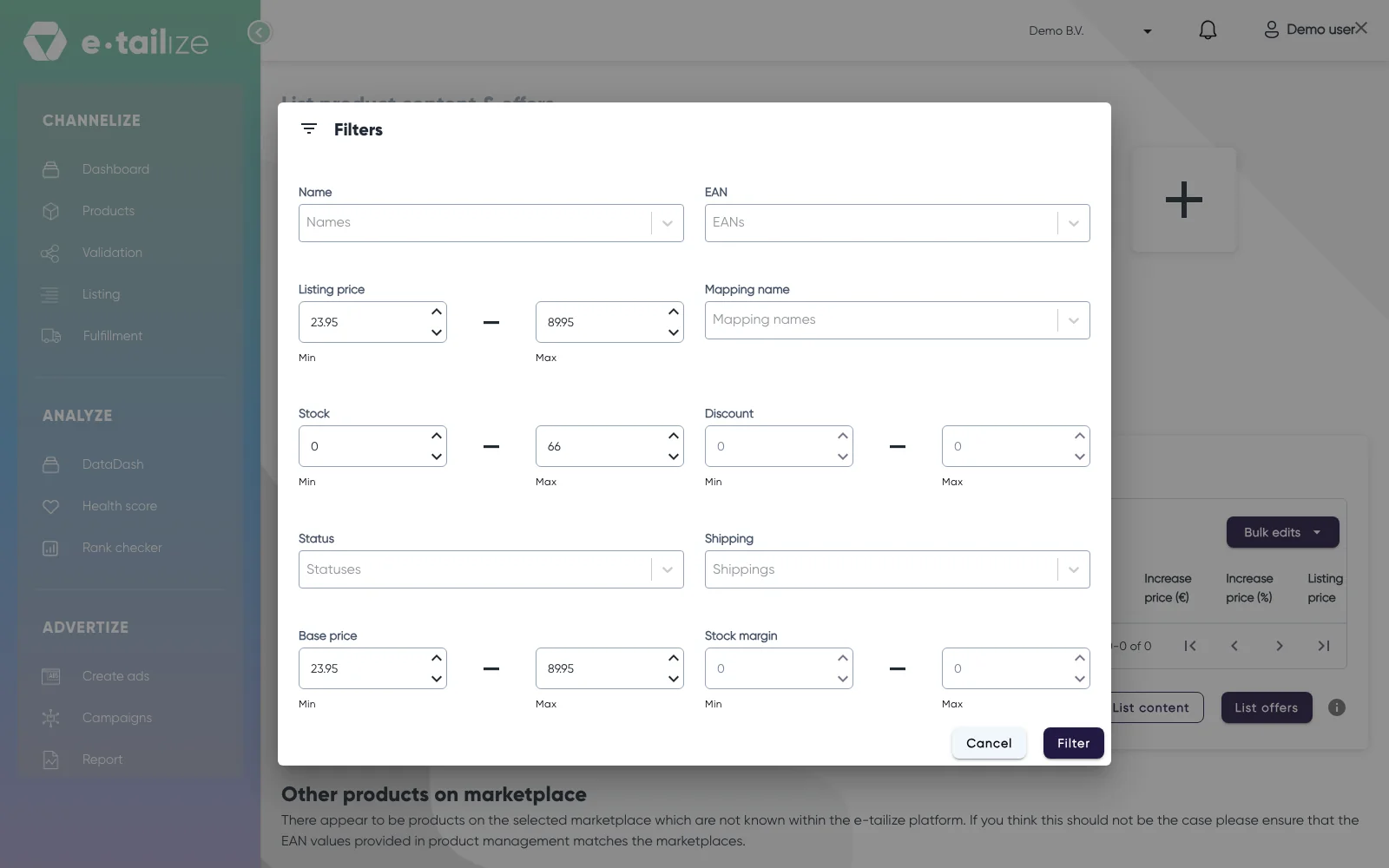
The "Filters" dialog with a minimum and a maximum for "Listing price", "Stock", "Discount", "Base price" and "Stock margin" Tick "Select items to perform actions" to select the rows on the page you are looking at, click the link "Select all N items" next to it to take every row in the filtered grid, or tick the checkbox in front of one product. The counter above the grid tells you how many items are selected.
Change one product straight in its row: "Discount" and "Stock margin" are input boxes, and the offer fields of that marketplace, on bol "Shipping time" and "Fulfillment method", are dropdowns.
Change many products at once with "Bulk edits". The menu holds "Price", the offer fields of that marketplace, "Stock margin", "Discount", "Increase price by percentage(%)" and "Increase price by amount".
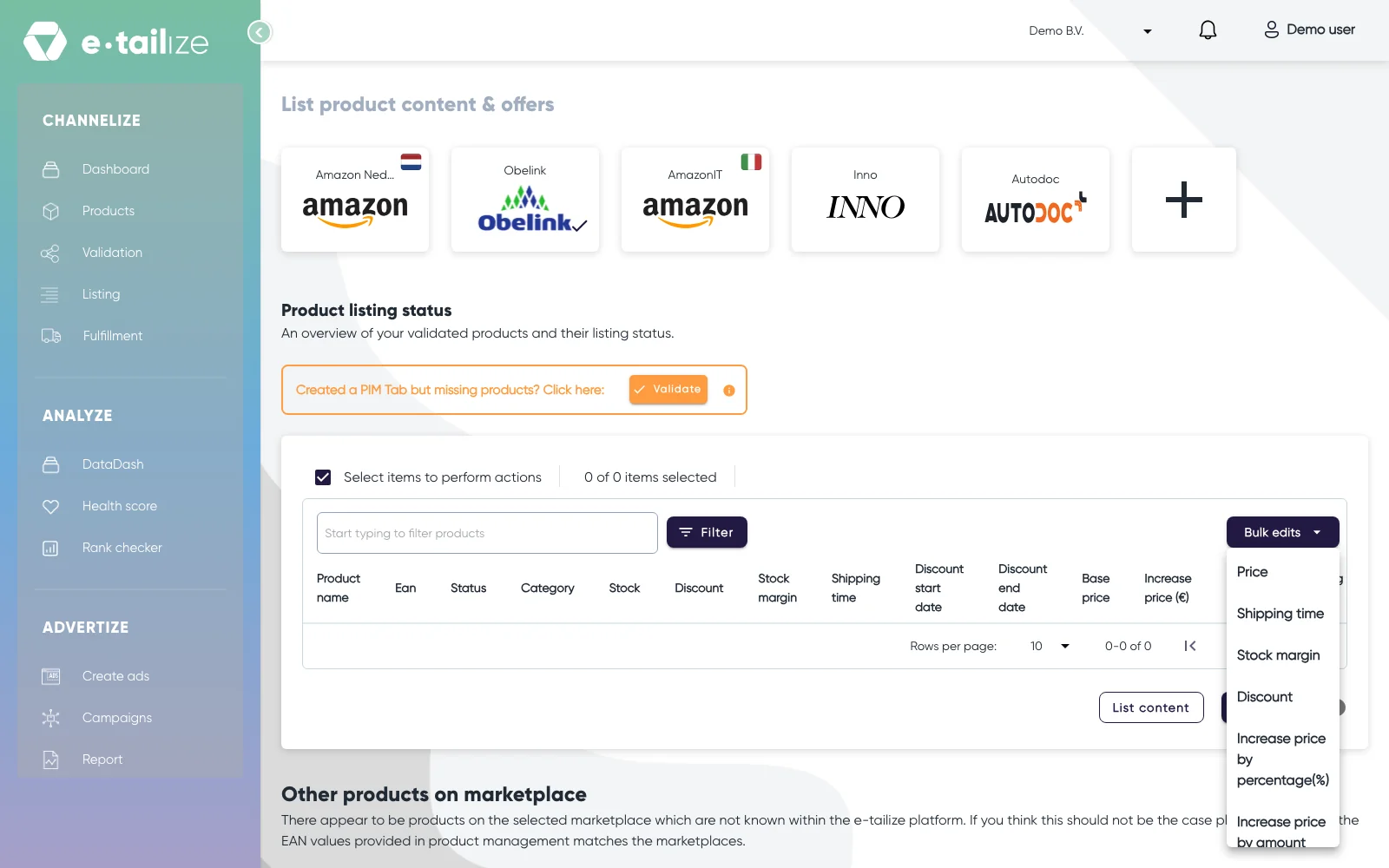
The "Bulk edits" menu open above the listing grid, with "Price", "Shipping time", "Stock margin" and "Discount" Fill in the one value the dialog asks for, "Adjust price", "Adjust discount", "Adjust stock margin", "Increase price by percentage" or "Increase price by amount", then click the "Adjust all" button that names your number of selected products. It confirms with "Listing configuration updated successfully".
Keep those products selected and click "List offers" to send the values to the marketplace.
What happens next
While the push runs, a dialog blocks the page and asks you not to close the tab while the marketplace is validating your products. "Click here to continue working" opens the dashboard in a new browser tab so you can keep working. This tab stays blocked until the run ends, so leave it open. You get "Listing process is completed" when it is done.
"Listing price" is the price that actually goes out. It is calculated from the base price, the discount, "Increase price by percentage(%)" and "Increase price by amount", so check that column before you list. The marketplace answers per product in "Offer response" above the grid, where the "Name" column names the field it refused and "Message" says why. The product's "Status" in the grid stays on the in progress status until you correct the value and list again.
Common problems
Clicking "Bulk edits" with nothing selected gives "Please select items to edit.". Clicking "List content" or "List offers" with nothing selected gives "Please select items to update".
"Shipping time" is switched off on a row whose fulfilment method is "Fulfilment By Bol", because bol then makes the delivery promise. Setting a row to "Fulfilment By Bol" also empties the shipping time that row had.
The "Adjust all" button stays disabled until the dialog holds a usable value. A discount and a percentage increase are accepted from 0 up to 100, an amount increase from 0 upwards.
FAQ
Why can I not edit "Shipping time" on a row?
Its fulfilment method is "Fulfilment By Bol", so bol ships the order and the delivery promise is bol's. Set that row to "Fulfillment By Retailer" to make the field editable again.
Why does my marketplace show different columns?
Every marketplace has its own offer model and the grid follows it. Kaufland has no shipping time and no fulfilment method, Amazon has "Fulfillment center", and Mirakl marketplaces add "Discount start date" and "Discount end date".
What do the two numbers in "Stock" mean?
The first number is the stock of that product in your e-tailize PIM. The number beside it is the stock the marketplace currently holds for it. Running "List offers" is what updates the marketplace side.
What is "Stock margin"?
Its tooltip reads "The margin you keep in your stock levels". See Adjust stock levels and set up stock forwarding.
Do I have to run "List content" as well?
Only when the product content changed. "List content" sends the title, description and attributes, "List offers" sends the offer. See Content versus offers, and why you list.
Related
Was this useful?