On this page
Before you start
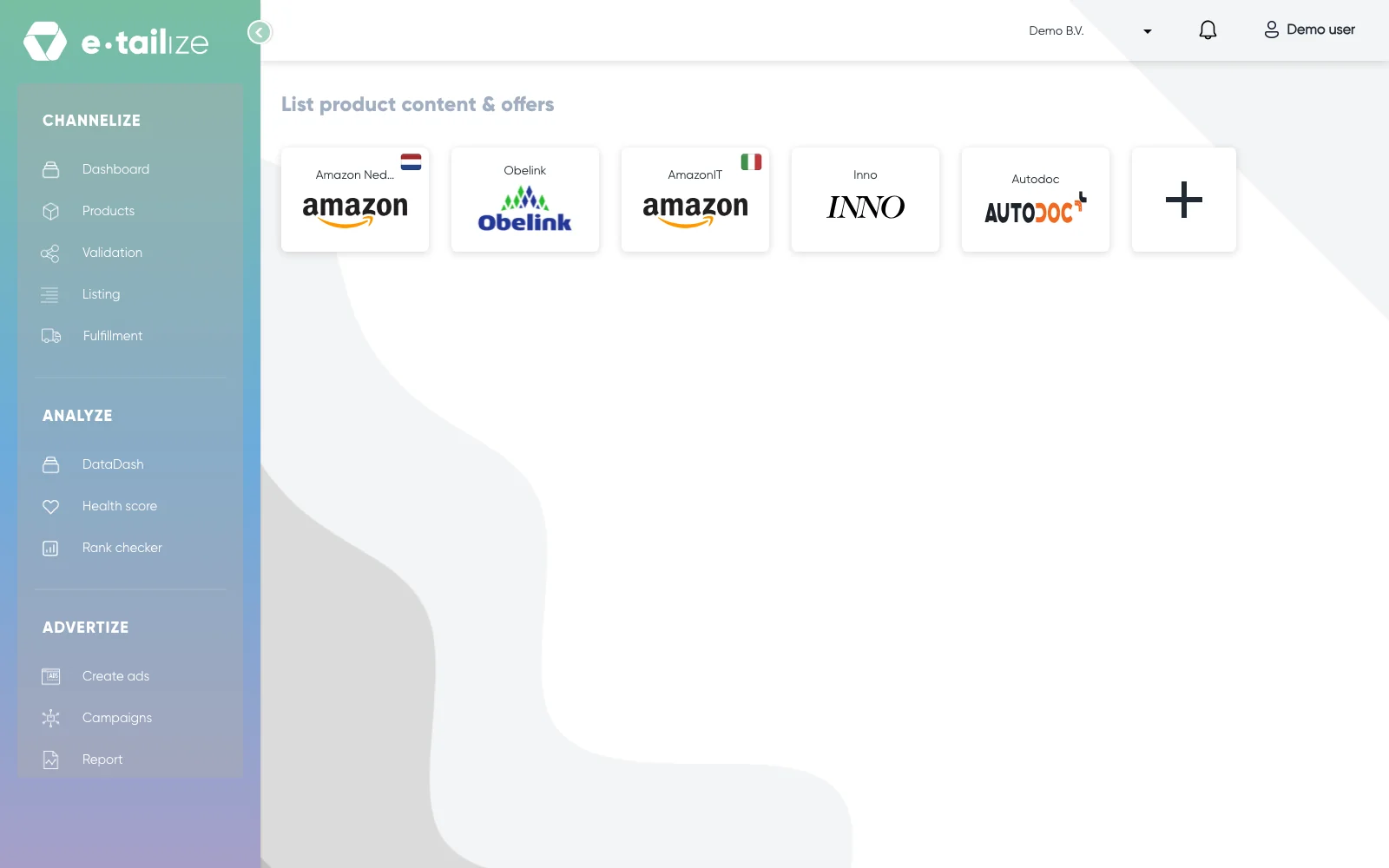
Content is the product page and offers are the commercial half of a listing, and a marketplace needs both. e-tailize sends each with its own button: click "Listing" in the left sidebar and the page opens as "List product content & offers", with one tile per marketplace connection.
| Content | Offers | |
|---|---|---|
| What it is | the product page: name, images, description, EAN or GTIN, category, size, colour, brand | the commercial half: listing price, shipping costs, SKU, shipping time, fulfilment method, condition, stock. SKU, condition and shipping costs are not set on this page |
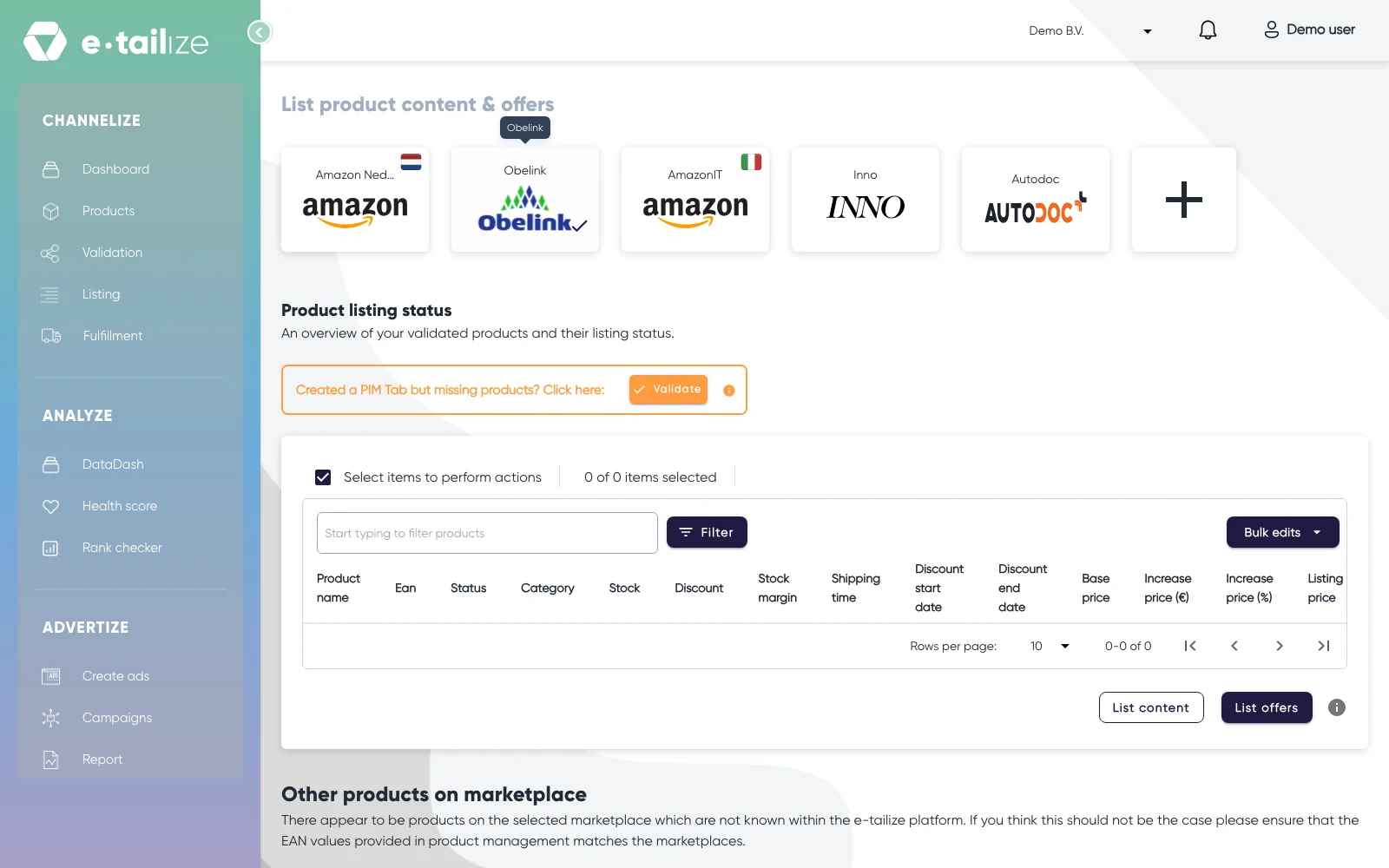
| Where you edit it | on the marketplace tab of the product | in the listing grid: "Discount", "Stock margin", "Shipping time" and "Fulfillment method" in the row, price through "Bulk edits" or the increase columns, stock from the product |
| Which button sends it | "List content" | "List offers" |
What happens next
A product only appears here once its marketplace tab is validated, so validate first and then push. Tabs that are not validated yet sit behind the "Validate" button above the grid.
Content goes first and offers follow. While a marketplace is still processing your content there is nothing for an offer to attach itself to, so a new product needs both pushes in that order. A product is buyable once both are through, and its "Status" column reads "Listed". A push that goes through on our side is not the same as live: the marketplace processes it on its own clock, so a product is for sale once the marketplace has finished processing it.
After a content push the page replaces the grid with "Listing validation", and the offer push sits there under the button "Submit offers". That button stays greyed out while the content push still has issues: fix those, push the content again, and the grid with "List offers" is back when you reopen the page.
That is also why this page exists. It is the gate between your own data and every marketplace you sell on: you decide what goes out, for which products and under which conditions, in one place instead of in each marketplace's own back office. Get a product live walks through the steps, and Read the listing status and errors explains what comes back.
FAQ
Do I have to use both buttons every time?
Only for a product that is not on the marketplace yet. After that you push what you changed: "List content" when you edited the product page, "List offers" when you changed price, stock or delivery.
Where do I set the price a marketplace sees?
In the listing grid. "Base price" comes from your product, "Discount" and the two increase columns adjust it, and "Listing price" is the result, the number that is actually sent. Check it before you push, because a wrong discount can drive it below what the marketplace accepts.
My content is live but the product is not for sale.
Then the content went through and the offer did not, or not yet. Select the product, run "List offers" and read the result above the grid. Straight after a content push that button is "Submit offers", in the panel "Listing validation".
Was this useful?