On this page
Before you start
Click "Listing" and pick a marketplace tile. The section "Product listing status" opens with the line "An overview of your validated products and their listing status." and holds the products that passed validation for that marketplace. Products that did not pass are not here yet.
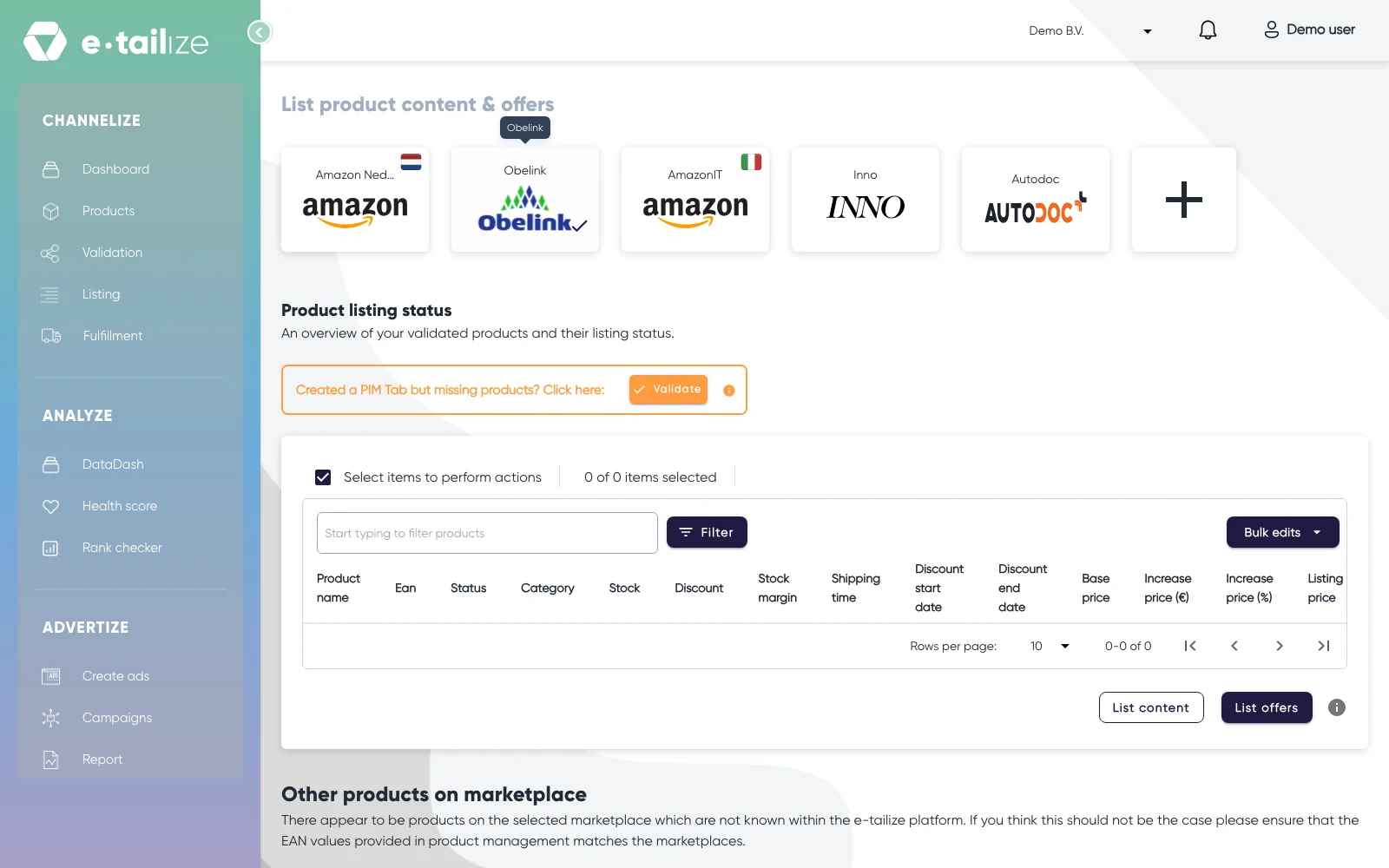
| Column | What it tells you |
|---|---|
| "Status" | "Listed" means the product is live on the marketplace |
| "Stock" | your own stock, with the marketplace's stock in brackets |
| "Base price" | the price that comes from your product |
| "Discount" | your discount percentage, editable in the row |
| "Increase price (€)" and "Increase price (%)" | your increases, set through "Bulk edits", not editable in the row |
| "Listing price" | the result of those, and the price that is actually sent |
| "Shipping time" and "Fulfillment method" | your delivery promise, on the marketplaces that ask for one |
The columns follow the marketplace, so not every marketplace shows the same set.
What happens next
While a push runs, a dialog holds the page and asks you not to close the tab while the marketplace is checking your products. Use "Click here to continue working" to open your dashboard in a new browser tab and keep working there. Leave this tab open: the dialog closes itself when the run is done, fails or takes too long. You get "Listing process is completed" when it is done. If we cannot read the marketplace's processing status you see "Something went wrong while reading the async operation status. Check the Marketplace for updates or try again.", and then the marketplace's own portal tells you where it stands.
When the marketplace refuses something, an issues section appears above the grid with a panel called "Offer response": the EAN, the message the marketplace sent, the field it concerns and the value it received. That product stays on "InProgress", the refused field stands in the "Name" column of "Offer response", and it stays that way until you correct the field and push again. Fix validation and listing errors covers the ones you meet most.
Under the grid a second section can appear, "Other products on marketplace". Those are products on your marketplace account that have no matching EAN in e-tailize. You can push price and stock offers for them from that section, and they only move into the main grid once a product with that EAN exists here and is validated.
Common problems
"Please select items to update". You clicked a list button with nothing ticked. Select your products first.
A row where "Shipping time" cannot be changed. Its fulfilment method leaves delivery to the marketplace, so the delivery promise is theirs and not yours.
A listing price that is far too low. The listing price is calculated from your base price, your discount, "Increase price (€)" and "Increase price (%)". A discount that is too high can push it below zero, and a price like that is refused.
FAQ
Why is my product not in the grid?
Only validated products stand here. Use the bar above the grid, "Created a PIM Tab but missing products? Click here:", and its "Validate" button. It takes you to the Validation page, and "Back to listing" brings you back.
What do the two numbers in the "Stock" column mean?
The first is the stock in e-tailize, the one in brackets is the stock the marketplace has right now. Pushing your offers is what updates the marketplace side.
Where do I see why a product was refused?
In "Offer response", above the grid. It names the EAN, the field and the message from the marketplace itself.
Was this useful?