On this page
Before you start
The page "Stock & order configuration" holds three sections of switches: "Stock forwarding", "Order forwarding" and "Track and trace forwarding". This article is about the first one.
Read the grid the same way everywhere. The channels on the left are the senders and the channels along the top are the receivers, so a cell means "forward from this row to that column". Stock is normally routed through your PIM or your webshop. Switch "Use source of truth" on and only the leading connection can send to your marketplaces, so no switch between two marketplaces is left in the grid.
Steps
- Click "Fulfillment" in the left sidebar and then "Stock & order configuration".
- Open the section "Stock forwarding" and find the connection that holds your stock in the rows.
- Switch on "Use source of truth" and pick that connection in the selector next to it, if one system genuinely owns your counts.
- Switch on the cells from that row to every channel you want to feed.
- Click "Save changes" in that section.
- Adjust your stock where your counts are really administered, and nowhere else: in your ERP or warehouse system when that feeds your webshop, in your webshop when it has none, in your warehouse system when it hangs straight on e-tailize, and in e-tailize itself when the PIM leads. In e-tailize that is "Products" and then "Quick edit" or the product form.
- Wait for the change to travel, or simply wait for an order of the product: that also triggers a new count.
What happens next
Which setup fits you follows from where your stock is administered. An ERP or warehouse system that feeds your webshop makes the webshop your source of truth, and you adjust in the ERP. A webshop without one is the source of truth itself, and it always sends absolute numbers. A warehouse system connected straight to e-tailize needs no source of truth: switch its row on towards all your channels. Without a webshop and without a warehouse system, the PIM leads and you adjust in e-tailize.
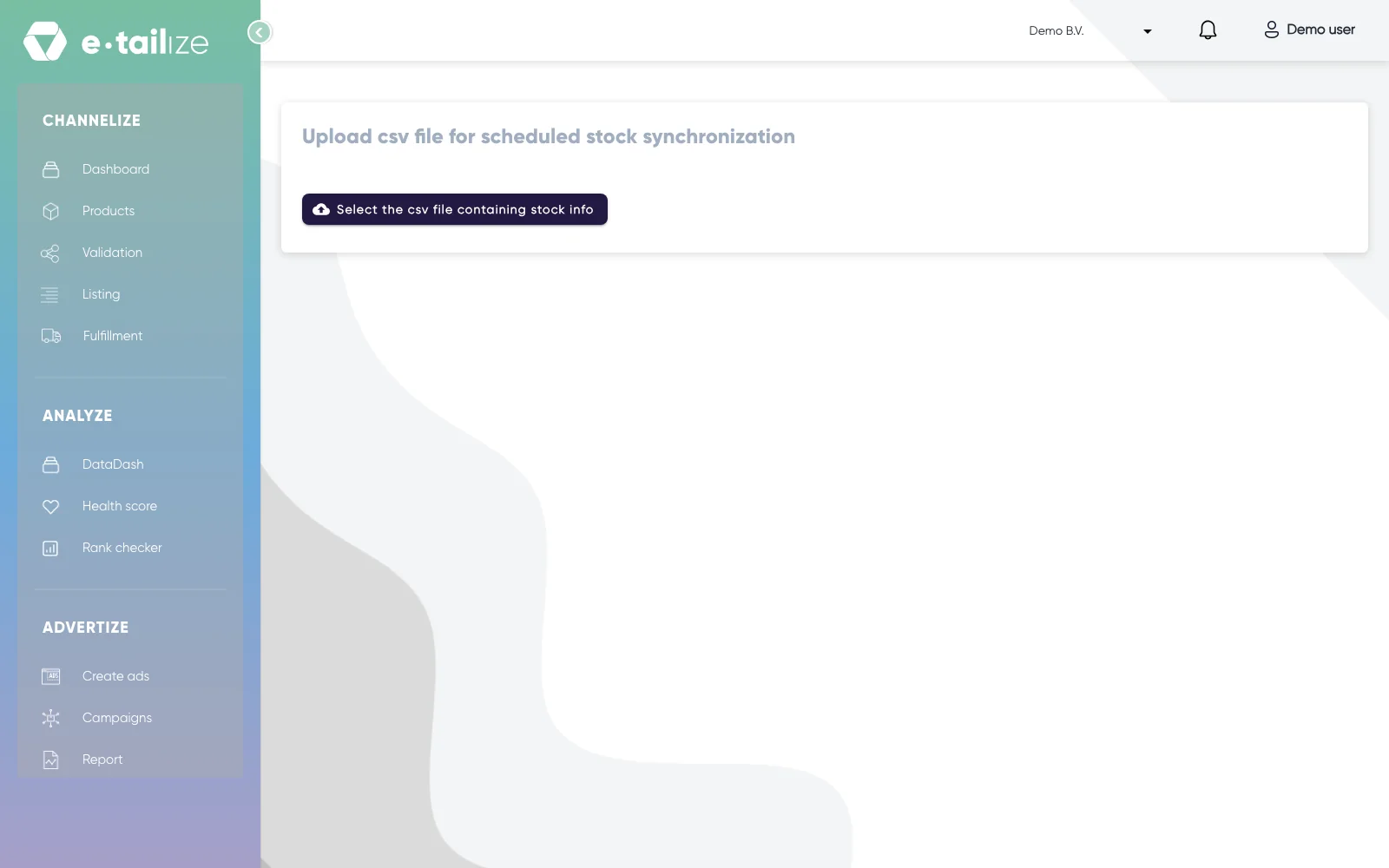
For a recurring update you can also let a file do the work. The page "Upload csv file for scheduled stock synchronization" takes a file with your EAN codes and stock counts and runs the synchronisation on a schedule.
Common problems
Not sure which setup is yours? Mail support@e-tailize.com with the subject "Setting up Stock & Order menu", and say which channels are connected, how you fulfil, which fulfilment software you use, where the truth of your stock sits, between which channels it has to be synchronised, and your phone number.
A connection is missing from the grid. The page says it itself: "Please contact us if you are missing a switch."
FAQ
Where do I adjust my stock after setting this up?
In your leading system. With a source of truth on, a change on a marketplace or another webshop is not applied. The switch from the PIM to the leading connection stays in the grid, so a change in the PIM can still travel to the leading system when that switch is on and saved.
Does an order also update the stock?
Yes. A sale changes the count at the source, and that change is forwarded like any other.
Related
Was this useful?