On this page
Before you start
The page "Upload csv file for scheduled stock synchronization", under "Settings" and "Csv stock sync", is for one situation: your stock lives in a file, and not in a system that e-tailize can read live. A connected webshop or warehouse system is the better source, and then you do not need this page at all. Understand the stock source of truth helps you decide which of the two you are.
Not every account has the page. It sits behind its own permission, so if "Csv stock sync" is missing under "Settings", ask us in the chat.
Prepare the file first. It is a CSV with a header row and two columns, "ean" and "stock": the EAN code of the product, and the count you want that product to have as a whole number.
Steps
Click "Settings" in the left sidebar and then "Csv stock sync". The page "Upload csv file for scheduled stock synchronization" opens.
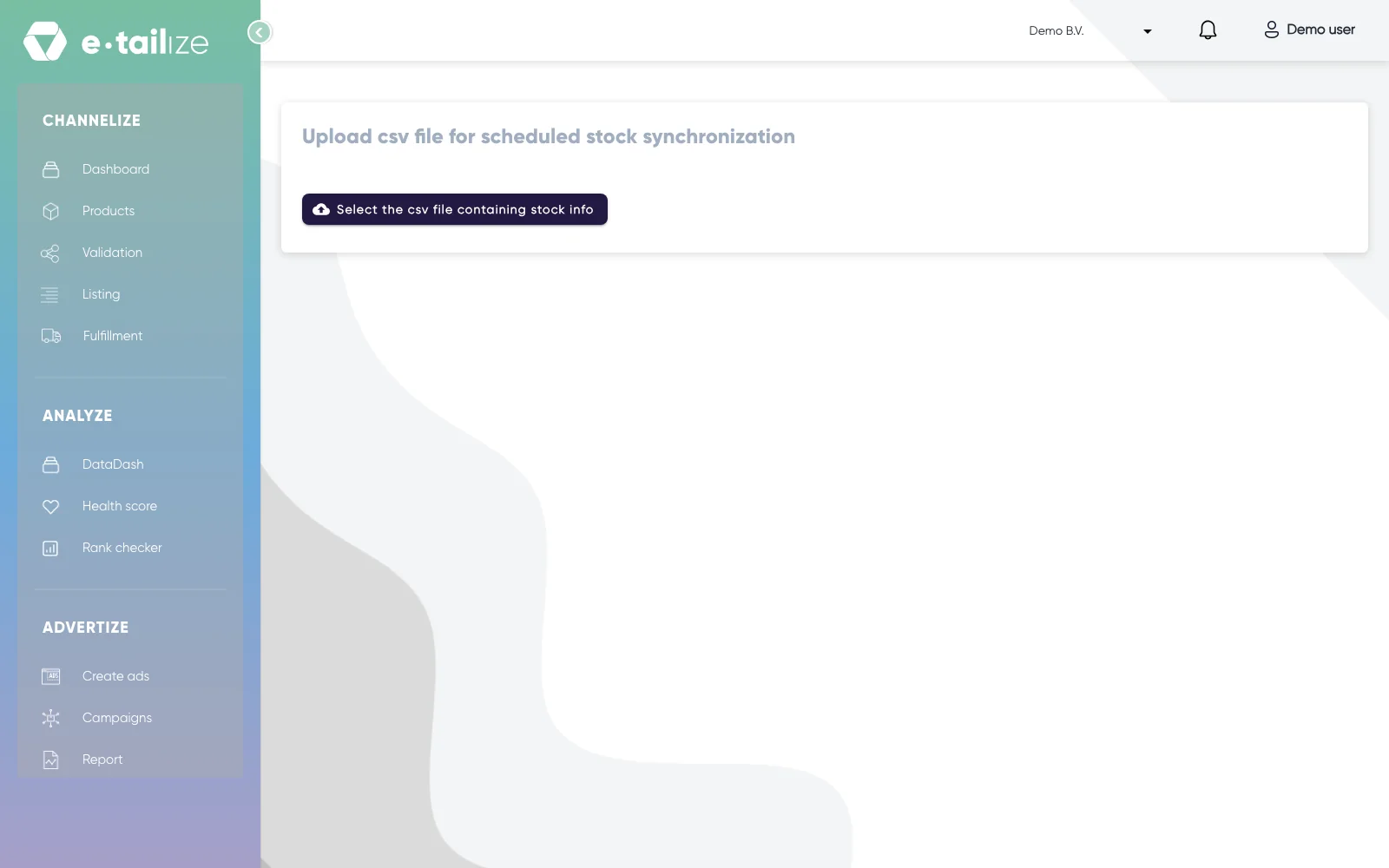
The page "Upload csv file for scheduled stock synchronization" with the button "Select the csv file containing stock info" Click "Select the csv file containing stock info" and pick your file. The picker takes a .csv file.
Click "Upload file". That button only appears once a file is selected.
Wait for the message "File successfully uploaded".
What happens next
Your file is kept as the stock file of this project and it replaces the one you uploaded before. There is only ever one, so the newest upload is the one that counts.
A background job reads that file on a daily schedule. It only picks the file up when it changed since the last successful run, so an unchanged file is left alone.
Per row the job looks up the product by its EAN code. A product that is found and whose count differs from the file gets the count from the file. That change then travels on to your marketplaces along the switches on "Stock & order configuration", the same way any other stock change does. See Synchronise stock to your marketplaces.
Common problems
You get "Failed to upload file". The upload did not go through, so the file we run on is not the one you just picked. Check that you picked a .csv file and upload it again.
A row changed nothing. Either the EAN code is not on any product in this project, or the count in the file is the count the product already had. A row we cannot place is skipped.
A product built from other products keeps its own count. Stock that is composed of child products follows those children, so a row for the parent is not applied. Put your counts on the children instead.
FAQ
Is this the same as the CSV product import?
No. "Import products from csv file" brings product content into your PIM, once. This page carries stock counts only, and it keeps running on its schedule after the upload. See Import products with a CSV file.
Which delimiter does the file need?
You do not have to pick one. The delimiter is detected automatically. What the file does need is a first row with the column names in it.
Can I match on SKU instead of EAN?
No. Rows are matched on the EAN code of the product.
How do I stop the scheduled sync?
Ask us in the chat to take the file out, and the scheduled sync stops with it. Until then, an upload that changes nothing keeps everything as it is.
Related
Was this useful?