On this page
Before you start
You need the product in your catalog, a connection with the marketplace, and a category on the "Main product" tab that you have saved. What is a PIM tab explains why.
Steps
Click "Products" and then "Edit" on the product you want to list.
Check the "Category" on the "Main product" tab and click "Save product" if you just set it.
Click the "Add new" tab at the end of the tab row. The dialog "PIM tabs" opens.
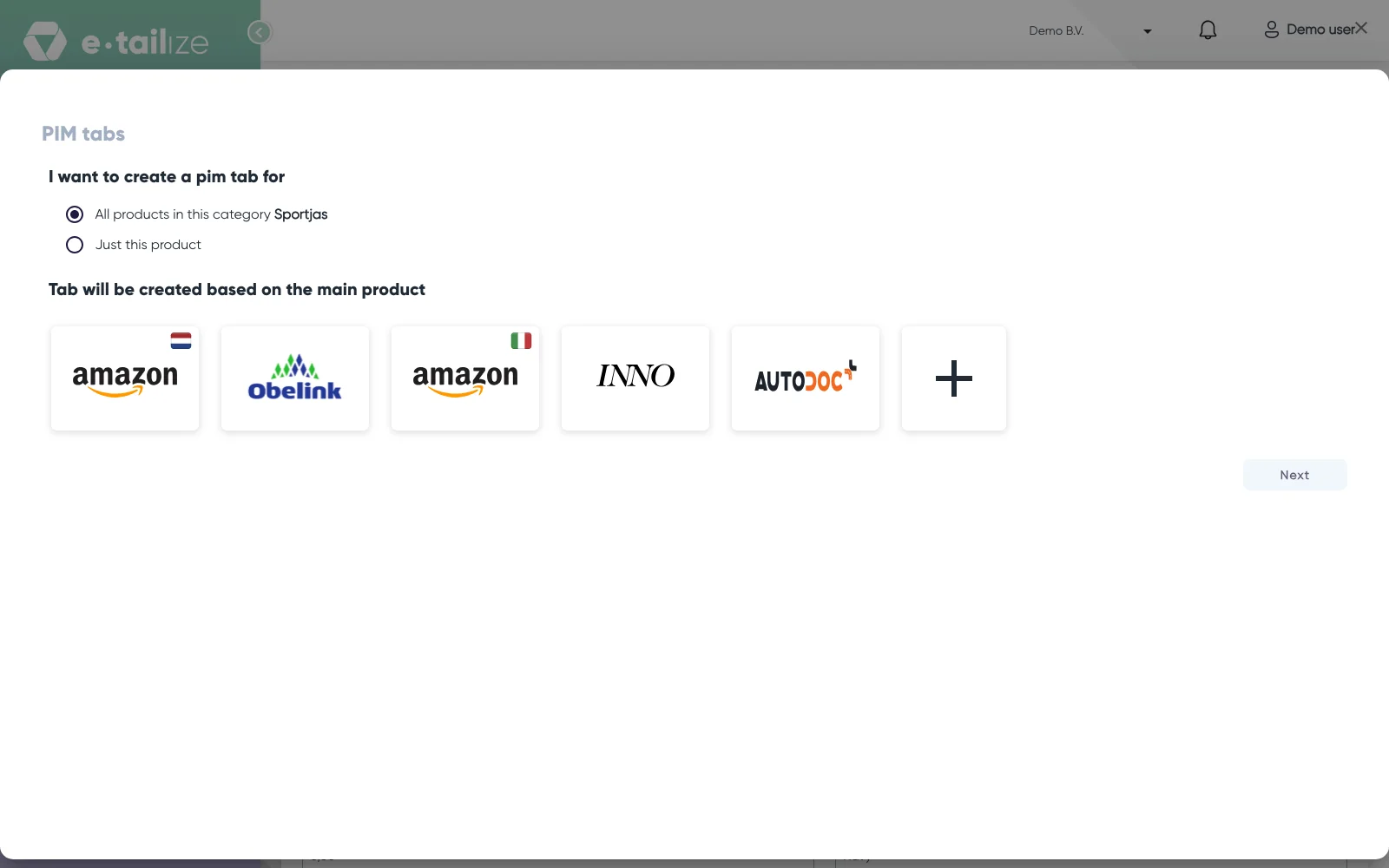
The "PIM tabs" dialog as it opens, with the scope preselected, a tile per connected marketplace and "Next" still off Choose the scope. "All products in this category" is preselected and creates the tab for every product in that category at once, so pick "Just this product" if you only want this one.
Click the icon of the marketplace you are listing on. "Next" stays off until you pick one.
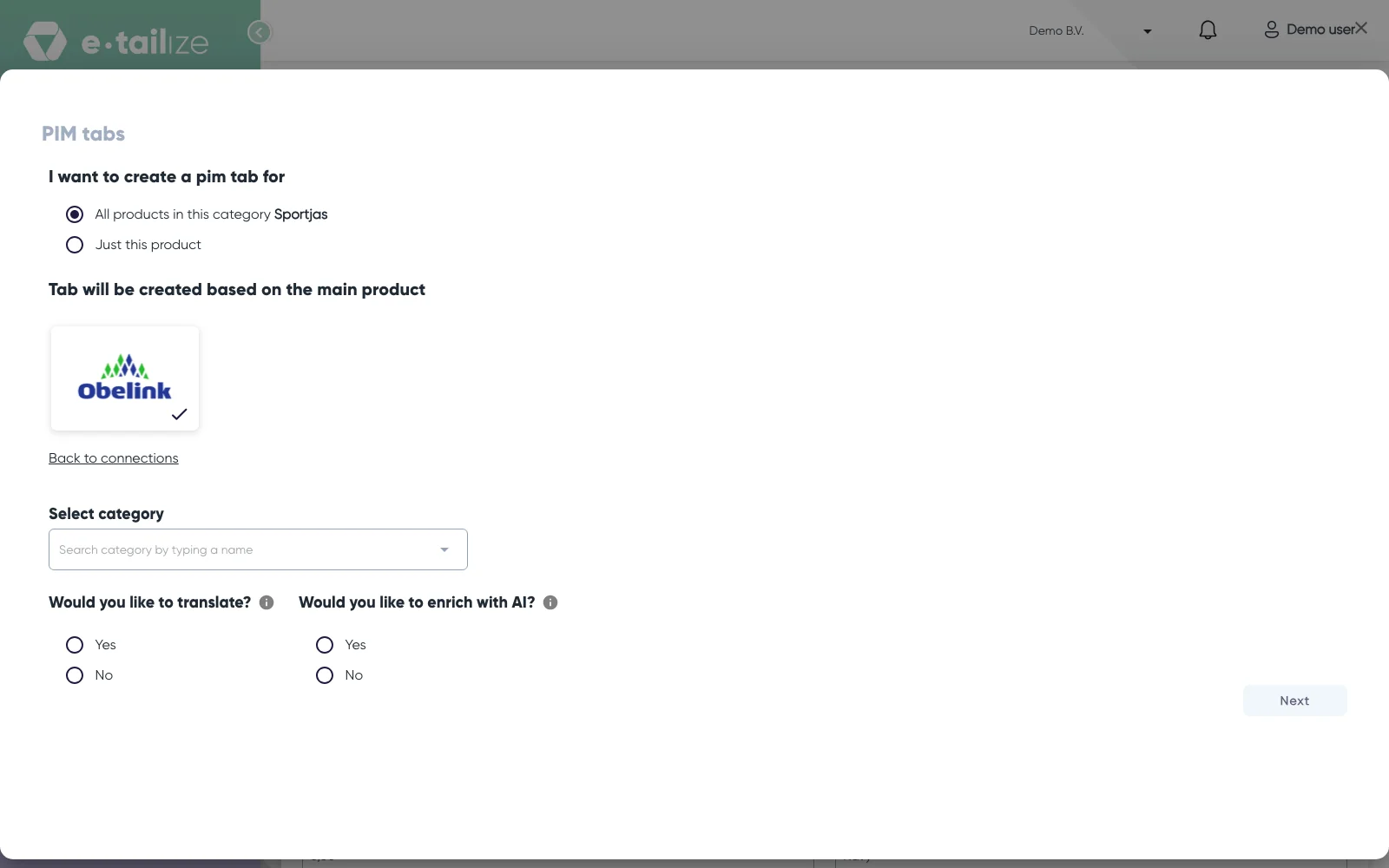
The same dialog after you pick a marketplace: only the chosen tile, the empty "Select category" box and the two questions about translation and AI Find the marketplace's own category in "Search category by typing a name" and click it.
Answer "Would you like to translate?", see Translate your products.
Answer "Would you like to enrich with AI?", see AI enrichment and translation. Both run from the monthly AI allowance that is included in your subscription, and a run counts against that allowance. Want more than the allowance, ask us in the chat.
Pick the language in "Select Language" under "Translation chosen based on marketplace language (optional):" if you answered Yes to translating.
Tick "I waive any error claims against e-tailize." if you answered Yes to either of them. The checkbox only appears once you pick a language or switch AI on, and "Next" stays off until then.
Click "Next".
Check the name in "Your tab will be named:" and change it if you want another one.
Under "Fields mapping" pick the source for every field you want filled from your own data. A field whose "Generate with AI (beta)" button is on is locked, because the AI writes it. Switch that button off to map the field yourself.
Click "Create tab".
What happens next
You get the message "Product version has been successfully created" and the new tab opens. With translation or AI switched on, a "Hang tight!" dialog then runs on the product page until the job is done: "Hang tight! We are translating your product information for your marketplace" with translation only, "Hang tight! We are creating your product information for your marketplace with AI enrichment" with AI only, and "Hang tight! We are translating and enriching your product information for your marketplace" with both.
A fresh tab is a warning colour while required fields are still empty, and each one says "[field] is required." until it holds a value. Fill them in, save with "Save & continue" or "Save & close", then validate and list, see Get a product live.
To remove a single tab, open it and click the cross on the tab, then "Confirm" in "Delete confirmation". To remove the tabs of a whole category, click "Validation", pick the connection and use the trash icon on that category's card.
Common problems
A message about the category, such as "Category not set for selected product." The main product has no category, or you picked one and did not save it. See Change the category of your products.
"The product version already exists for this marketplace." This product already has a tab for that marketplace and category. Open that tab and edit it, or delete it first.
"Category definition not available!" The category you picked has no field definition, so "Create tab" stays off. Go back and pick another category, or ask support about this one.
The category search finds nothing. That connection's category tree has not loaded yet. Open the connection in your settings, save it again and search once more.
FAQ
What is the difference between the two options in step 4?
"Just this product" creates one tab. "All products in this category" creates the tab for every product in that category in one run.
Do I have to use translation and AI enrichment?
No. Both may stay on No, and your own text is used as it is. A "Confirmation" question can appear when you said Yes to translate or AI but no field is actually set to use it, and "Confirm" creates the tab anyway.
Was this useful?