On this page
Before you start
Everything you sell starts as a product in your own catalog, the "Product information management" page you reach with "Products" in the left sidebar. Getting products in there is the first step, and there are four routes.
| Route | Use it when | Where you start |
|---|---|---|
| Webshop | your products live in WooCommerce or Shopify | the logo under "Products import" |
| CSV file | you keep your catalog in a spreadsheet | the "CSV" logo under "Products import" |
| bol | you already sell on bol and want that content | the "CSV" logo, then the bol upload |
| By hand | one product, or a product you are adding today | "New product" on the products page |
The CSV route and the bol route also run through the "Import products" button on your products page, which opens the CSV import page. Import products from Shopify or WooCommerce, Import products with a CSV file and Import products from bol walk through each of them, and Edit a product or add one by hand covers the fourth.
What happens next
An import fills your own product data, the "Main product" tab: the EAN, the SKU, the title, the description, the price, the stock and the images, as far as you map those fields and unless you pick "Skip images". Your product count at the top of the page, "Total products:", goes up.
Common problems
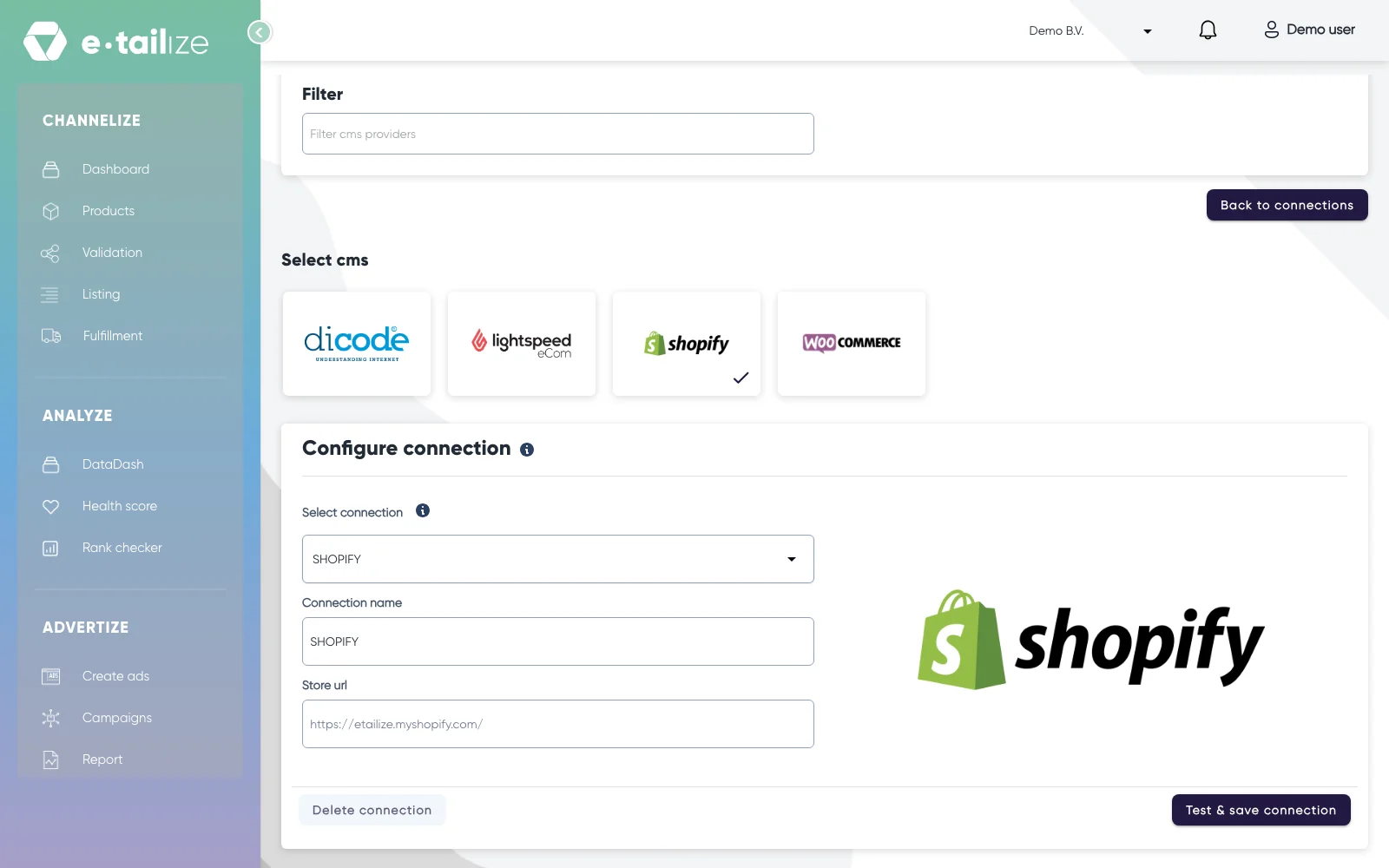
Lightspeed: bring the products in by CSV. For Lightspeed you can add the connection. Products from Lightspeed come into your catalog through the CSV route.
The Dicode tile is not in use. Its logo stands under "Products import" and the form opens, but the integration is not active. Use the webshop, CSV or bol route under "Before you start".
"Export products" does not send products back to your webshop. Export your products explains the route for getting your product data out of e-tailize.
FAQ
Does an import overwrite the products I already have?
An import updates them. The EAN is the key: a row whose EAN you already have updates that product, a row with a new EAN adds one. On a webshop import you choose the key yourself in the dialog "How do you want us to update already existing products?".
Can I combine two routes?
Yes. Watch the matching key. A CSV import always matches on the EAN, and on a webshop import you pick the key yourself in the dialog "How do you want us to update already existing products?": "By same ean", "By same barcode" or "By same name". Products that match on the key you pick are updated, products with no match are added as new, so pick a key that lands on the products you already have.
Where do my extra columns go?
Any column or source field you do not map to a standard field can be kept as a custom field. They stand on the product under "Imported custom fields".
Was this useful?