On this page
Before you start
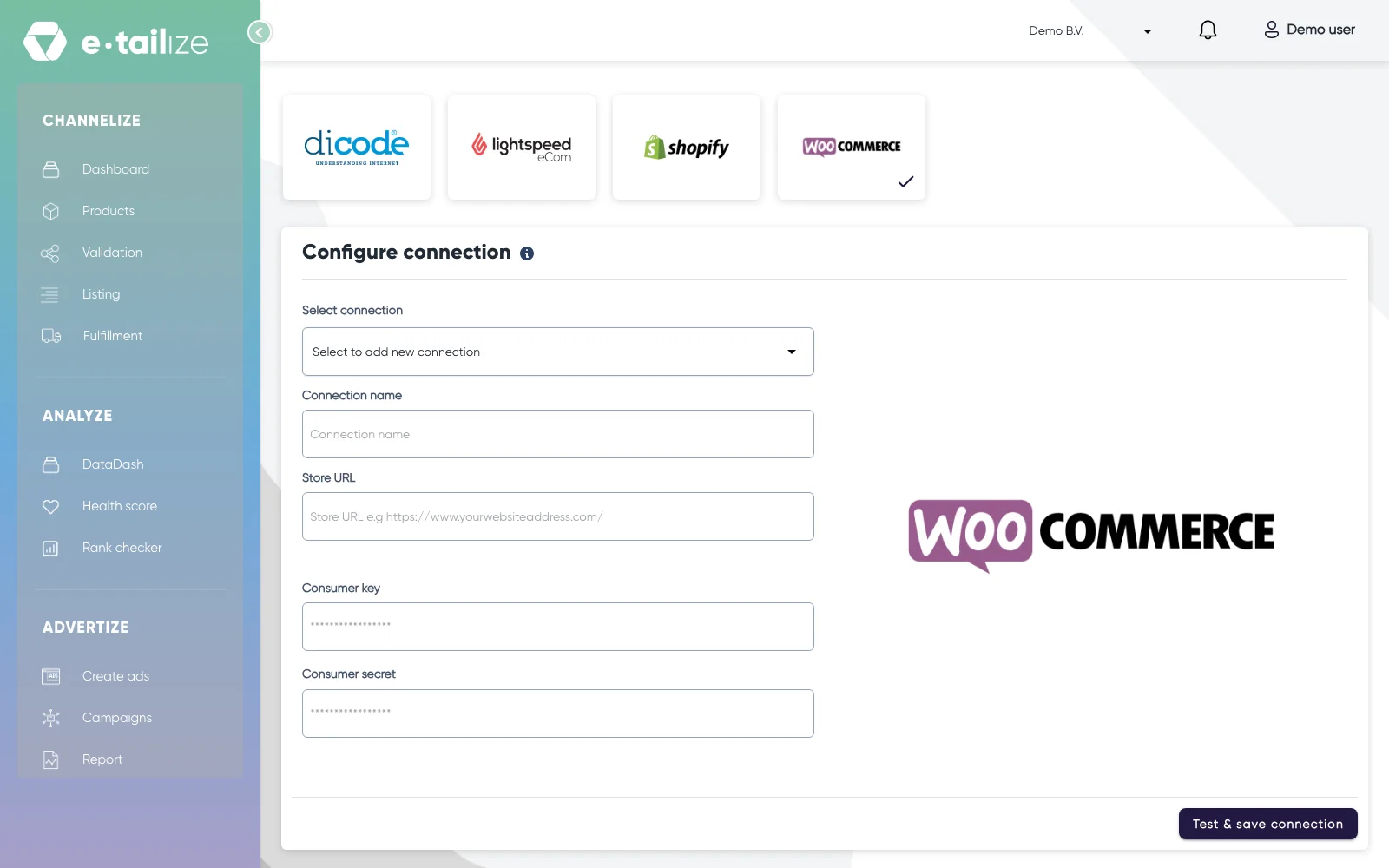
You need a saved connection to your webshop. Click your system's logo under "Products import" to open "Import products from your CMS", fill in the form and click "Test & save connection". The green message "Connection test passed and saved successfully!" means the connection works.
WooCommerce asks for a "Consumer key" and a "Consumer secret". You create both in WordPress under WooCommerce, "Settings", "Advanced", "REST API", "Add key". Fill in a description, pick the user, give read and write permission and click "Generate API key". Shopify asks for an API key and an Admin API access token.
Steps
- Select your connection in the "Select connection" dropdown.
- Click "Import products" in the action bar at the bottom right of the page. Scroll down if you do not see it.
- Open the list "N products loaded from store (excluding variants)" and tick the products you want. "Select all" takes every loaded product. In the WooCommerce import there is also "Take only new products", which limits the import to products that e-tailize does not have yet.
- Choose an option under "Image settings for import": "Skip images", "Import only for new products" or "Replace existing images".
- Check the "Column mapping". e-tailize maps the common fields for you and you change any of them in the "Select column" dropdown.
- If you import from Shopify, tick "Import all product variants as separate products" on the mapping page so every variant becomes its own product with its own barcode.
- Map "Base Price" yourself if you import from WooCommerce. It is the one field that is not mapped automatically, so products imported without it arrive without a price. Shopify does map it.
- Tick the source fields you want to keep under "Configure custom fields". Everything you tick lands on the product as a custom field.
- Click "Save products & mappings".
- Pick the matching key in the dialog "How do you want us to update already existing products?". "By same ean" matches on the EAN, "By same barcode" matches on the SKU first and falls back to the EAN, and "By same name" matches on the name first and falls back to the EAN.
- Click "Continue".
What happens next
The import runs and you land on your products page with a summary, for example "Processed rows: 0-1, Products added: 1, Products updated: 0". Products that matched your key are counted as updated, products without a match are added. With the default "By same ean" a product whose EAN is empty is skipped: it is not imported. For Shopify the barcode is read into the EAN, so a product with an empty barcode is skipped with this key.
Common problems
"Please select at least one product to import". No product is ticked. Open the loaded list and tick what you need, or use "Select all".
"Please select an image import mode". Pick one of the three image options first.
Prices did not come in from WooCommerce. "Base Price" was left unmapped. Map it and run the import again: your products are matched on their key, so nothing is duplicated.
FAQ
Which key do I pick for Shopify and for WooCommerce?
WooCommerce has an EAN field and e-tailize maps EAN to EAN. Shopify has no EAN field, so e-tailize fills the EAN from the Shopify barcode field. On both platforms "By same ean" matches on the code you know, while "By same barcode" matches on the SKU first.
Can I import from Lightspeed?
A Lightspeed connection can be created, and the products themselves come in through a CSV file.
Was this useful?