On this page
Before you start
"Exception state" is the last column of the "Order dashboard", the page under "Settings" in the left sidebar, in the group "Fulfillment details". The column stays empty as long as an order travels normally. A state in it names what stopped the order on its way to your webshop or your warehouse.
The dashboard is a reading page. You change nothing here, you find out which order needs attention and where the cause sits.
Steps
Click "Settings" in the left sidebar, then "Fulfillment details", then "Order dashboard".
Open the filter tab "Exception state" and tick the states you want to see.
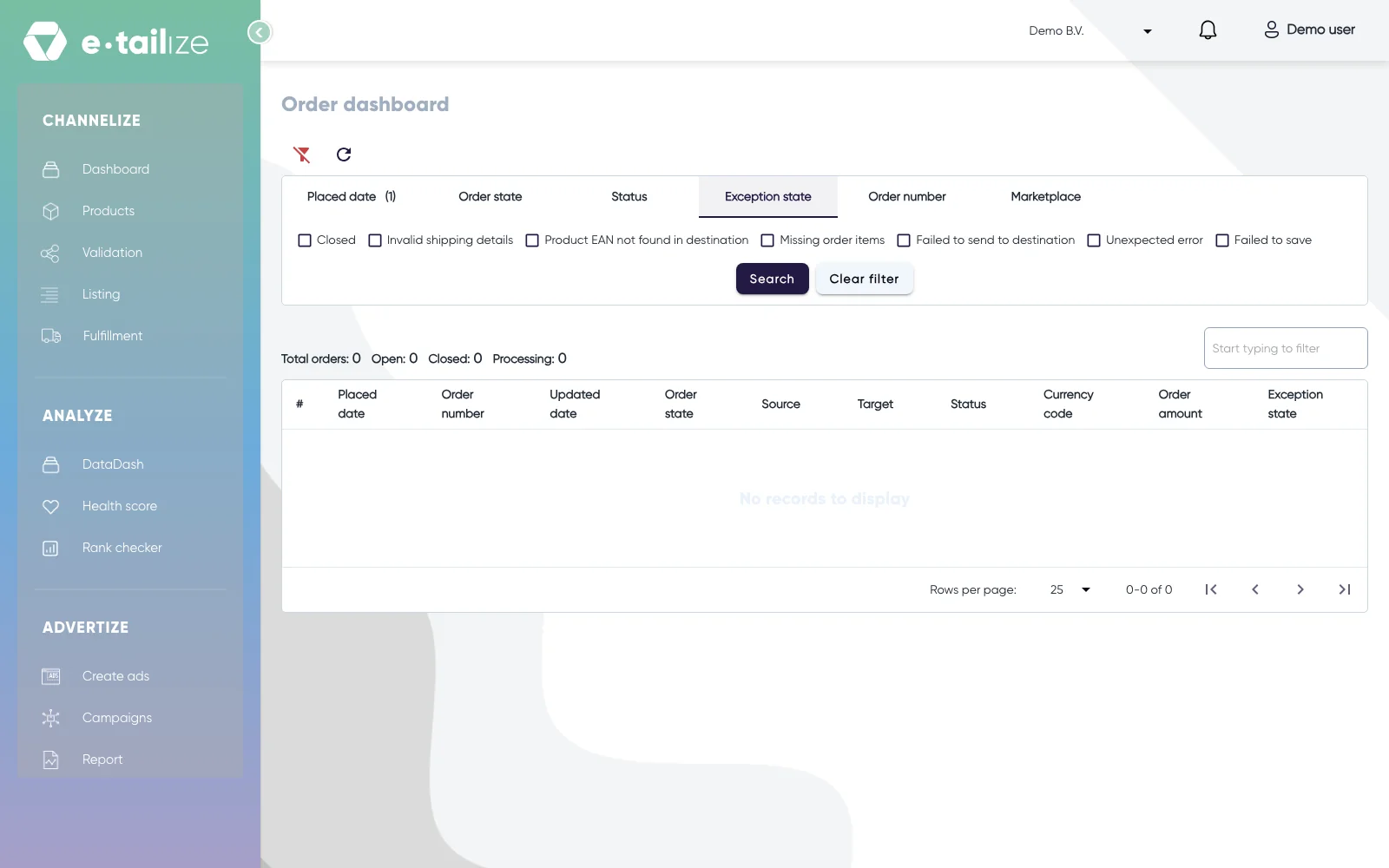
The filter tab "Exception state" open, with a checkbox for each of the seven states and the buttons "Search" and "Clear filter" Click "Search" to apply the filter. "Clear filter" empties every tab again.
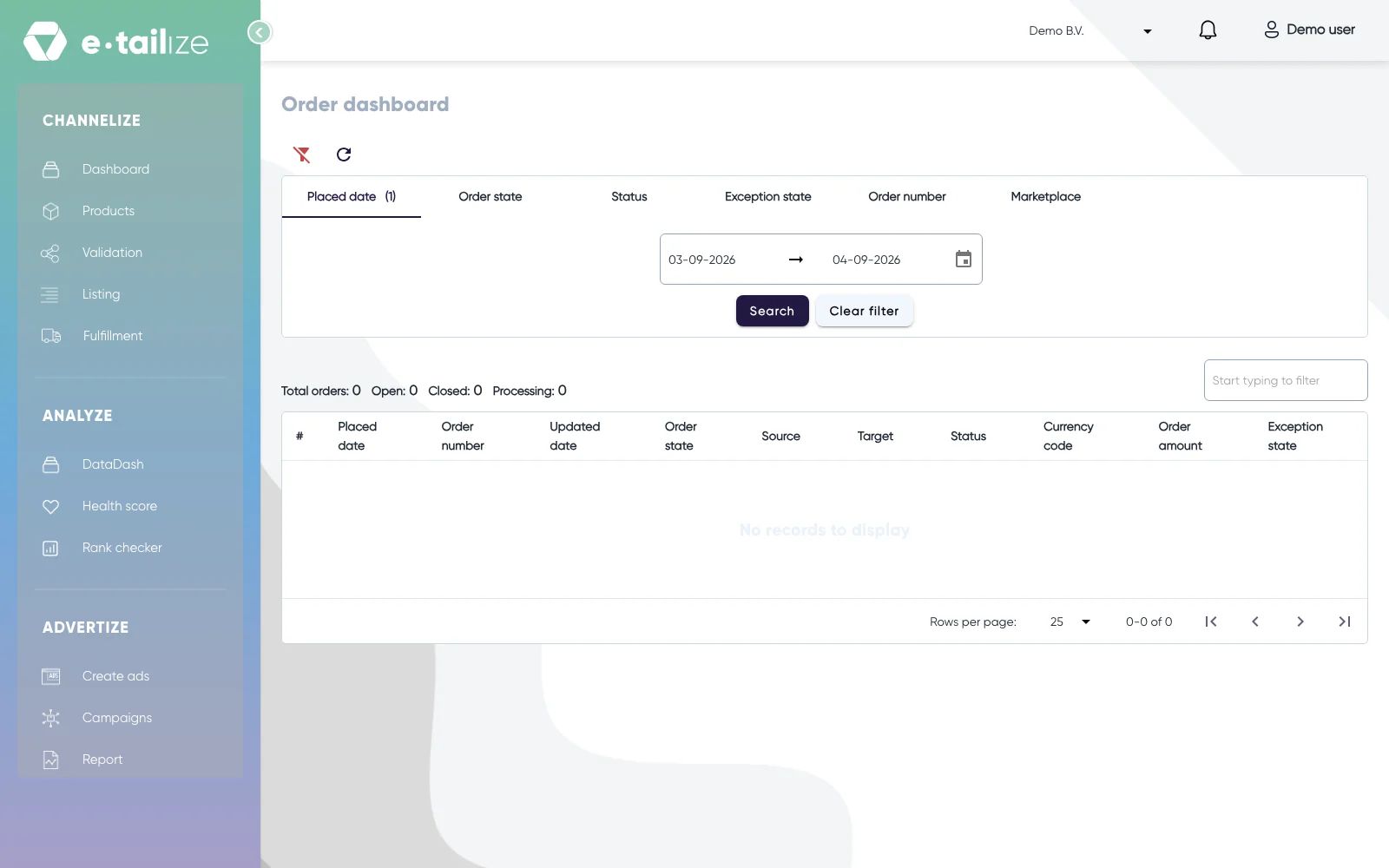
The "Order dashboard" with the tabs "Placed date", "Order state", "Status", "Exception state", "Order number" and "Marketplace", "Search" and "Clear filter", and the column "Exception state" at the right of the list Read the state on the row, at the right, next to "Order amount".
Click the info icon behind the state. A small panel opens with "Exception message" and the explanation the app keeps for that state. "Close" closes it again.
What happens next
The filter offers seven states, and these are the messages behind them.
| Exception state | What the app tells you |
|---|---|
| "Closed" | "Order has been closed manually in the marketplace before e-tailize could act on it. No further action needed." |
| "Invalid shipping details" | What e-tailize found wrong in the shipping details the marketplace delivered, naming the field that is missing. |
| "Product EAN not found in destination" | "Please ensure ean/sku for all the line items in the marketplace matches the barcode in CMS/WMS." |
| "Missing order items" | The same: the EAN or SKU of a line has no match in your webshop or warehouse. |
| "Failed to send to destination" | "Please contact e-tailize support. There seems to be something going wrong with forwarding orders." |
| "Unexpected error" | The same message: this one is for us to look at. |
| "Failed to save" | The same message: this one is for us to look at. |
So three of the seven point at something you can put right yourself, "Closed" asks nothing at all, and the last three carry the message to contact our support team.
Common problems
A product code that does not match. "Product EAN not found in destination" and "Missing order items" both mean the destination looked the line up and found nothing. Give the product the same EAN or SKU on the marketplace and in your webshop or warehouse software: fix the cause and the flow continues. See Check why your orders are not coming through.
The column is empty and the order still did not arrive. Give a new order a few minutes: forwarding runs in the background and normally lands within a few minutes, and "Status" can still say "Saved in e-tailize". Then read "Target" and "Status" on the row. "Target" empty means the order was not forwarded, and only then do you switch the route on under "Fulfillment" and "Stock & order configuration", with that section's own "Save changes". See Forward orders and keep track and trace flowing.
An address the marketplace delivered incomplete. "Invalid shipping details" is the only state that shows a message of its own, so read the panel first. It names the field that is missing.
FAQ
Is "Closed" a problem?
No. The message says the order was closed by hand in the marketplace before e-tailize could act on it, and that no further action is needed.
Where do I find the full text?
Behind the info icon next to the state, in the panel headed "Exception message". Every state except "Invalid shipping details" has a fixed text there.
My order is older than the calendar allows.
The calendar of "Placed date" goes back one month at most, and the tab "Order number" narrows within that range, it does not widen it. For an older order, look the order number up under "Fulfillment" and then "Orders", or ask our support team with the order number in hand. See Check why your orders are not coming through.
The order came through without a carrier or track and trace.
The carrier codes of a marketplace are translated to the names your webshop or warehouse uses. That mapping is ours to set up, so ask us in the chat to add the carrier.
What does support need from me?
The order number, the EAN of the line, the marketplace the order came from, and the webshop or warehouse software it should have reached.
Related
Was this useful?