On this page
Before you start
"Customer conversations" collects the messages that buyers send you through your marketplace connections, so a question about an order lands next to the order it belongs to.
"Customer conversations" has no entry in the sidebar and is switched on per account, so you reach it through the link below or through a link we send you. Not every marketplace connection delivers its messages here. Ask us in the chat if you expect a buyer question that is not in the list.
Steps
Open the "Customer conversations" page. Two tabs sit above the list, "Open" and "Closed".
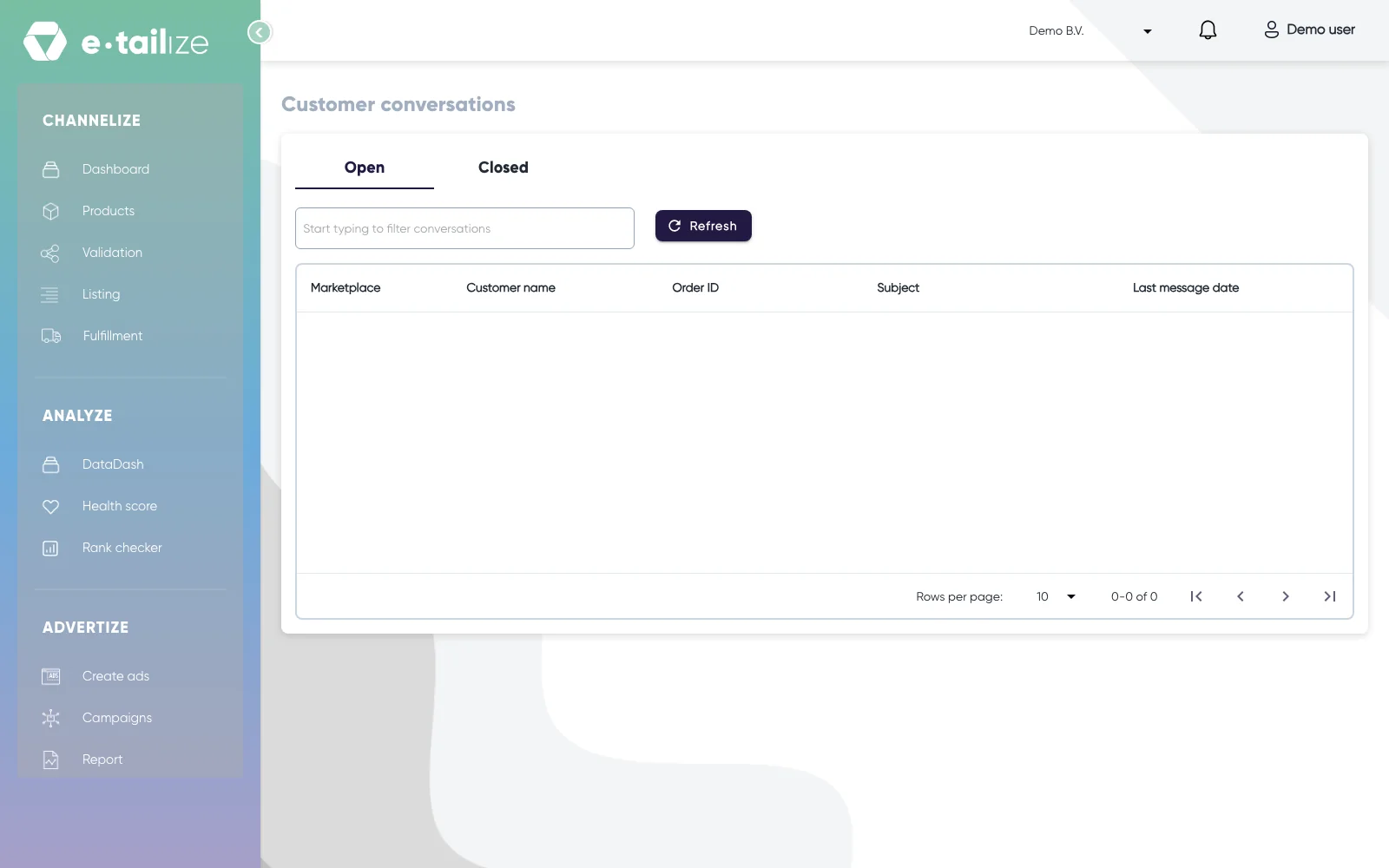
The "Customer conversations" page with the tabs "Open" and "Closed", the filter field and the "Refresh" button above an empty list Read the list. One row is one conversation, with the columns "Marketplace", "Customer name", "Order ID", "Subject" and "Last message date".
Type in "Start typing to filter conversations" to narrow the list down. The filter looks at the customer name, the order id and the subject.
Click "Refresh" to fetch what came in since you opened the page.
Click the row you want to answer. The conversation opens on its own page, with the subject of the thread as the heading.
Read the thread. The messages are grouped per day, with the date above each group.
Check the panel next to the thread for the order behind the question: "Order number", "Customer", "Order status", "Order creation date", "Shipping company", "Shipping carrier code", "Shipping price", "Shipping tracking" and "Shipping tracking url".
Open "Select recipient" and pick who the answer goes to. You can pick more than one name.
Write your answer in "Type or select template".
Press Enter, or click the send icon in the field, to send it.
What happens next
e-tailize sends your answer back over the connection the conversation came in on, and shows "Message sent successfully.". Your message is added to the thread, and the reply field and the recipients you picked are emptied for the next one.
You do not have to keep clicking "Refresh" while you work. When a new message comes in on a conversation you have open, the page shows "You have new messages" and loads it in by itself.
Because every conversation carries its "Order ID", you can look the order itself up on the orders screen and check what was shipped. See Read the fulfilment screen.
Common problems
Sending without a name selected gives "Please select a recipient", and sending with the field empty gives "Please enter a message". Pick the recipient first, then write.
Enter sends the message. For a line break in a longer answer, use Shift + Enter, as the field says under the box: "Note: To create a new line, please press Shift + Enter simultaneously."
A conversation link only works when it carries the two parameters the app puts in the address when you click a row, "apiConnectionId" and "threadId". Open the bare "/customer-conversations-details" address and the page keeps showing its loading placeholder, so start on the list or use the full link.
A field in the order panel that reads "Not available" is one the marketplace did not pass on with the order, so there is nothing to fill in there.
FAQ
The list says "0-0 of 0". What does that mean?
It means the list has nothing to show for this account: either no buyer wrote to you, or that connection's messages are not shown here. Ask us in the chat when a buyer is waiting for an answer.
Can one answer go to more than one person?
Yes. "Select recipient" takes several names at once, and the message is sent to all of them in the same thread.
Can I add a file to my answer?
No. The reply field takes text, so put what the buyer needs to know in the message itself, for example a track and trace code you copy from the order panel.
Related
Was this useful?