On this page
Before you start
Kaufland Global Marketplace is the marketplace of the Kaufland group, one platform across several countries and one of the largest in Europe. Two things come from Kaufland before we can do anything: a seller account, and the key pair that belongs to it.
We connect the Kaufland storefronts for Austria, Czech Republic, France, Germany, Italy, Poland and Slovakia.
Steps
Sign up yourself, on the seller registration page of Kaufland Global Marketplace. Rather not? Expansion does it for you.
Let us know once Kaufland admits you. You then make the connection yourself with the steps below, or ask us and we link your account for you. Kaufland decides: admission depends on your product offering, your current sales and your customer satisfaction, and is never guaranteed.
Create the keys in the Kaufland seller portal once your account is live: a client key and a secret key. Copy both in full.
Open "Settings" in the left sidebar and click "Connections". On the "API connections" page, click "New connection".
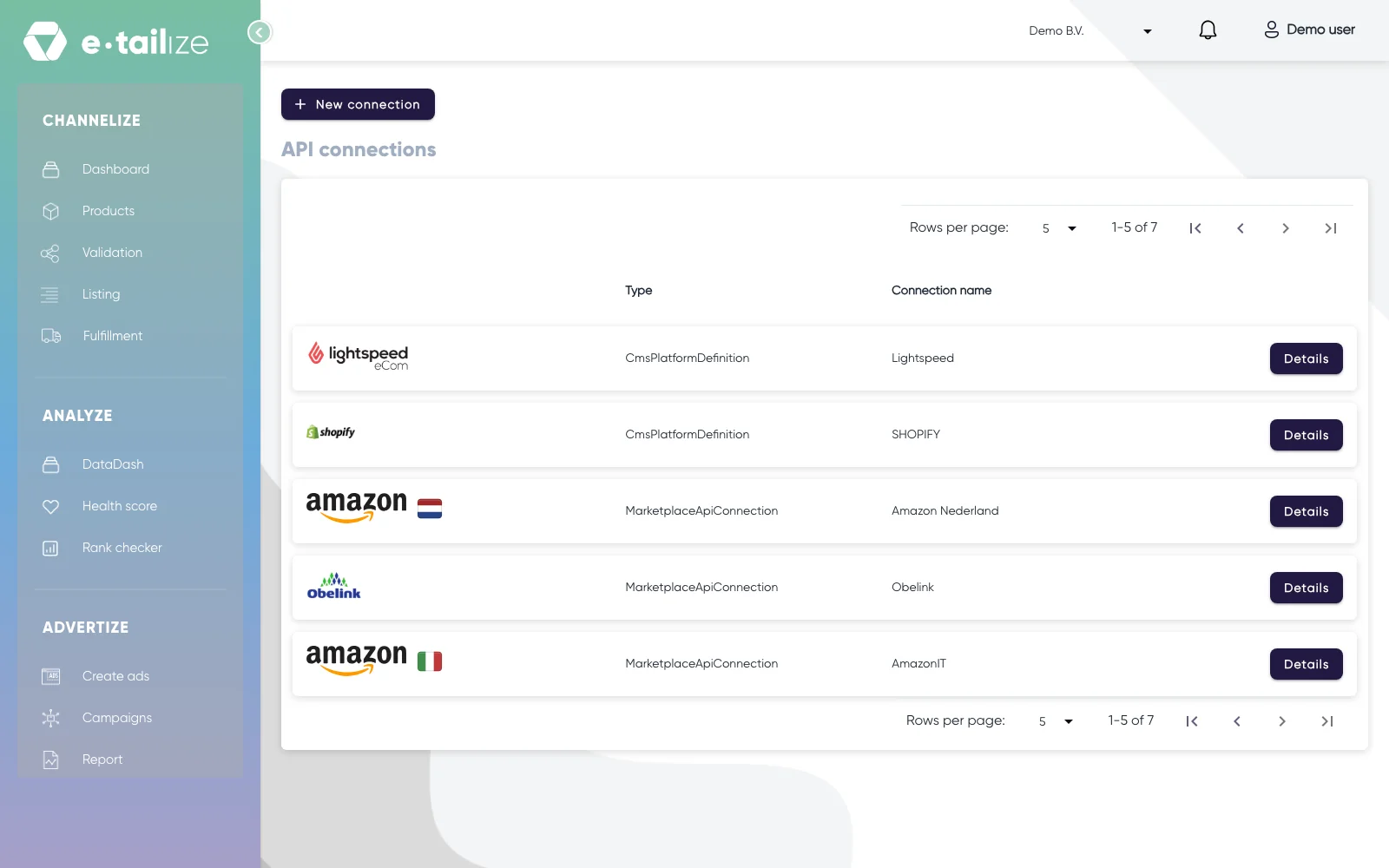
The "API connections" page, with "New connection" above the connections you already have Pick "Marketplace" in the chooser, next to "Shipping", "WMS" and "CMS". "Connect marketplace provider" opens with a "Filter" box and a logo per marketplace. Click the Kaufland logo.
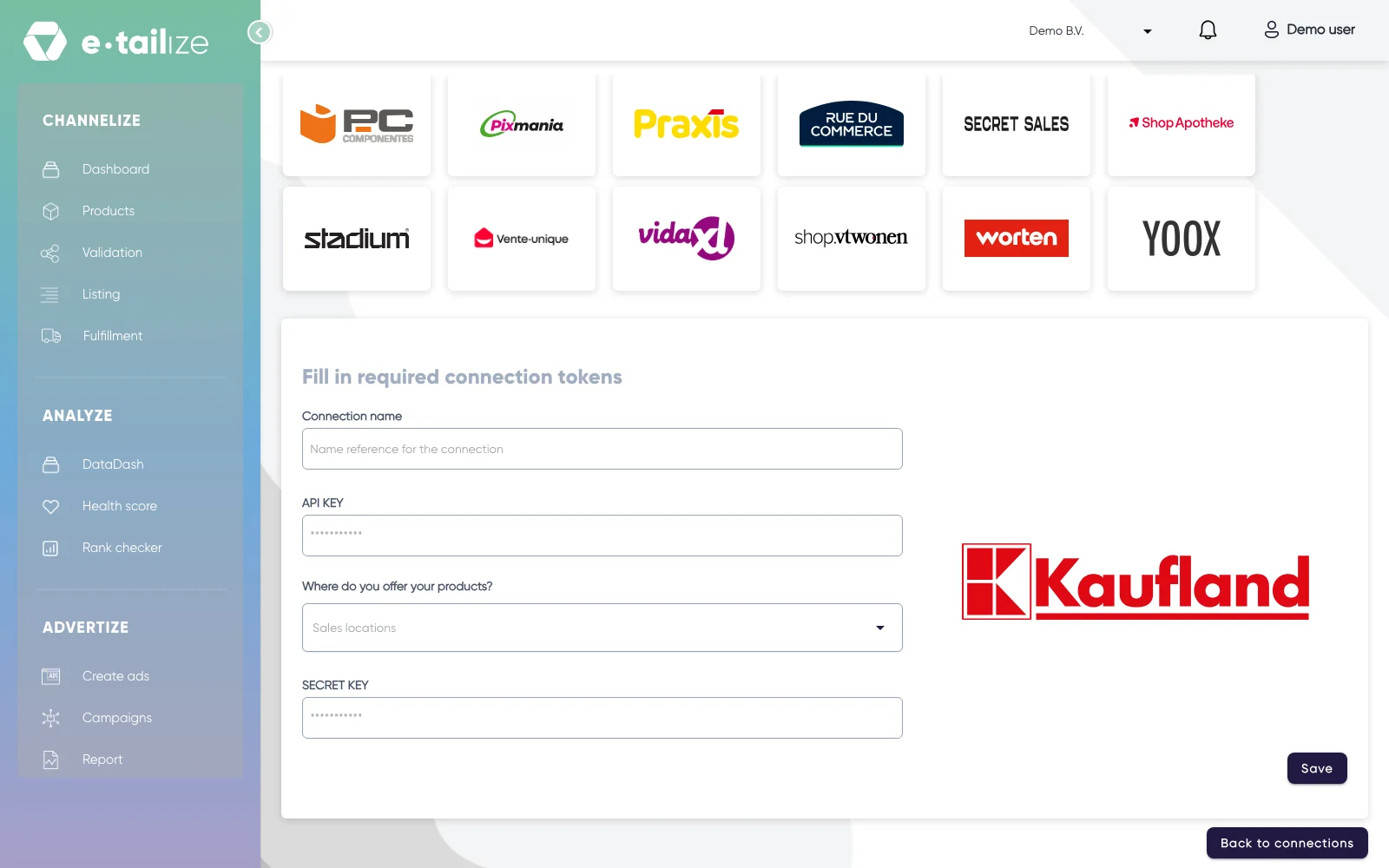
The form "Fill in required connection tokens" under the logo grid: "Connection name", "API KEY", "Where do you offer your products?" and "SECRET KEY" "Fill in required connection tokens" opens. "Connection name" is your own reference, "API KEY" takes the client key, "Where do you offer your products?" the storefront you sell in and "SECRET KEY" the secret key. Click "Save".
Click "Validation" in the left sidebar, pick the Kaufland connection and click "Add missing PIM tabs" on a category card. The "PIM tabs" wizard opens on the first product without a Kaufland tab, for all the products in that category at once, because the option for a single product is switched off.
Walk the two steps of the wizard, first the purpose with the category and the translation, then the field mapping, and finish it. You stay on the product page with the new Kaufland tab open, so click "Validation" again to get back to the category card. The category you pick there can no longer be changed once a PIM tab exists.
Fill the mandatory Kaufland fields on those tabs, click "Validate products" and pick "Fill mandatory fields & validate" or "Validate only" in the menu that opens. Get a product live walks through that screen step by step.
Click "Listing", pick the Kaufland tile, select your validated products and click "List content". Click "List offers" once the content is through.
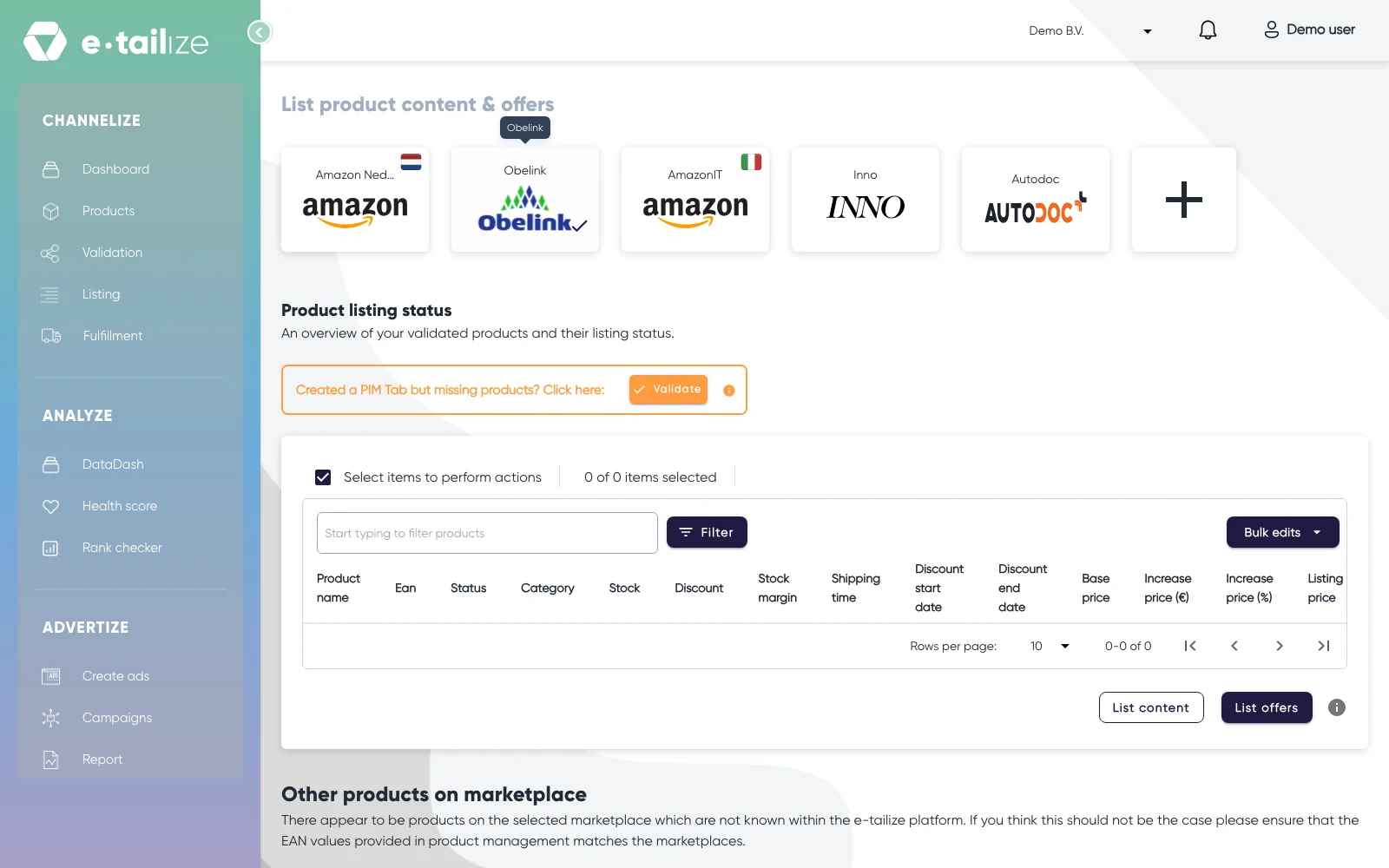
The product table under "Product listing status", with the "List content" and "List offers" buttons
What happens next
Kaufland checks your product data after it arrives, not while you send it. A run that reports nothing back is an acceptance, not an approval: the verdict per product follows later, and a refused product names the field that caused it.
Orders take the same road as your other channels: once a listing is live, Kaufland orders come into e-tailize under "Fulfillment" and then "Orders", with the same "Open", "Processing" and "Closed" filters.
Common problems
The connection does not come through
The two keys are easy to swap, so check that "API KEY" holds the client key and "SECRET KEY" the secret key. Check that both were copied whole, that neither has been regenerated in the seller portal, and that the storefront matches your account.
"does not comply with the expected SI unit"
A length or a weight wants a number and its unit together, for example 250mm. That message comes from e-tailize before anything reaches Kaufland, so the fix is on the Kaufland tab: add the unit from the hint next to the field, then validate again.
Clothing will not validate
Material composition is mandatory on the Kaufland tab for textiles, so fill it in even if you were not asked for it elsewhere. The product safety contact works the same way: name, e-mail address, address, phone number and URL. Fill them in and validate again.
FAQ
Can e-tailize apply for me?
Sign up yourself. Rather not? Expansion does it for you. Kaufland decides either way, and once Kaufland admits you, we link your account.
Which countries can I sell in?
The storefront you pick in "Where do you offer your products?" decides where the connection sells. The seven storefronts named above are the ones we connect.
Was this useful?