On this page
Before you start
Invoice forwarding creates the invoice for a marketplace order and sends it to the marketplace, which then passes it on to the buyer. It exists only for marketplaces that run on the Mirakl platform, so only those connections appear on the page. You set it up per connection.
Click "Fulfillment" in the left sidebar and then "Invoice forwarding". The page is headed "Mirakl order invoice forwarding".
Steps
Click the tile of the marketplace connection you want to configure. The selected tile gets a tick, and everything below it belongs to that one connection.
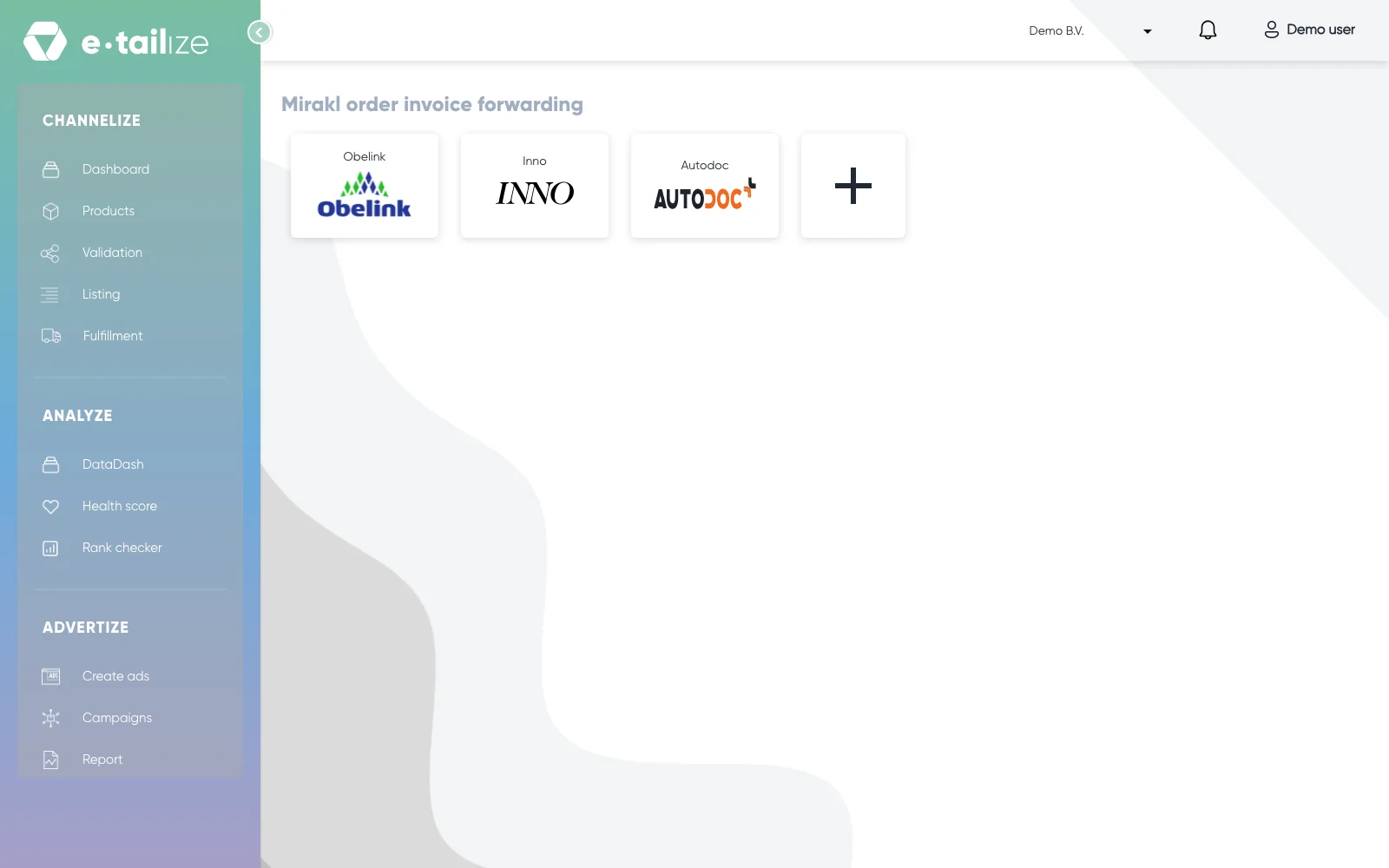
The page "Mirakl order invoice forwarding", with one tile per connection with a Mirakl marketplace Do you already have a configuration on another connection? Then the dialog "Copy configuration from below marketplace" opens. Pick a marketplace and click "Copy". That saves the whole configuration on this connection at once, so you can go straight to step
- Click "Cancel" to fill everything in yourself.
Click "Upload logo" and pick your logo. Without a logo the save stops with "Please upload logo".
Fill in the fields on the "Setup" tab: "Company name", "Company email", "Company phone", "VAT number", "Business registration number", "Street name", "Postal code", "City" and "Country". All of these are mandatory.
Type your own rate in "Default VAT(%)". The value that is prefilled there is a placeholder and does not count as an entry, so saving without typing a rate returns "Default VAT is required".
Fill in "Invoice series initial", the short code that goes in front of every invoice number. Two or three characters, often your company initials.
Check "Currency" and "Maximum invoice monthly limit". Both come prefilled.
Write your footer text in "Invoice notes". It appears at the bottom of the invoice.
Switch "Enable for marketplace" on at the top of the form. Until you do, nothing is sent.
Click "Save". Missing fields turn red with their own message under them.
Open the "Products" tab, click "Import products" and then "Import from PIM". Tick the products you want to invoice and click "Import".
What happens next
From now on the invoices run by themselves. An order that is closed, so fulfilled with its tracking updated to the marketplace, and placed within the last seven days is picked up, the invoice is built and sent, and the marketplace forwards it to the buyer. The panel "Order invoice summary for last 7 days" counts what was created, what was sent and how many errors and warnings there were.
The "Setup" tab now shows "Invoice configuration" with your saved details and "Invoice preview" with the invoice as it will look. "Edit configuration" reopens the form.
Every imported product carries your default rate as its "VAT value %". Select a row and click "Edit VAT" to change it for those products only. VAT that comes with the order always wins over both.
Common problems
The "Products" and "Invoices" tabs are greyed out. They stay disabled until the setup is saved.
Nothing is sent to the marketplace. Click "Edit configuration" on the "Setup" tab, switch "Enable for marketplace" on and click "Save" again.
A product gets no invoice. It needs a valid EAN code in the PIM and it has to stand on the "Products" tab. Each product needs its own EAN code.
FAQ
Which marketplaces can I use invoice forwarding for?
Only the ones on the Mirakl platform. Your other connections do not appear on the page.
Where do I find a generated invoice?
On the "Invoices" tab. The PDF button in the "Invoice" column downloads it.
Related
Was this useful?