On this page
Before you start
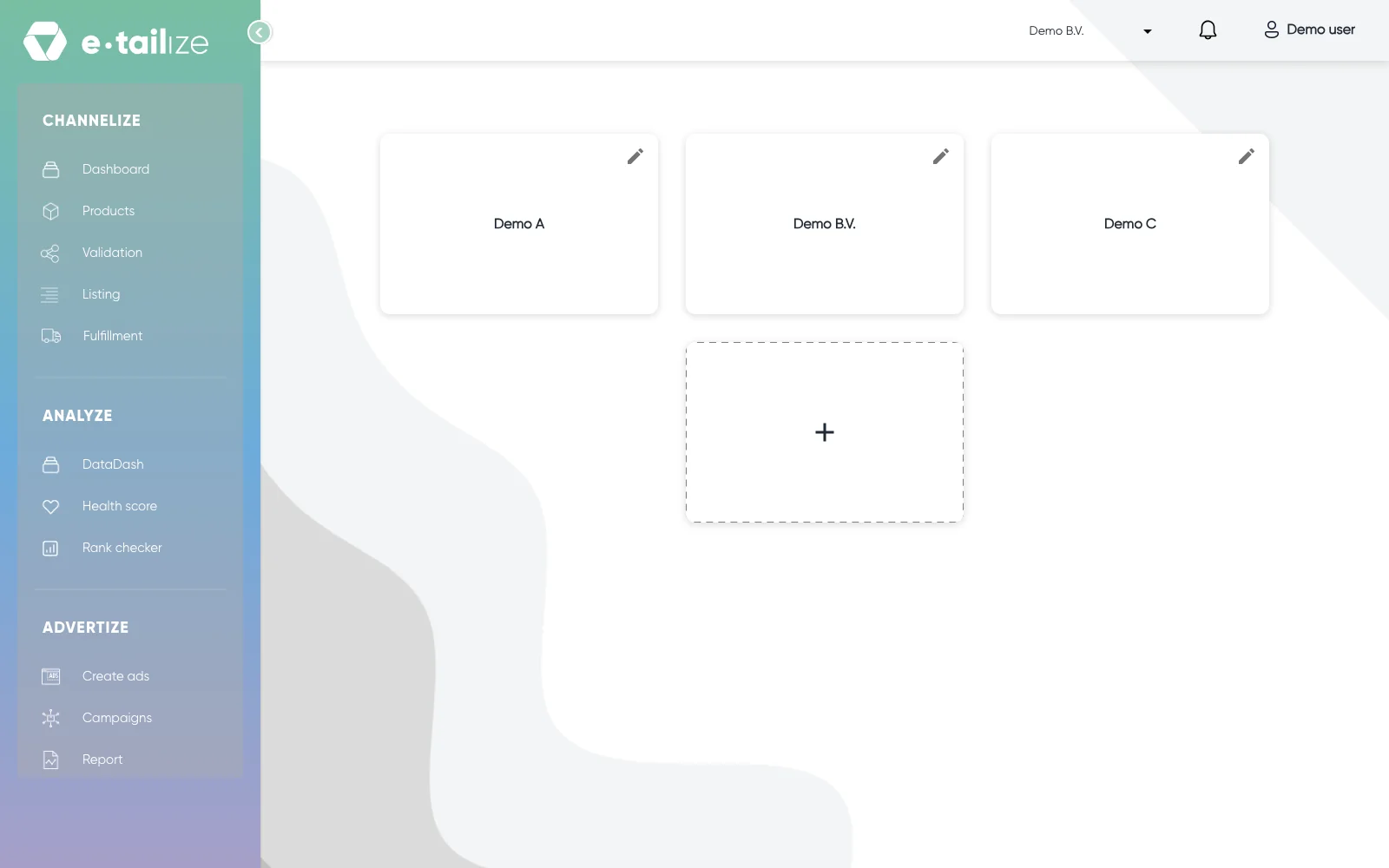
e-tailize has a top bar and a left sidebar to find your way around: the top bar switches projects and shows updates, the left sidebar is the main menu, grouped per module. e-tailize works per project, so a project holds its own connections, products and numbers and every screen you open shows the one project you are in. That is why you land on the project screen after logging in instead of on a dashboard: you pick a project first.
The screen shows a card per project. Click a card to enter it. The "+" card starts a new project: fill in a name and click "SAVE".
Steps
The top bar
The top bar carries three things. The project switcher shows the name of the project you are in, and clicking it takes you to another one without logging out. The bell opens a window with the latest e-tailize updates, and the badge on it counts the updates that are new to you. The button on the right, with the account icon, shows your company name once you are in a project and reads "Profile" on the project screen. It opens a small menu with a link to this help center and "Logout".
The left sidebar
The sidebar is the main menu, grouped per module. The colour of the sidebar tells you which module you are in: green for Channelize, blue for Analyze, purple for Advertize.
- "Dashboard", "Products", "Validation", "Listing" and "Fulfillment" sit under "CHANNELIZE". Under "Fulfillment" you find "Orders", "Stock & order configuration" and "Invoice forwarding".
- "Settings" holds "General information" for your account, "Connections" for everything you connect, "Fulfillment details", "Pim matrix", "AI enrichment", "Marketplace validation", "Csv stock sync" and "Carrier matrix".
- At the bottom sit "Help center" and "Logout".
Collapse the sidebar for a wider workspace, and click the logo to go back to the dashboard. Use "View projects" in the project switcher to go back to the project screen.
Common problems
Your sidebar can be shorter than the full "CHANNELIZE" and "Settings" list above: you see only the screens and modules that are enabled for your account. Ask us in the chat if you miss something you need, and take a subscription to a module and its items become clickable.
Opening an app link while you are logged out sends you to the login page. Log in, pick your project, and open the link again.
FAQ
How do I work through the app the first time?
Start under "Settings" with your connections and your stock and order setup, then work down the sidebar: products in, tabs and mapping done, products listed, fulfilment running. From account to first listing follows exactly that order.
Is the "General" tab of the dashboard the same as "General information"?
No. The "General" tab is part of the dashboard and shows your imports, your connections and your pinned products. "General information" sits under "Settings" and holds your account details, your password and "Notification settings", see Turn on notifications.
Was this useful?