On this page
Before you start
e-tailize works per project. A project holds its own connections, products and figures, and every screen you open shows the one project you are in. That is why you land on the project screen after logging in: you pick a project before you do anything else.
A project needs a name, and that is the only thing you fill in. An empty name is refused, so think of a name you recognise in the switcher later.
Steps
Create a project
Open the project screen. You land there after logging in, or you open the project switcher in the top bar and click "View projects".
Click the dashed card with the "+" in it. The dialog "Add projects" opens.
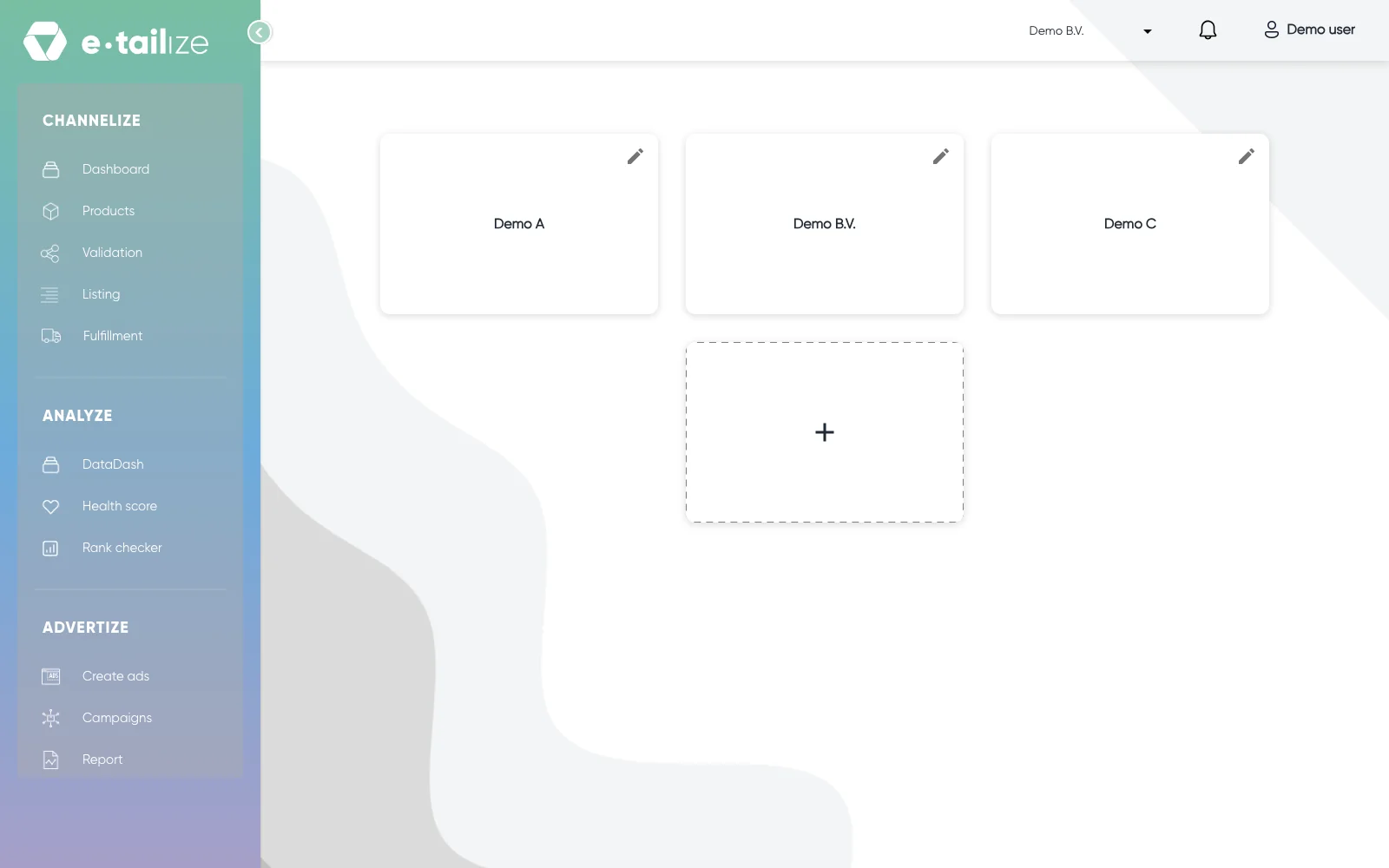
The project screen: a card per project with a pencil icon in its top right corner, and the dashed card with a "+" for a new project Fill in "Name".
Click "Save". "Cancel" closes the dialog and keeps nothing.
Rename a project
Every project card carries a pencil icon in its top right corner. Click it and the dialog "Update projects" opens, with the current name already in "Name". Change the name and click "Update". The name is the only thing this dialog changes.
Switch to another project
The project switcher sits in the top bar and shows the name of the project you are in. Open it and you get your other projects, plus "View projects" for the card screen and "Add new project" for the same dialog as the "+" card. Click a project and e-tailize opens that project, on its dashboard with the "Performance" tab active.
What happens next
Everything you see belongs to the project you are in: the dashboard figures, the charts, your connections and your pinned products, and your products and orders. Switching projects therefore changes the numbers on your screen without anything having changed in your account.
Nothing crosses over. A connection you add in one project stays in that project, so a marketplace you want in two projects is connected twice.
Common problems
Nothing happens when you try to save a new project. The name field is empty, and "Project name cannot be empty" is the rule behind it, so the button stays out of reach until you type a name. Fill in "Name" and click "Save" again.
If a connection or a product seems to be missing, check which project you are in. The switcher in the top bar always names it, and a long name is shortened there, so read it carefully when two names look alike.
FAQ
Can I delete a project?
Not yourself. The project screen holds a card per project, the "+" card for a new one and the pencil icon for the name. Ask us in the chat if a project has to go.
Does renaming a project change anything inside it?
No. The dialog "Update projects" holds one field, "Name". Your connections, products and orders stay exactly where they are.
Do my projects share connections or products?
No. Each project has its own, and the dashboard shows the numbers of that one project. That is also why a figure changes the moment you switch.
Where does e-tailize take me after I pick a project?
Into that project, on its dashboard, with the "Performance" tab open. See Read the dashboard.
Related
Was this useful?