On this page
Before you start
e-tailize has four kinds of connection and one wizard for all of them. "Marketplace" is a sales channel you sell on, "CMS" is your own webshop, "WMS" is the warehouse or fulfilment party that ships your orders, and "Shipping" is a carrier. Whichever you need, the path is the same.
Have the credentials of the other system at hand. Most providers ask for an API key you create there yourself, sometimes with the address of your shop or warehouse. A few marketplaces send you to their own login instead.
Steps
Open "Settings" in the left sidebar and click "Connections". The "API connections" page opens, with a row per connection you already have.
Click "New connection". A dialog of the same name opens with four cards: "Marketplace", "Shipping", "WMS" and "CMS".
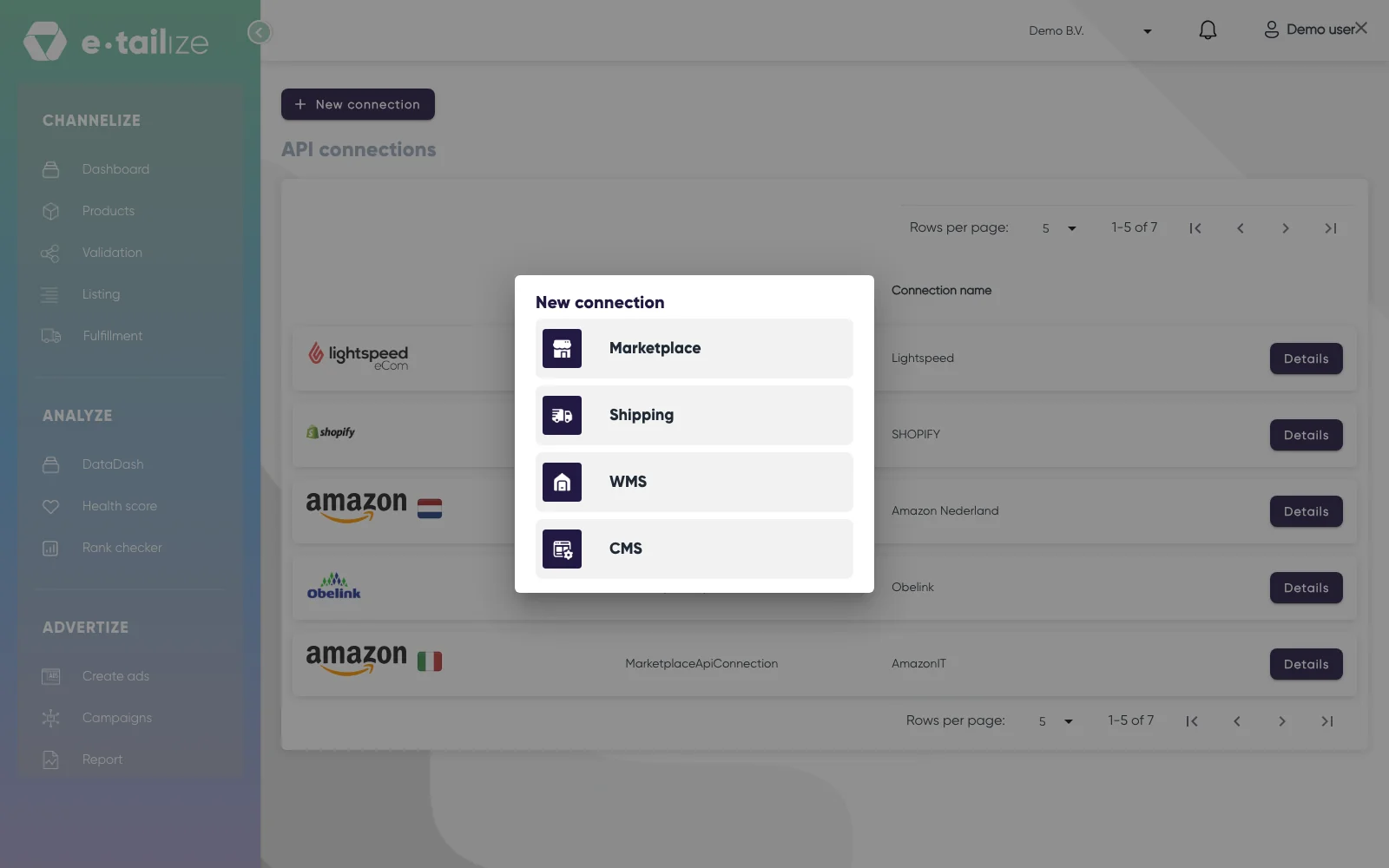
The "New connection" dialog over the "API connections" page, with the cards "Marketplace", "Shipping", "WMS" and "CMS" Click the card for the kind you need. Each one opens its own page: "Connect marketplace provider", "Connect shipping provider", "Connect warehouse provider" or "Connect cms provider".
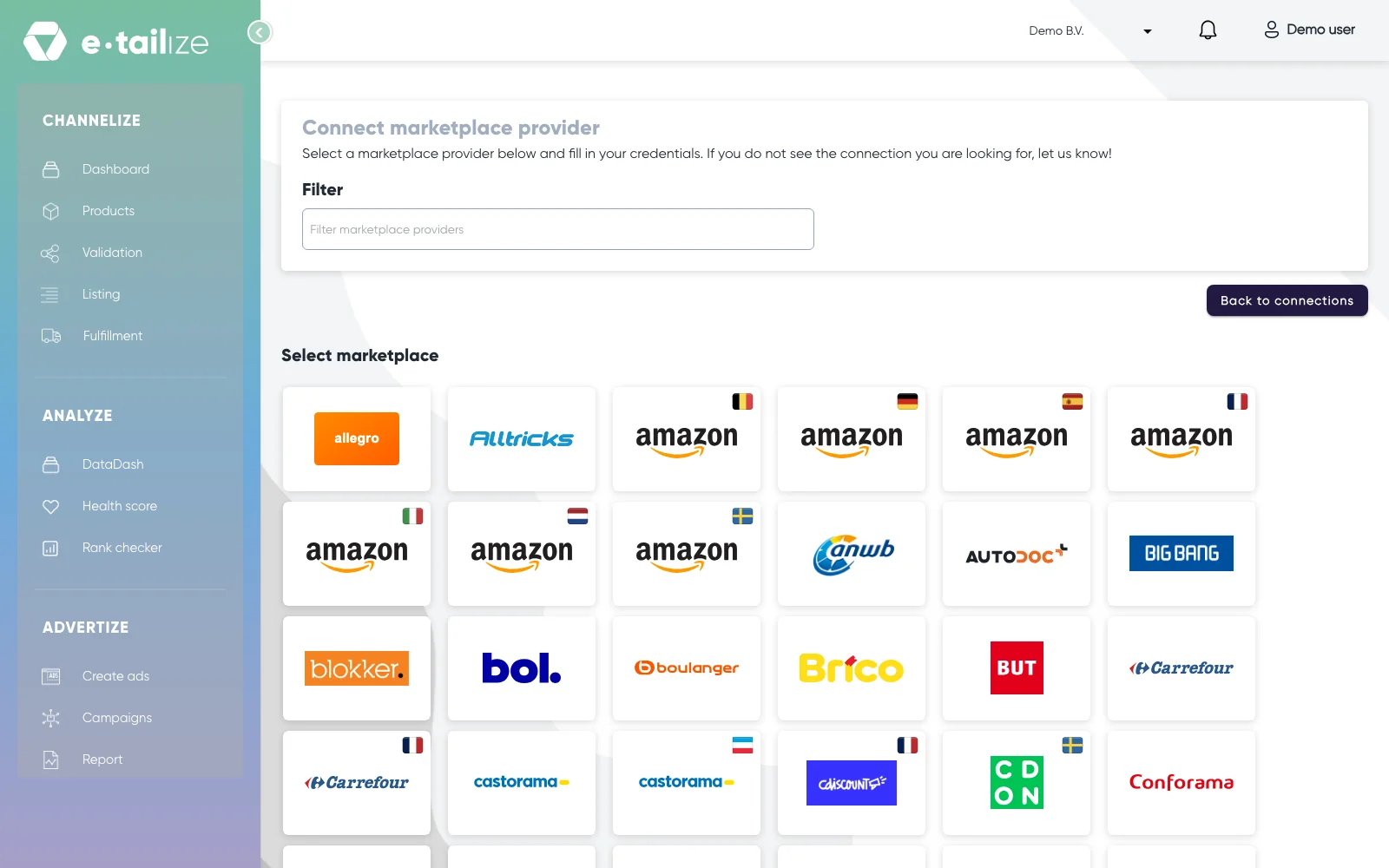
The "Connect marketplace provider" page, with the "Filter" box and the logo grid under "Select marketplace" Find your provider in the logo grid, by scrolling or by typing in the "Filter" box. The filter matches from the first letter of the provider name, so type the beginning of the name, not a piece out of the middle.
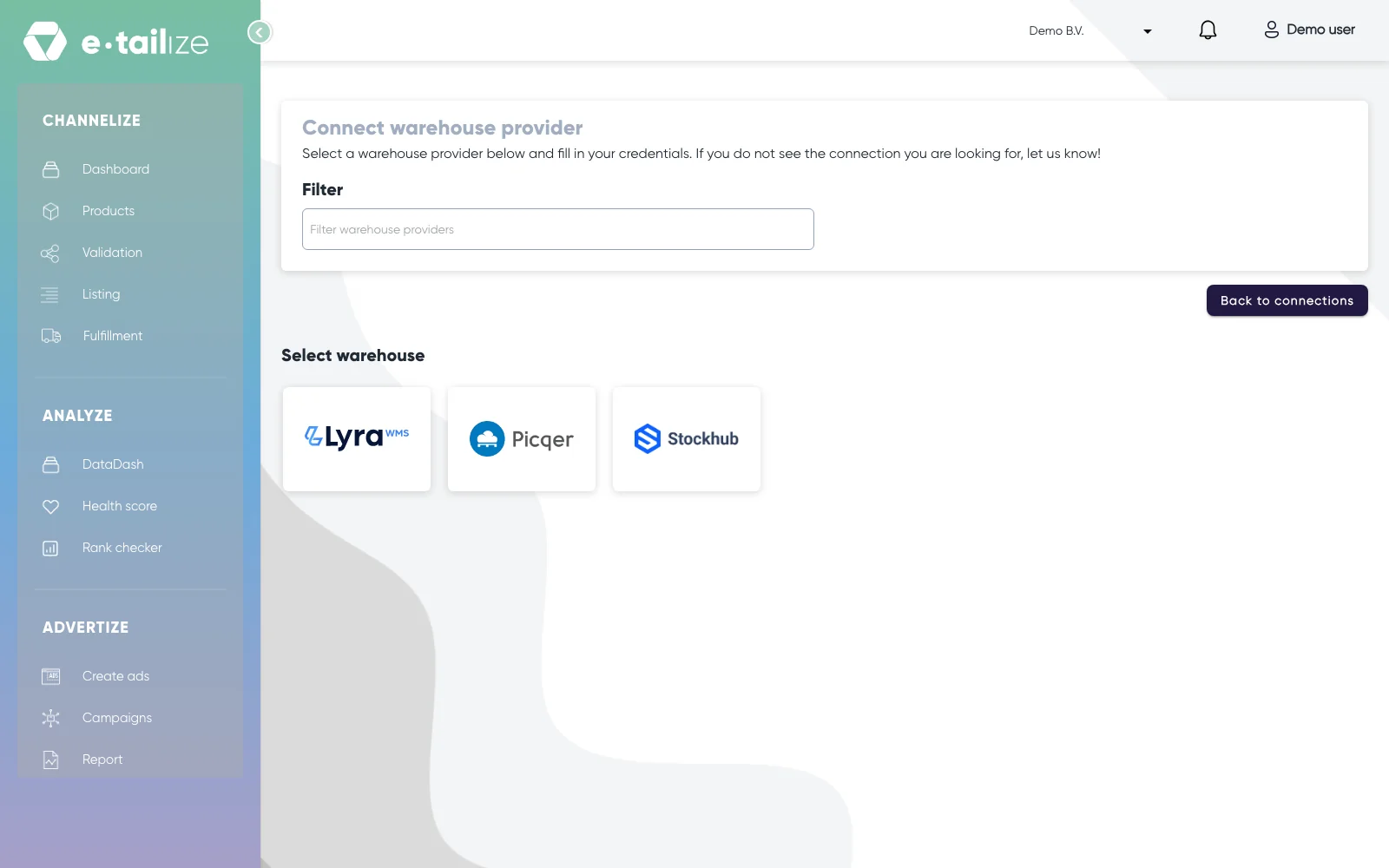
The "Connect warehouse provider" page, with the "Filter" box and Lyra, Picqer and Stockhub under "Select warehouse" Click the logo. The form opens under the grid on the same page. Clicking another logo swaps the form, so you never have to go back first.
Fill in "Connection name" under "Fill in required connection tokens". That is your own reference, the name you see back in the list.
Fill in the rest: a key, a shop or warehouse address, a country, or a button that sends you to the provider to log in.
Click "Save". A webshop has its own button "Test & save connection", which checks the credentials before it stores them.
What happens next
The connection appears in the table on the "API connections" page, with a "Details" button on its row. A marketplace connection also shows up as a card under "Existing connections" on the "General" tab of the dashboard.
Saving is not the whole setup. Products still need a tab, a validation and a listing before anything is for sale, see Get a product live. What a webshop or warehouse sends where, you set under "Fulfillment" on "Stock & order configuration".
Common problems
An empty form comes back with "Connection name is required" and "Secret or Api key is a required field". A marketplace that needs a country adds its own message on top, on bol "Sales location is a required field".
Your provider is not in the grid? The page says it itself: "If you do not see the connection you are looking for, let us know!" Tell us in the chat which one you are missing.
FAQ
Which providers can I pick per kind?
"Shipping" holds MyParcel. "WMS" holds Lyra, Picqer and Stockhub. "CMS" holds Lightspeed, Shopify and WooCommerce, plus a Dicode tile that is not in use. "Marketplace" is the long one, with the full grid of marketplace logos.
Is the wizard the only way in?
No. On the "General" tab of the dashboard, the "+" card after your last connection opens the marketplace page, and the "Products import" and "Products export" logos on that same tab open a webshop connection.
Where do I change a connection afterwards?
On the "API connections" page, with the "Details" button on its row. Your keys are not shown back to you there, on purpose.
Related
Was this useful?