On this page
Before you start
bol is connected by logging in at bol yourself, so there is no API key to create and nothing to paste. You need an active bol seller account and the login of that account. e-tailize never asks for your bol password.
Check one thing at bol first: the sales location of your seller account. The location you pick in the wizard has to match it, otherwise your offers end up on the wrong country.
Steps
Open "Settings" in the left sidebar and click "Connections". The "API connections" page opens with everything you connected so far.
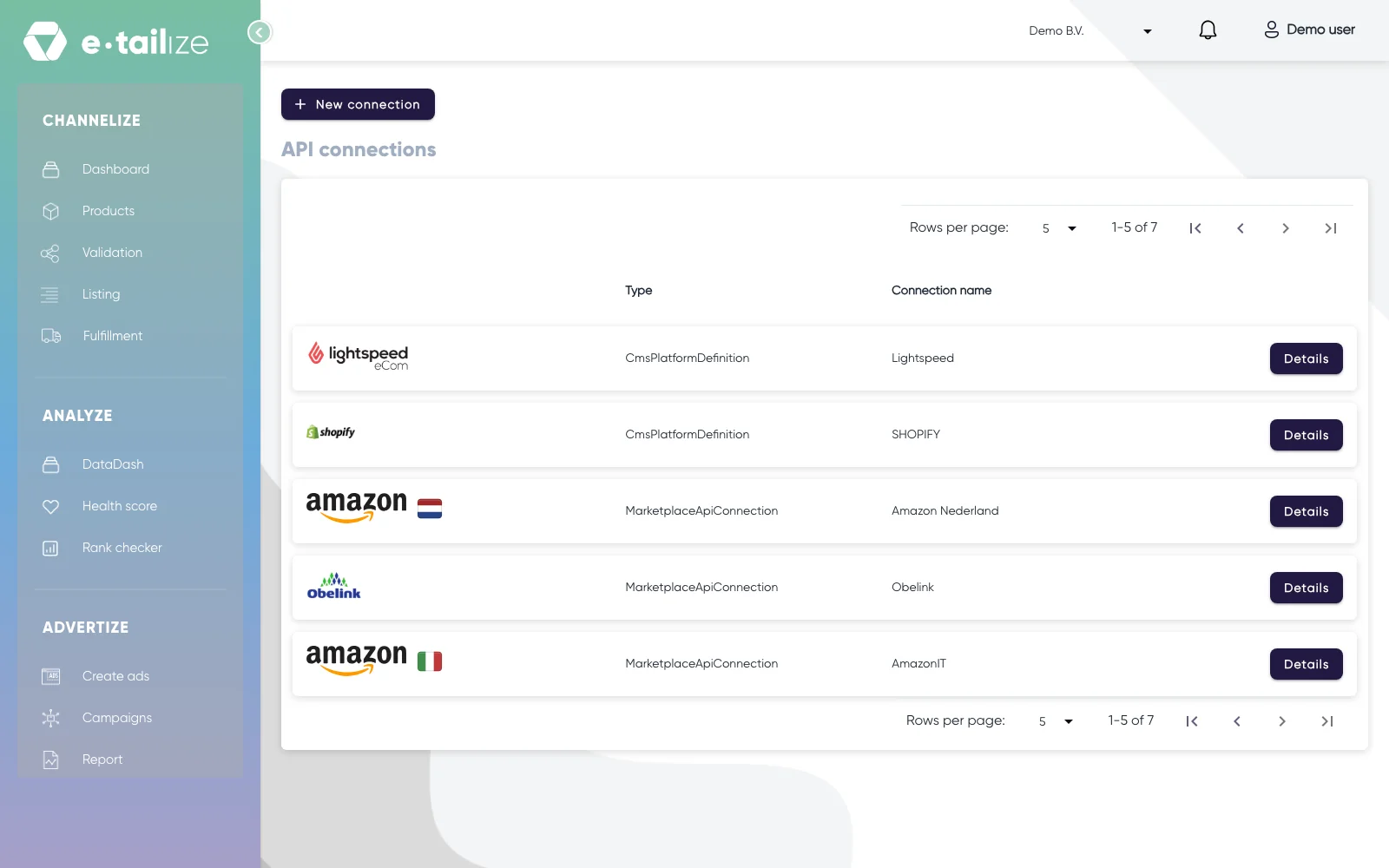
The "API connections" page, with "New connection" above the connections you already have Click "New connection" and pick "Marketplace" in the chooser, next to "Shipping", "WMS" and "CMS".
Find bol in the logo grid on "Connect marketplace provider", with the "Filter" box or by scrolling, and click its logo.
Fill in "Connection name" under "Fill in required connection tokens". This is your own reference, the name you will see back in the list and on your connection cards.
Open "On Bol, where do you offer your products?" and pick "The Netherlands", "Belgium" or "The Netherlands and Belgium", the same as in your bol seller account.
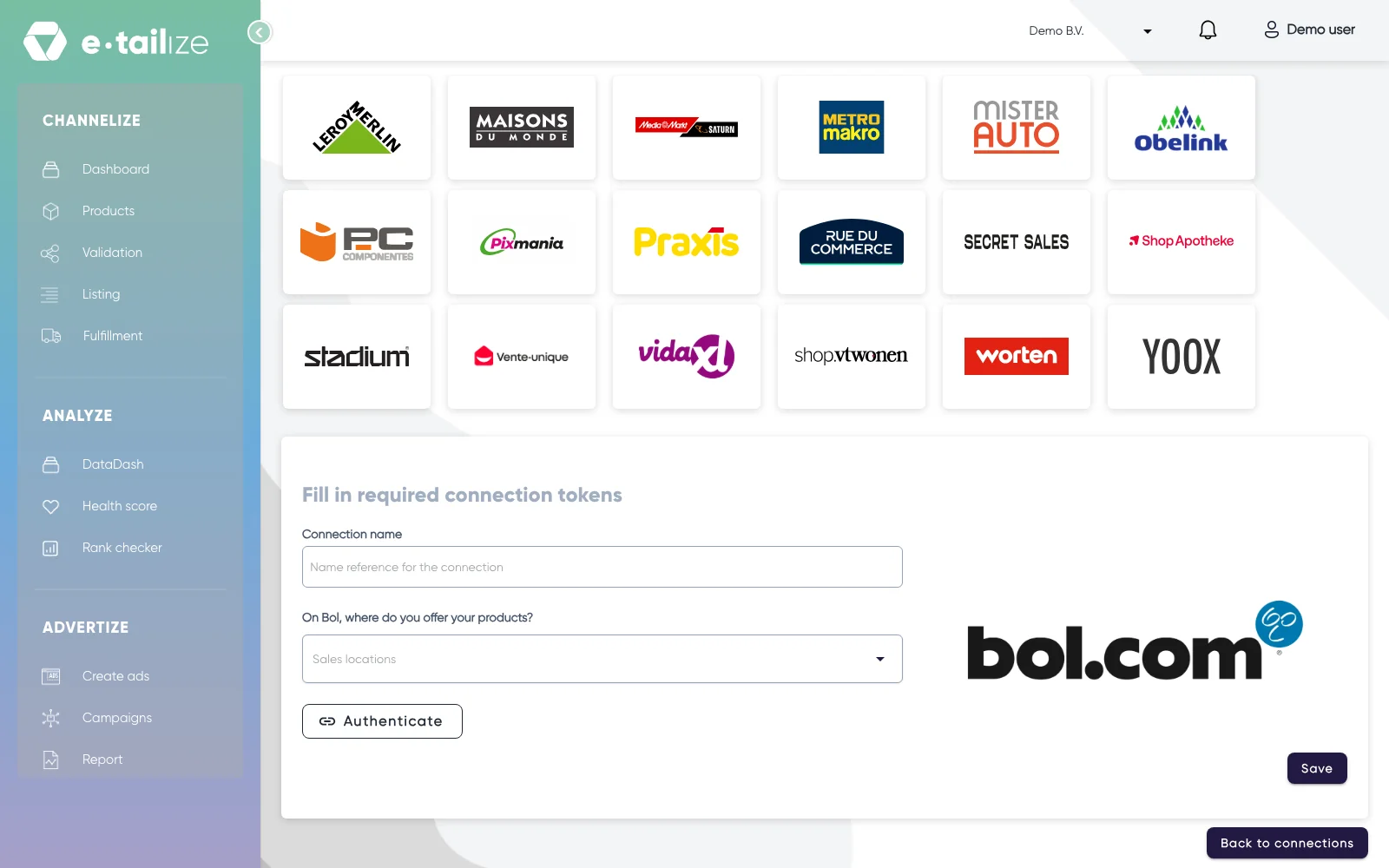
The bol form with "Connection name", "On Bol, where do you offer your products?" and the button "Authenticate" Click "Authenticate". bol opens its own login page, where you sign in with your seller account and give e-tailize permission.
Click "Save" once bol sends you back to e-tailize.
What happens next
The connection appears on the "API connections" page and as a card under "Existing connections" on the dashboard. From there it feeds your dashboard figures, and your bol orders and stock start flowing along the routes you set under "Fulfillment".
Products still need a bol tab, a validation and a listing before anything is for sale. See Get a product live.
Common problems
Saving with empty fields gives you three messages: "Connection name is required", "Secret or Api key is a required field" and "Sales location is a required field". The middle one is the login step, so finish the "Authenticate" flow rather than looking for a key to type.
A client id that sits on "pending" is a status inside your own bol developer account. Only bol can approve that, and it is not what e-tailize uses to connect you.
FAQ
Do I need one connection for the Netherlands and one for Belgium?
Only if that is how your seller account is set up. bol offers all three shapes in the dropdown, and one account that sells in both countries is one connection with "The Netherlands and Belgium".
The chat asks which bol connection I want. What do I answer?
Picking the bol logo opens our chat with the question "Which Bol connection do you want to create?" and three options: "Bol Netherlands", "Bol Belgium" and "Bol Netherlands and Bol Belgium in one account". Answer with the sales location of your seller account, the same one you pick in the dropdown.
Was this useful?