On this page
Before you start
A warehouse connection, a WMS, is what handles your order fulfilment, your warehouse stock and your track and trace. The wizard holds three providers: Picqer, Lyra and Stockhub.
Get your credentials ready first. In Picqer you make an API key yourself, under "Settings" and then "API keys". For Lyra you ask your contact there for the key. Stockhub works the other way around, and the steps below say how.
Steps
Open "Settings" in the left sidebar, click "Connections" and click "New connection" on the "API connections" page.
Pick "WMS" in the chooser. "Connect warehouse provider" opens with a "Filter" box and the logos of Picqer, Lyra and Stockhub.
Click the logo of your provider.
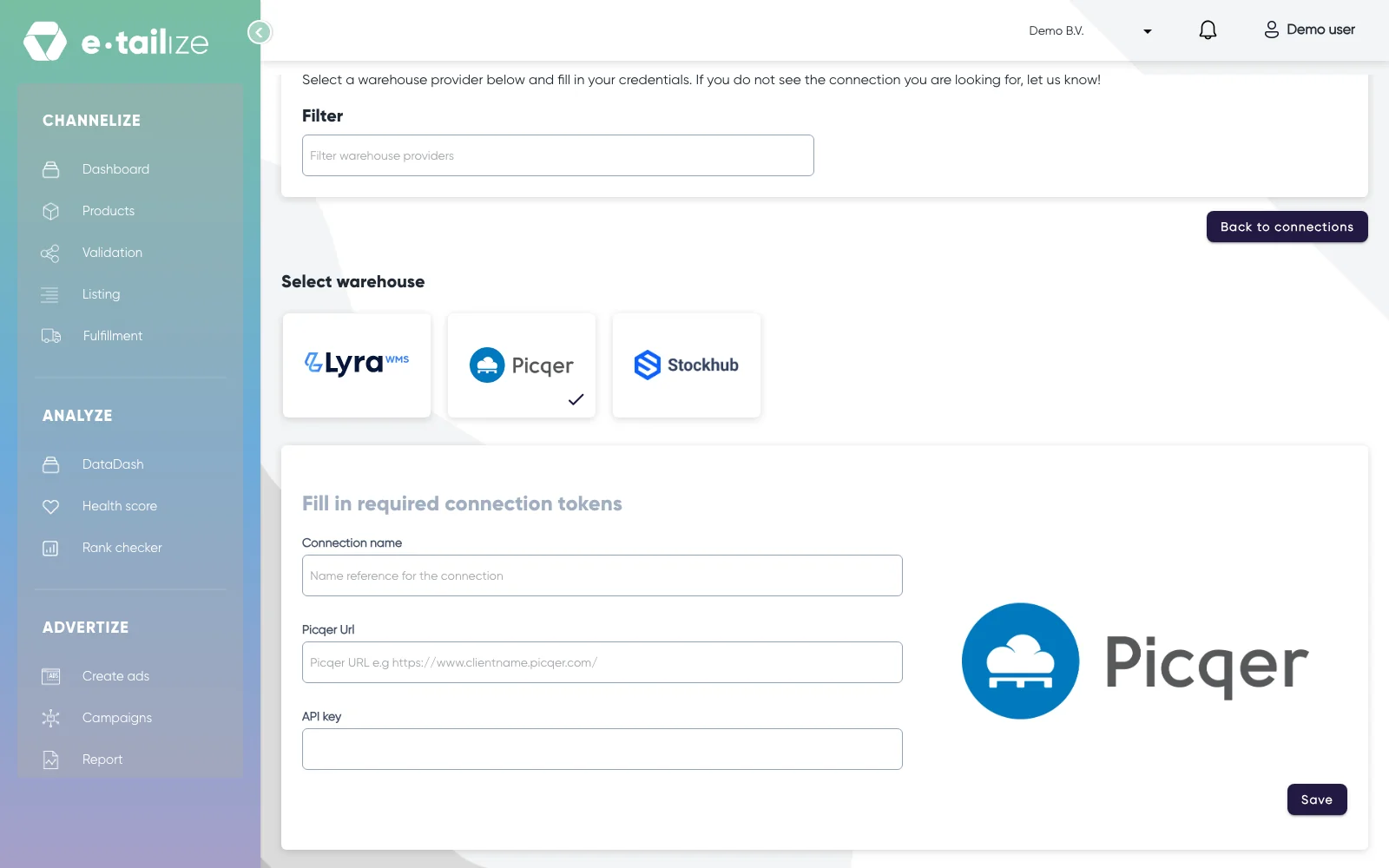
Picqer ticked under "Select warehouse", with the form "Fill in required connection tokens": "Connection name", "Picqer Url" and "API key" Fill in "Connection name", your own reference for this warehouse.
Fill in the url of your warehouse for Picqer or Lyra, in the shape
https://yourwarehouse.picqer.com/. Stockhub has no url field.Paste the API key into its field. Stockhub is the exception: its form stays greyed out on purpose, and instead of typing you copy the "Tenant Id", the "Project Id" and the e-mail address shown there with their "Copy" buttons.
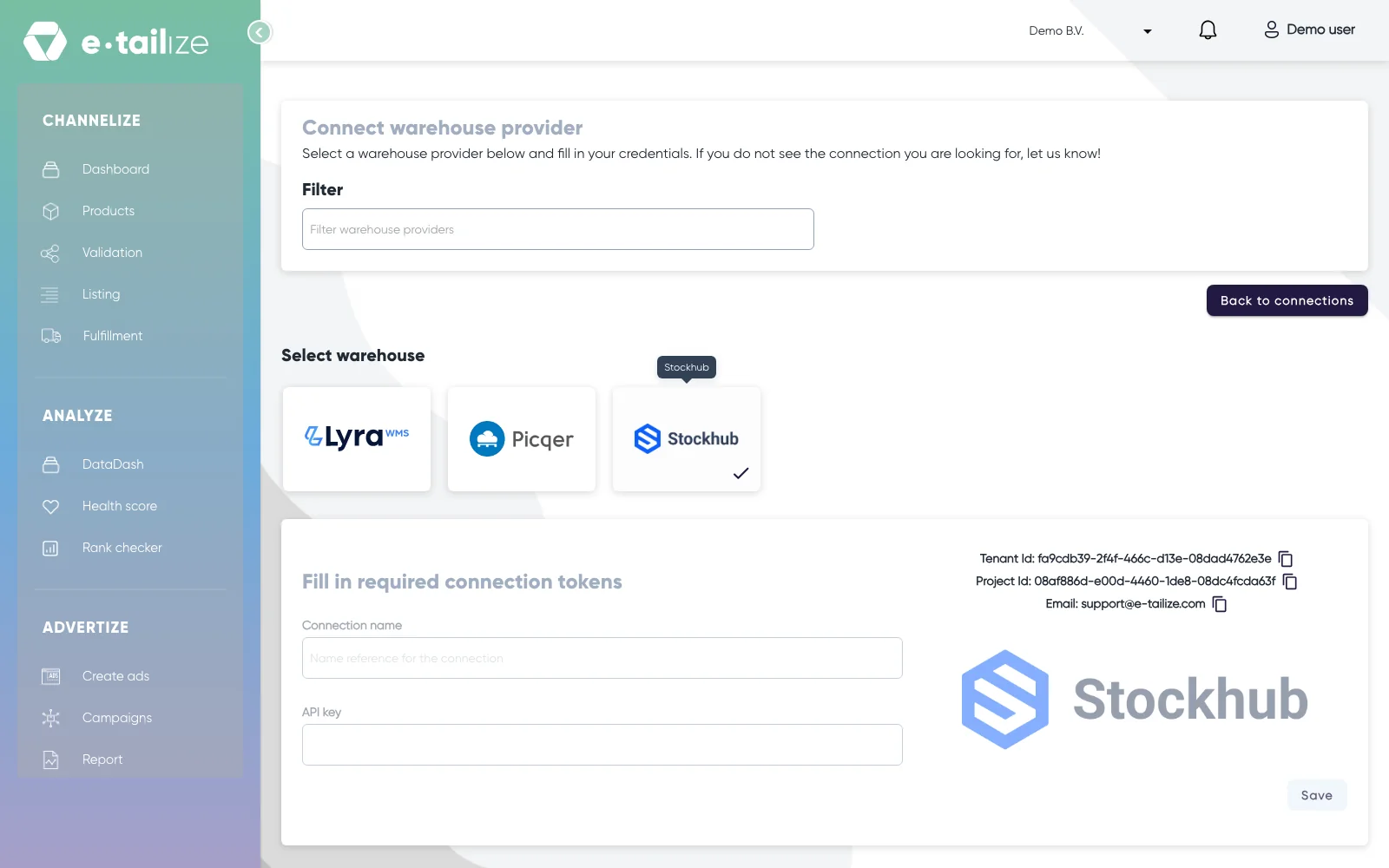
Stockhub picked under "Select warehouse", with the greyed out form "Fill in required connection tokens" and the "Copy" buttons next to "Tenant Id", "Project Id" and "Email" For Picqer and Lyra, click "Save". The message "Please wait while we verify the entered credentials." means we are checking them.
For Stockhub there is nothing to save here: the form and the "Save" button stay disabled, so you continue in Stockhub itself.
In Stockhub, open "Integrations", then "Integrators" and add e-tailize as an integrator.
Fill in the name e-tailize plus the tenant id and the project id you copied.
Click "Volgende" in Stockhub and switch everything on.
Click "Volgende" again and switch on the marketplace you want to activate.
Click "Opslaan".
What happens next
Open "Stock & order configuration" under "Fulfillment". The page holds three panels: "Stock forwarding", "Order forwarding" and "Track and trace forwarding", each a matrix of switches with its own "Save changes".
With Stockhub, order and track and trace data are handled automatically once the connection is active, so you do not need the "Order forwarding" and "Track and trace forwarding" switches for it.
Stock is the one you decide yourself. In "Stock forwarding", switch on the route from your warehouse to each marketplace that should receive its stock. Without that switch your warehouse keeps e-tailize up to date while your channels stay on their old numbers.
Common problems
Saving an empty form gives "Connection name is required" and "Secret or Api key is a required field". Stock that does not move is almost always the missing switch in "Stock forwarding", so check that route first, then check whether your warehouse actually sent an update.
FAQ
Why can I not fill in the Stockhub form?
Because that connection is set up from both sides. e-tailize shows you the ids Stockhub needs and keeps its own fields locked, so the pairing happens in Stockhub with those ids.
Do I need to switch on order forwarding as well?
The page has an "Order forwarding" and a "Track and trace forwarding" panel next to "Stock forwarding". With Stockhub you do not need them: order and track and trace data are handled automatically once the connection is active. The switches you do set yourself are the stock ones, per marketplace.
Was this useful?