On this page
Before you start
Decathlon sells sports goods and runs its marketplace on Mirakl. Apply for a partner account first: Decathlon approves its partners itself, so the marketplace is not open to everyone. Have the API key and the Store Id from your Decathlon back office ready. One connection covers one country, so pick the country your store sells in.
Apply yourself, they review. Stuck? Expansion does it for you.
Decathlon runs on Mirakl, the software behind most retailer marketplaces we connect, so the wizard looks the same as for every other Mirakl marketplace. You need one API key from Decathlon.
We connect Decathlon for Belgium, Switzerland, Czechia, France, Germany, Spain, Hungary, Italy, Poland, Portugal, the United Kingdom and Romania.
Steps
Create the API key in the seller back office of Decathlon and copy it in full. Your Store Id sits there as well, in the settings or on the main page of your seller account. The country list holds two Belgian entries, "Belgium (Dutch)" and "Belgium (French)": pick the one your store sells in.
Open "Settings" in the left sidebar and click "Connections".
Click "New connection", or open the marketplace wizard directly.
Pick "Marketplace" in the chooser and click the Decathlon logo under "Connect marketplace provider".
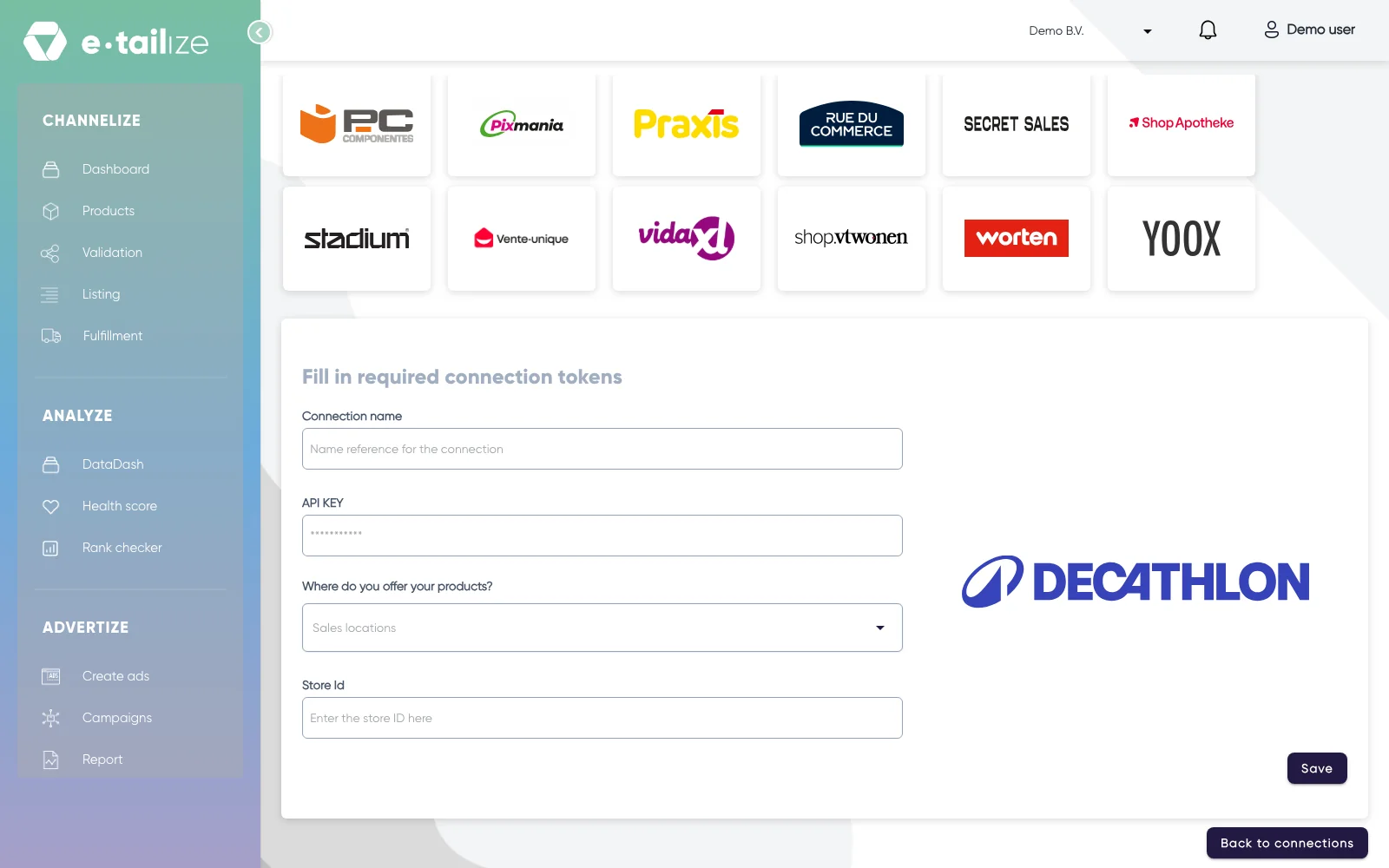
The wizard for Decathlon: "Fill in required connection tokens" with the fields of Decathlon Fill in "Connection name", your own reference for this connection.
Paste the value into "API KEY". The field is masked, so you see dots instead of what you pasted.
Pick the country you sell in under "Where do you offer your products?". The list holds "Belgium (Dutch)", "Belgium (French)", "Czech Republic", "France", "Germany", "Hungary", "Italy", "Poland", "Portugal", "Romania", "Spain", "Switzerland" and "United Kingdom".
Fill in "Store Id".
Click "Save".
Click "Validation" in the left sidebar, pick the Decathlon tile and click "Add missing PIM tabs" on every category you sell there.
Fill the mandatory Decathlon fields on those tabs and click "Validate products". Get a product live walks through that screen step by step.
Click "Listing", pick the Decathlon tile, select your validated products and click "List content". Click "List offers" once the content is through.
What happens next
Decathlon reviews your content after it arrives in Mirakl, so a product we send through can still wait for that approval. Without a main title, a product title, a description, images and a webcatchline of at most 200 characters a product stays offline. The main title only helps you find the product inside Mirakl and never shows on the Decathlon site.
The connection appears on the "API connections" page and as a card under "Existing connections" on the dashboard, and it starts feeding your dashboard, your orders and your stock. Orders from Decathlon come in under "Fulfillment" and then "Orders", with the same "Open", "Processing" and "Closed" filters as your other channels.
Common problems
A product that misses a mandatory specification does not go online. Gender and sport decide where it lands on the site, so a children's bike without a gender usually appears nowhere. Decathlon adds mandatory attributes from time to time, so check the guide in your Mirakl back office when a product is refused without an obvious reason.
Decathlon enforces limits on content: a title is at most 80 characters, a description is at most 5000 characters and a product carries at least 2 images.
FAQ
Do you need an API key to connect Decathlon?
Yes. You need one API key from Decathlon.
Which countries do we connect Decathlon for?
We connect Decathlon for Belgium, Switzerland, Czechia, France, Germany, Spain, Hungary, Italy, Poland, Portugal, the United Kingdom and Romania.
Where do orders from Decathlon arrive in e-tailize?
Orders from Decathlon come in under "Fulfillment" and then "Orders", with the same "Open", "Processing" and "Closed" filters as your other channels.
Related
Was this useful?