On this page
Before you start
Some products live on your marketplace account without ever passing through e-tailize: you created them in the marketplace portal yourself, or their EAN here is not the EAN the marketplace has. e-tailize matches an offer to a product by EAN, so those products cannot appear in the grid "Product listing status".
They get their own section on the listing page, "Other products on marketplace", and that section only shows up when the selected marketplace really holds offers e-tailize does not know. You can push a price and stock offer for them from there. You cannot push content: content already exists on the marketplace and a content push needs a validated marketplace tab, which these products do not have.
Steps
Click "Listing" in the left sidebar and pick the tile of the marketplace you want to work on.
Scroll past "Product listing status" to the section "Other products on marketplace".
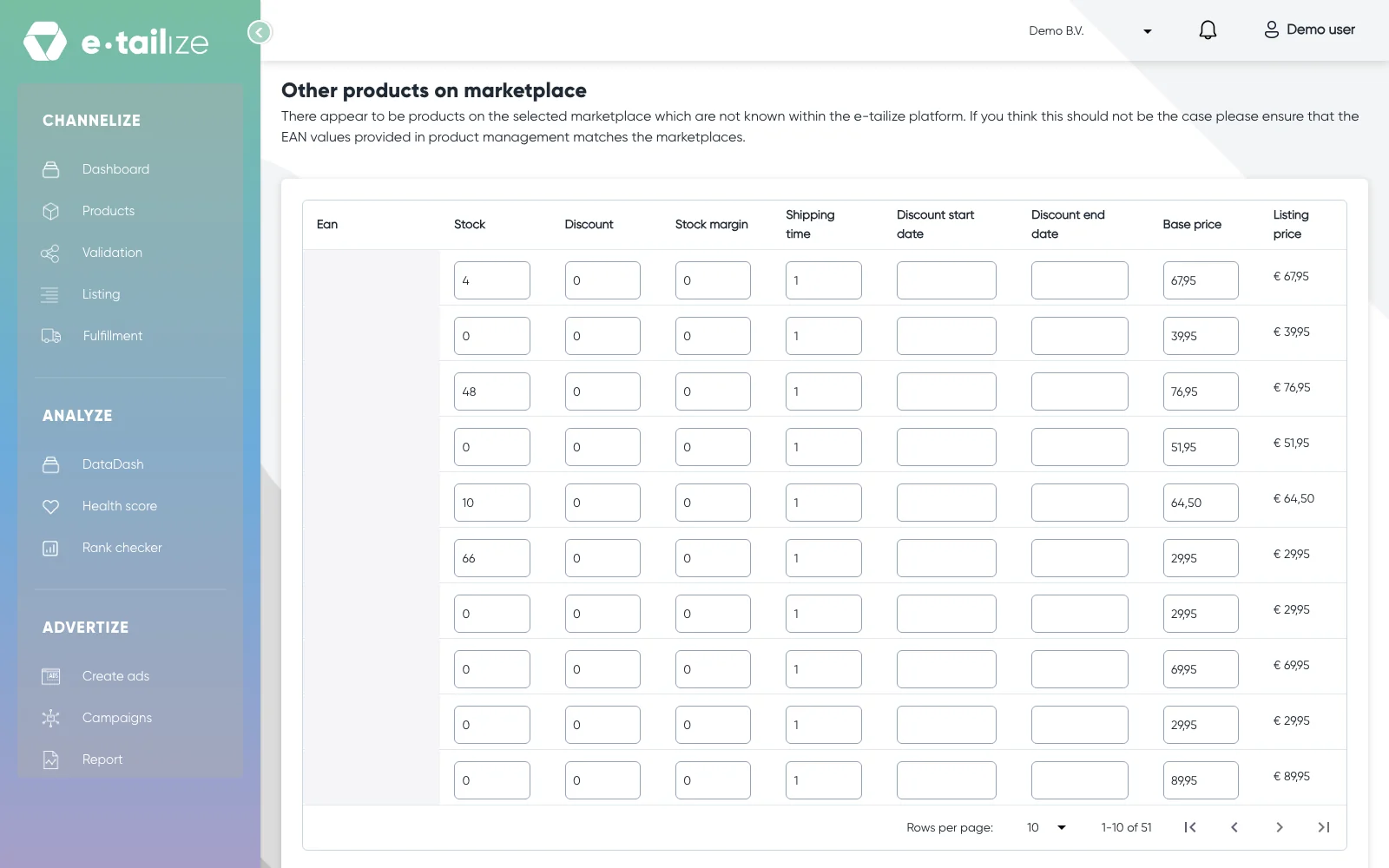
The section "Other products on marketplace" with the editable offer columns and its own pager Tick the checkbox in front of the EAN of every offer you want to push.
Check the row values. "Stock", "Discount" and "Base price" follow the offer the marketplace holds; "Stock margin" is an e-tailize setting and starts at 0. You can type over each of them.
Set the offer fields the selected marketplace asks for, such as "Shipping time". They differ per marketplace, and "Listing price" follows from the values you enter.
Click "List offers" under the table.
Leave the dialog open while the marketplace checks your products, or click "Click here to continue working" and let the run finish in the background.
What happens next
You get "Listing process is completed" when the run is done. Stock, price and the delivery fields you filled in are now with the marketplace.
The product stays in "Other products on marketplace". Pushing an offer does not import it into e-tailize, so it does not get a product, a tab or a validation here. It moves into "Product listing status" only once a product with that same EAN exists in e-tailize and its marketplace tab is validated.
If the marketplace refuses a value, the issues section appears above the grid with the panel "Offer response": the EAN, the message the marketplace sent and the field it concerns. Read the listing status and errors explains that panel.
Common problems
"Please select items to update". You clicked "List offers" with nothing ticked. Tick at least one row first.
More products went out than you ticked here. The selection is shared with the grid above, so anything still ticked under "Product listing status" is pushed along. Untick what you do not want to send.
No such section on the page. Then that marketplace has no offers with an EAN unknown to e-tailize, or you are looking at another tile. Switch tile and check again.
FAQ
Why is this product not in the main grid?
Because there is no product in e-tailize with that EAN. The main grid holds your own validated products, so an offer without a matching product can only stand in the second section.
Can I list content for these products?
No. The section only has "List offers". Content comes from a marketplace tab, and these products have none, so there is nothing to send.
How do I manage such a product fully in e-tailize?
Make it exist here with the same EAN as the marketplace has, by importing it (Ways to import your products) or by adding it by hand (Edit a product or add one by hand). Then give it a tab and validate it.
Does this work on every marketplace?
Yes, on every marketplace you connected. Which columns you get follows the marketplace you picked, the same way it does in the grid above.
Was this useful?