On this page
Before you start
WooCommerce gives out its credentials as a REST API key pair that you create in your own WordPress admin, so you need an account there that may manage WooCommerce settings. The consumer key and secret are shown once, so keep the page open until you have pasted them.
Steps
Log in to your WordPress admin and open "WooCommerce" and then "Settings".
Click the "Advanced" tab at the top, then click "REST API" under it.
Click "Add key" and fill in e-tailize as the description.
Check that the right user is selected and set "Permissions" to "read/write".
Click "Generate API key". WooCommerce shows your consumer key and consumer secret.
In e-tailize, open "Settings", click "Connections", click "New connection" on the "API connections" page and pick "CMS".
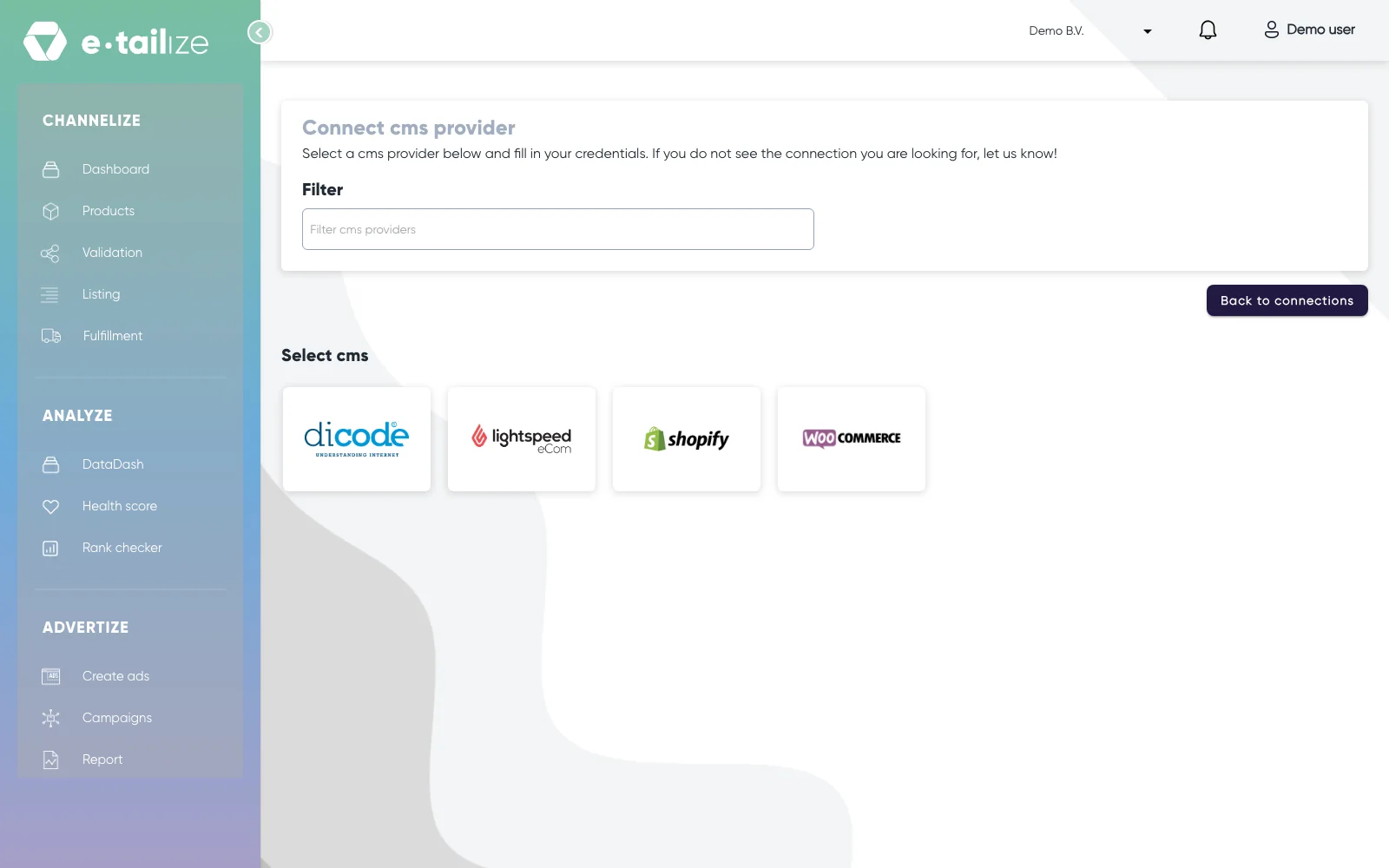
The four logos under "Select cms", with the "Filter" box above them Click the WooCommerce logo and name the connection.
Fill in "Store URL" with your shop address, in the shape
https://www.yourcompany.nl/.Paste the consumer key and the consumer secret into their fields.
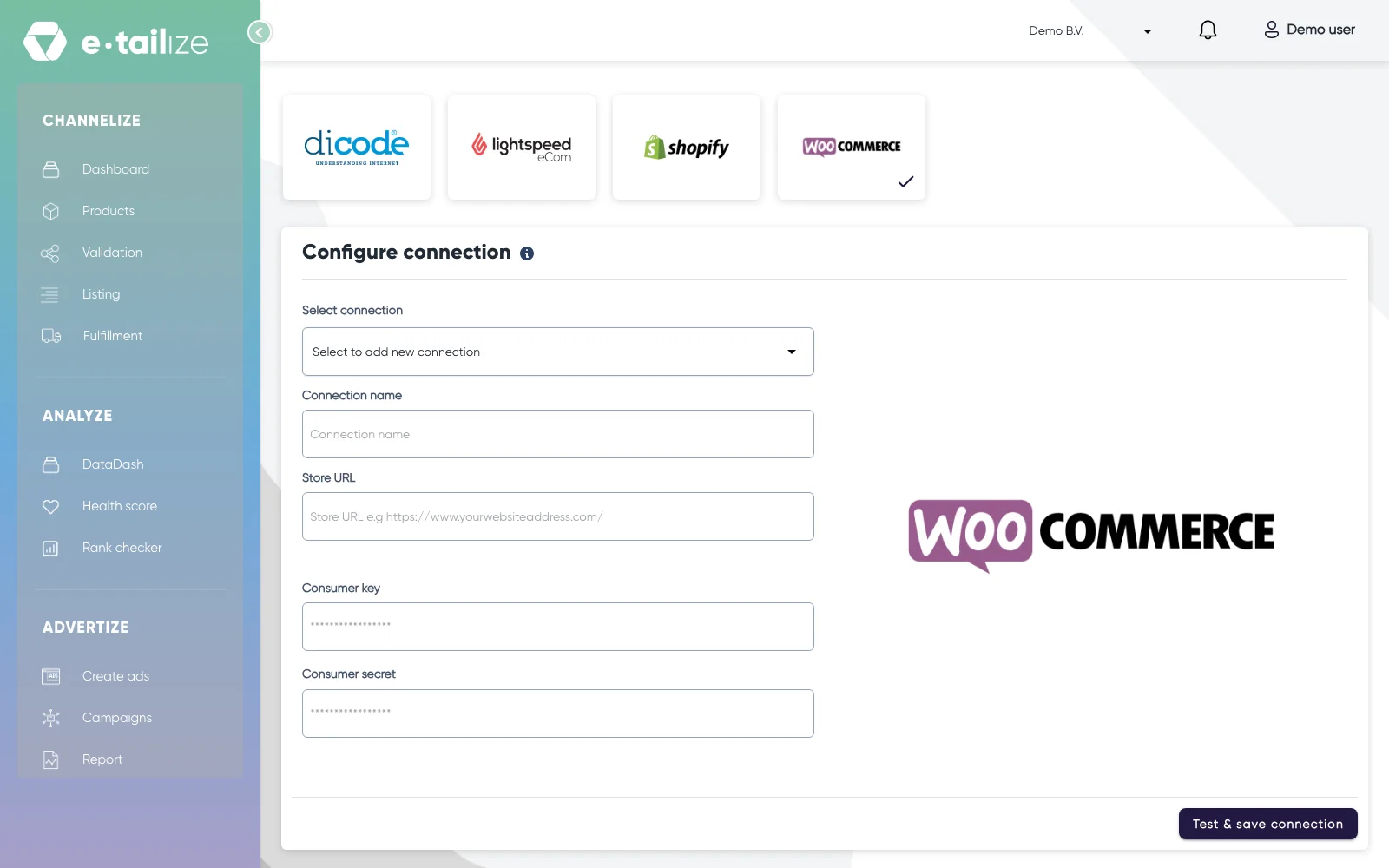
The WooCommerce form under "Configure connection", with "Connection name", "Store URL", "Consumer key", "Consumer secret" and the button "Test & save connection" Click "Test & save connection".
What happens next
Your products can now be imported from WooCommerce, and stock travels both ways: from your webshop into e-tailize and back, and on to the marketplaces you forward stock to. Orders from your marketplaces can be forwarded into WooCommerce, and track and trace comes back the same way. You set those routes under "Fulfillment" on "Stock & order configuration".
Common problems
"Invalid WooCommerce connection details."
The full message reads "Invalid WooCommerce connection details. Please refer to instructions on how to connect to your store". Check the store url first: it needs the same address your shop really runs on, including the trailing slash. Then check that the key has read and write permissions, and that both halves of the key pair were copied whole.
The form is already filled in
Your project already has a WooCommerce connection, and the wizard opens that one for editing instead of a blank form. The store url is locked in that state, and the "Delete connection" button next to it is disabled on purpose, see Edit, resave or delete a connection.
FAQ
Which permissions does the key need?
Read and write. A read only key lets us import products, but it cannot write stock or orders back to your shop, so give the key both permissions.
Can I connect two WooCommerce shops?
Every shop is a connection of its own, with its own key pair and its own store url. Ask us in the chat if you want two shops feeding one project, so we can look at the setup with you.
Was this useful?