On this page
Before you start
METRO makro connects with a client key and a client secret only, so there is no login screen at METRO and no permission to grant, the way Amazon, bol and Allegro work. You need an approved METRO seller account and the client key and client secret created in your METRO Seller Office account.
Decide which country this connection is for before you start. A connection pushes offers to one destination and only processes the offers and orders of that destination, so a second country means a second connection.
Steps
Open "Settings" in the left sidebar and click "Connections". The "API connections" page opens with everything you connected so far.
Click "New connection" and pick "Marketplace" in the chooser, next to "Shipping", "WMS" and "CMS".
Find METRO makro in the logo grid on "Connect marketplace provider", with the "Filter" box or by scrolling, and click its logo. The form opens below the grid, under "Fill in required connection tokens".
Fill in "Connection name". This is your own reference, the name you see back in the list and on your connection cards.
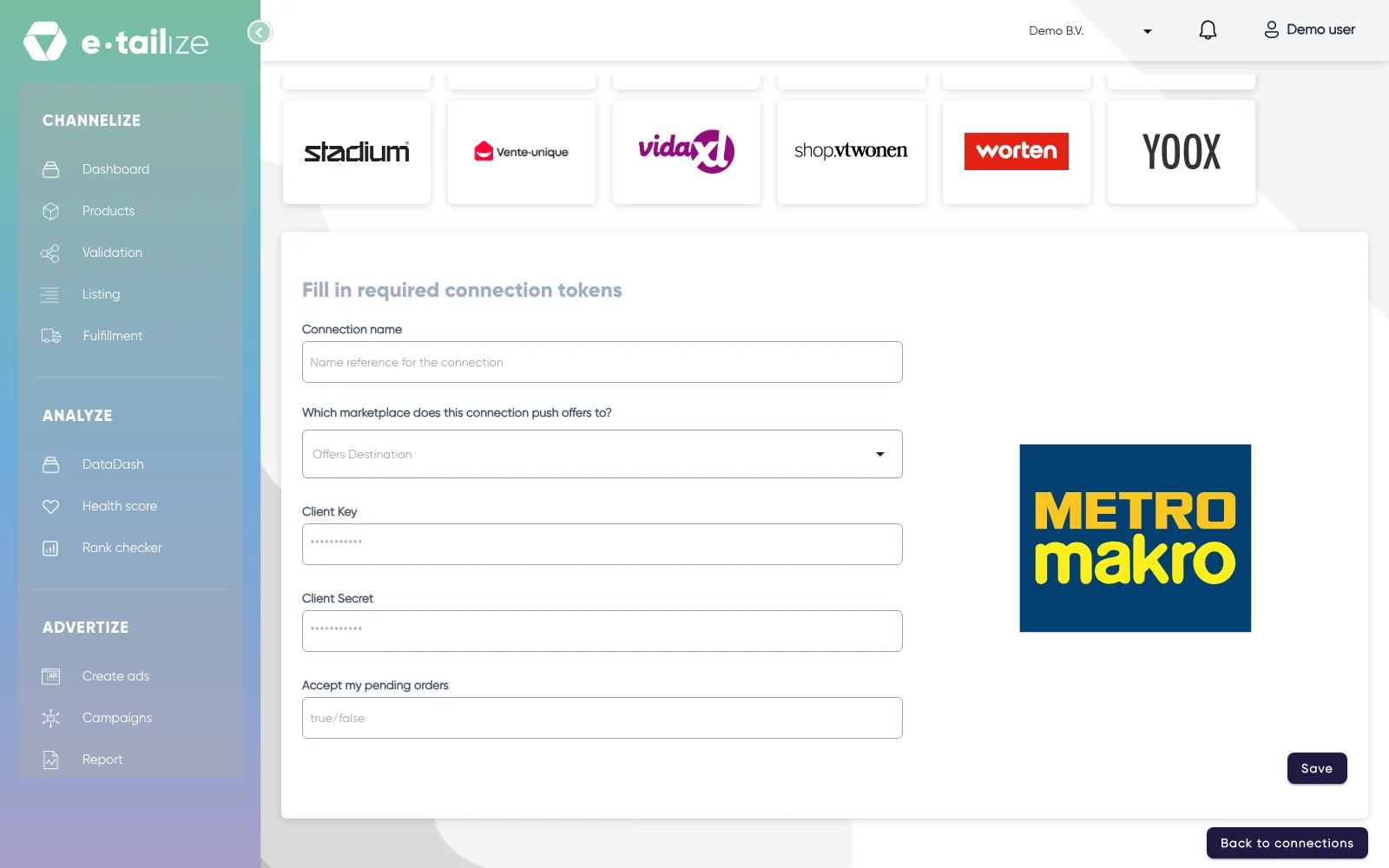
The METRO makro form with "Connection name", "Which marketplace does this connection push offers to?", "Client Key", "Client Secret" and "Accept my pending orders" Open "Which marketplace does this connection push offers to?" and pick the country this connection serves: "France", "Germany", "Italy", "Portugal", "Spain" or "The Netherlands".
Paste your key into "Client Key". The field is masked, so you see dots instead of what you pasted.
Paste your secret into "Client Secret", masked in the same way.
Type true or false in "Accept my pending orders". With true, e-tailize accepts your pending METRO orders for you; with false, every one of them waits for you.
Click "Save".
What happens next
e-tailize checks your credentials while it saves and tells you so with the message "Please wait while we verify the entered credentials." A connection that goes through reports "Save successful".
From there the connection sits on the "API connections" page and as a card under "Existing connections" on the dashboard, and it starts feeding your dashboard figures, your METRO orders and your stock.
Your products still need a METRO makro tab, a validation and a listing before anything is for sale. See Get a product live.
Common problems
Saving with empty fields gives you three messages: "Connection name is required", "Secret or Api key is a required field" and "Sales location is a required field". The last one is the destination dropdown, not a separate field further down.
METRO orders that never arrive are worth checking against the destination first. A connection set to "Germany" does not process the orders of "Spain", however correct the rest of your setup is.
FAQ
Can one connection serve more than one METRO country?
No. Selecting a destination means that connection only processes the offers and orders generated in that destination. Sell in two countries and you add two connections, each with its own name and its own destination.
Where do I get the client key and the client secret?
Both come from your METRO Seller Office account. e-tailize does not create them for you, and it never asks for the password of your METRO account.
We changed images for one METRO country and they turned up on another. Is that a fault?
No, that is how METRO works. Attributes that are not translated, such as images, size and brand, come from the last upload that succeeded and count for all METRO markets. Offers and orders stay per connection.
I have to change the destination or the key. Where do I do that?
On the connection itself. Edit, resave or delete a connection walks through opening a saved connection and putting a new value in.
Related
Was this useful?