On this page
Before you start
METRO and Makro run one marketplace for professional buyers, with a storefront per country. METRO decides who gets in, so an approved seller account comes first, and the API credentials come with it. Every product carries a GTIN, and a product without one needs the manufacturer and the MPN together instead. Images sit on a public link, png or jpg, the first one on a white or transparent background.
Apply yourself, they review. Stuck? Expansion does it for you.
METRO and Makro runs its own API, so the wizard asks for the fields of METRO and Makro itself and instructions written for a Mirakl marketplace do not apply. You need two values from METRO and Makro, a key and a secret.
We connect METRO and Makro for Germany, Spain, France, Italy, the Netherlands and Portugal.
You find your seller account in the METRO and Makro seller portal.
Steps
Create the client key and the client secret in your METRO Seller Office account and copy both in full. One connection serves one destination market and only processes the offers and orders of that market, so a second market needs a second connection. The field "Accept my pending orders" takes the word true or false.
Open "Settings" in the left sidebar and click "Connections".
Click "New connection", or open the marketplace wizard directly.
Pick "Marketplace" in the chooser and click the METRO and Makro logo under "Connect marketplace provider".
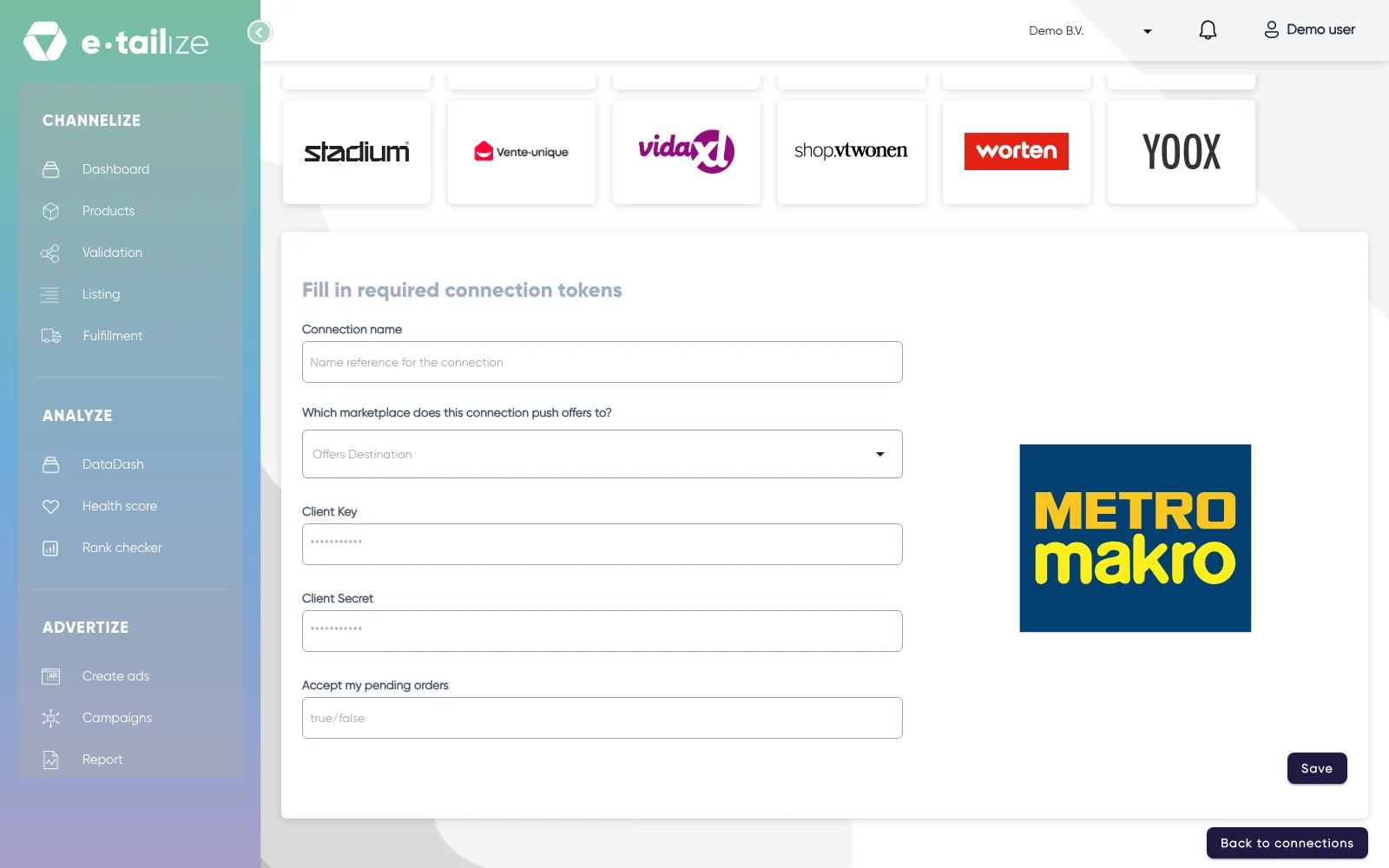
The wizard for METRO and Makro: "Fill in required connection tokens" with the fields of METRO and Makro Fill in "Connection name", your own reference for this connection.
Pick a value under "Which marketplace does this connection push offers to?". The list holds "France", "Germany", "Italy", "Portugal", "Spain" and "The Netherlands".
Paste the value into "Client Key". The field is masked, so you see dots instead of what you pasted.
Paste the value into "Client Secret". The field is masked, so you see dots instead of what you pasted.
Fill in "Accept my pending orders".
Click "Save".
Click "Validation" in the left sidebar, pick the METRO and Makro tile and click "Add missing PIM tabs" on every category you sell there.
Fill the mandatory METRO and Makro fields on those tabs and click "Validate products". Get a product live walks through that screen step by step.
Click "Listing", pick the METRO and Makro tile, select your validated products and click "List content". Click "List offers" once the content is through.
What happens next
Your mapping is checked against the category rules of METRO before anything leaves e-tailize. What passes goes over as a product upload, and METRO reviews an upload by hand, which can take up to ten days. The outcome comes back per row, with the column and the GTIN that caused it. Images, size and brand are shared over all your markets.
The connection appears on the "API connections" page and as a card under "Existing connections" on the dashboard, and it starts feeding your dashboard, your orders and your stock. Orders from METRO and Makro come in under "Fulfillment" and then "Orders", with the same "Open", "Processing" and "Closed" filters as your other channels.
Common problems
Content that does not meet the category rules is stopped before it is sent, one message per field: a mandatory value that is missing, a value of the wrong type, a value outside the allowed list, or text over the maximum length. METRO can also hold a listing for a manual review by its product data team. Then you list the same content again to see the verdict.
METRO and Makro enforces limits on content: a title is at most 150 characters, a description is at most 4000 characters and a product carries between 1 and 10 images.
FAQ
What do you need to connect METRO and Makro?
You need two values from METRO and Makro, a key and a secret.
Which countries do we connect METRO and Makro for?
We connect METRO and Makro for Germany, Spain, France, Italy, the Netherlands and Portugal.
Where do orders from METRO and Makro arrive in e-tailize?
Orders from METRO and Makro come in under "Fulfillment" and then "Orders", with the same "Open", "Processing" and "Closed" filters as your other channels.
Related
Was this useful?