On this page
Before you start
The page "Payment details" in e-tailize shows what is on file for your account, and it takes a Visa or Mastercard credit card only. The customer portal, which you open with "Manage account", is where your subscription, your invoices and your payment method live together, and other payment methods run through it.
Have your card details to hand before you start, so you fill the form in one go.
Steps
Open the page Payment details in e-tailize. This page is not in the menu, so use this link or bookmark the page. It lists the payment details on your account, and nothing when there are none yet.
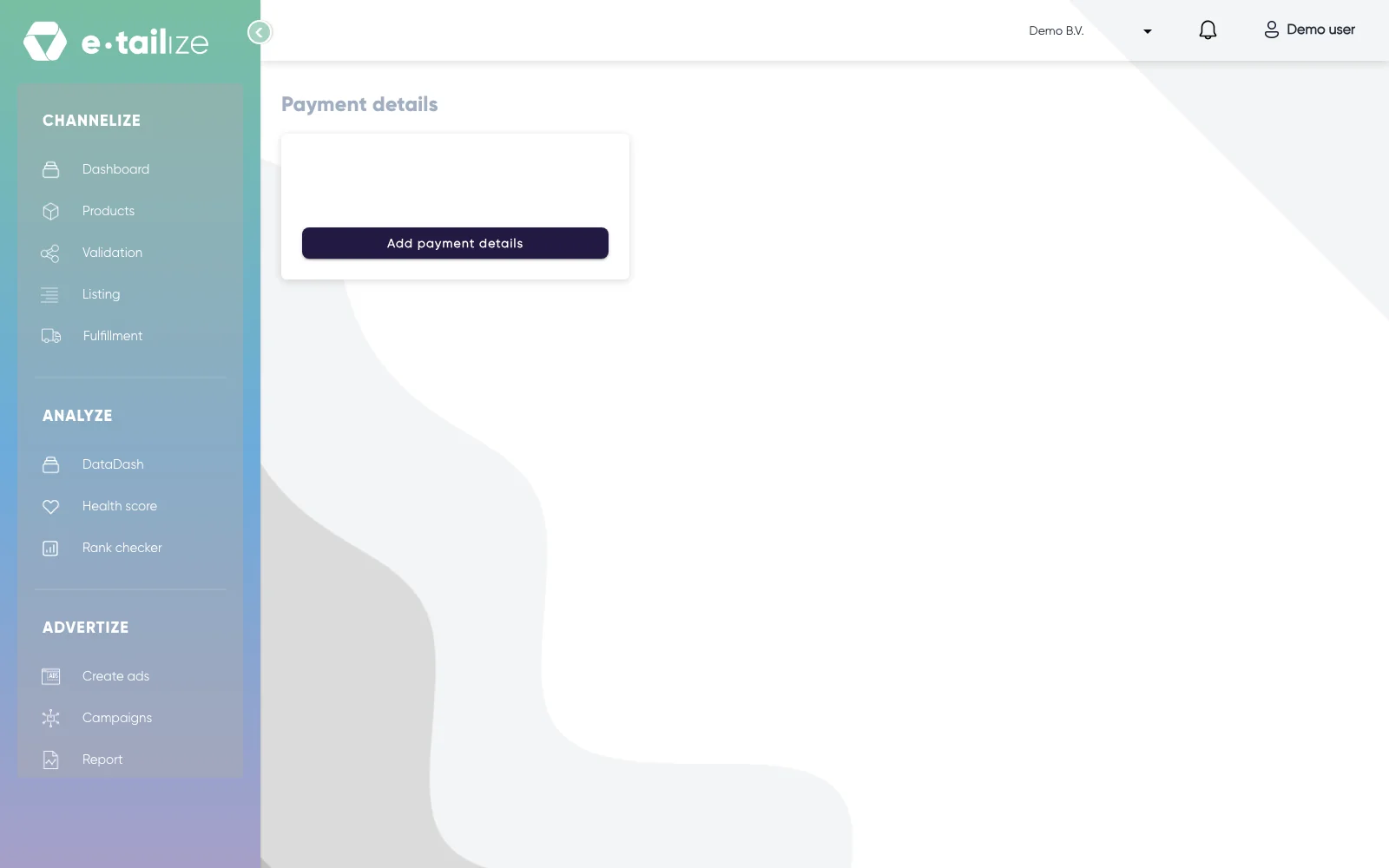
The page "Payment details" with the button "Add payment details" and nothing on file yet Click "Add payment details".
Fill in "Credit card number", "Name on credit card", "MM", "YY" and "CVC", then click "Update payment".
Check that the new entry stands on the "Payment details" page.
If another card was already on file, click "Make primary" on the new card.
Click "Settings" and then "General information" if you would rather use another payment method, or change it in the portal.
Click "Manage account" in the "Account management" block. The portal opens with you already signed in.
Change your payment method there. The portal is also where your invoices and your subscription stand.
What happens next
The card marked "Primary" is the one on your account. Everything that was already invoiced keeps the method it was charged with.
You may see a charge of one euro from us on your card after you add it. That is the card verification, not an invoice.
Check your invoices afterwards to see that the change came through, see See and check your invoices.
Common problems
"Payment details" is empty. Then nothing is on file yet. "Add payment details" is the button that starts it.
You see a charge of one euro. That is the card verification we run when a payment method is added or validated, not an invoice.
Your details are refused. The form refuses a number that is not a Visa or Mastercard ("Enter only Visa and Mastercard numbers"), an expiry date in the past ("Invalid year & month") and a card that is already on the account ("Card number is already added"). In all three cases the form needs different details, so use another card or correct the expiry date before you try again.
You want the invoices to go to a different address. That is not on this page. Our support team changes the invoice address for you.
FAQ
Where do I see what is on file now?
On the page "Payment details". Everything registered for your account stands there.
Does changing this change my subscription?
No. Your subscription stays as it is, only the way you pay changes. See Change or cancel your subscription.
Related
Was this useful?