On this page
Before you start
You need admin rights yourself. An admin may manage the account: the settings, the team and the connections. A colleague who only works in the platform does not need them, so give them out sparingly.
Everyone who has access stands in "Team management", the last block of "General information" under "Settings".
Steps
- Click "Settings" in the left sidebar and then "General information".
- Scroll to "Team management". The table shows "Team member", "E-mail address" and "Admin" per person.
- Fill in "Full name" and "E-mail address" in the bottom row of the table.
- Turn on "Admin" in that same row if this colleague should be able to manage the account.
- Click "Send invite". The invitation goes to that address, and after your colleague accepts it they stand in the list.
- Click "Resend" on a row that still says "Pending" to send the invitation once more. A row keeps "Resend" until the invitation is accepted.
- Click "Reset" on the row of a member who accepted, to send that member a password reset, for example when they are locked out.
- Click "Delete" on a row to take that member's access away.
What happens next
The person you invited gets an e-mail with the invitation. Nothing changes on your side until they accept it, and only then do they appear as a team member. Until then their row carries the status "Pending".
What your colleague sees. The link in the invitation opens the page "Accept invite". There is one field, "Password", and one button, "Accept". After that e-tailize sends them to the login page, where they sign in with the address you invited. Their name comes from the "Full name" you typed, and their role follows your choice: "Administrator" when "Admin" was on, "Basic" when it was off.
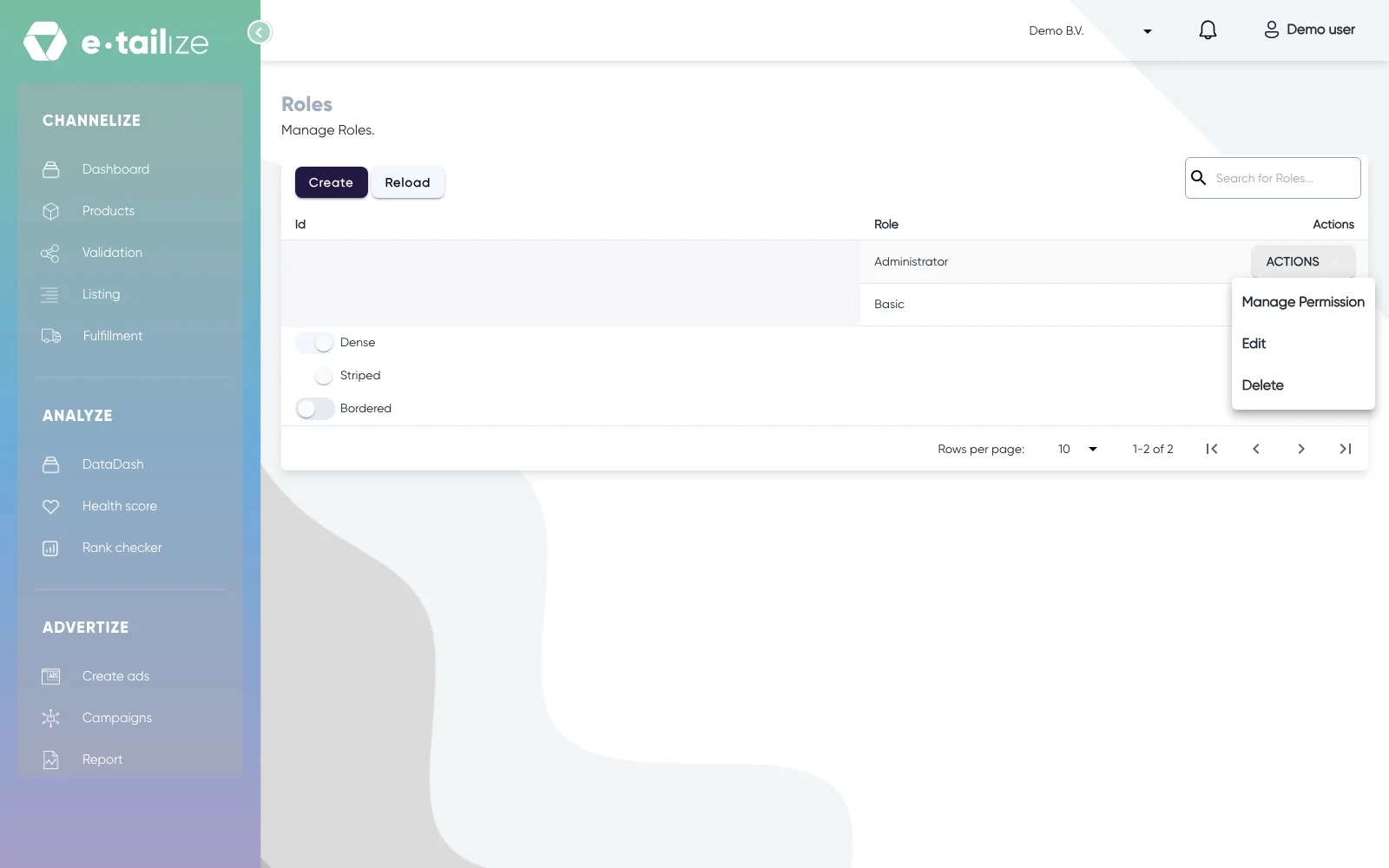
The roles themselves stand on the "Roles" page, headed "Roles" with "Manage Roles." under it. It holds two roles, "Administrator" and "Basic".
Common problems
A colleague never got the invitation. Check the address in the row and let them look in their spam. Click "Resend" to send it again, or delete the row and invite again if the address was wrong.
The invitation link no longer works. An invitation does not stay valid forever. The page then says "Invitation has expired.", and a broken or incomplete link gives "Invalid invitation.". "Resend" on the row hands your colleague a fresh link.
e-tailize refuses the address. The message names the reason: the address is already a member of your business, it is already registered with another business, or it already has an invitation waiting. Use another address, or resend the invitation that is already open.
Someone left the company. Delete their row straight away. That removes their access to your account and nothing else.
FAQ
What does "Admin" do?
It gives that member the right to manage the account: settings, team members and connections. On the "Roles" page that is the role "Administrator". Without it your colleague gets "Basic".
Is this the same as giving an agency access?
No. An agency gets a delegation instead, see Give an agency access to your account.
Can I change a colleague's e-mail address?
Not on their row. Delete the member and invite the new address.
Related
Was this useful?