On this page
Before you start
An agency does not become a team member. It gets a delegation, which is its own kind of access and stands in its own place. That keeps your team list about your own colleagues, see Add users and manage their roles.
The page is headed "Delegations management" and its table is headed "All delegations". Ask the agency for its "Agency Id" before you start: you need it together with the address they work from, and both have to belong to the same agency account.
Steps
Open the "Delegations management" page. It also opens from the shorter delegations address, with the same table on it.
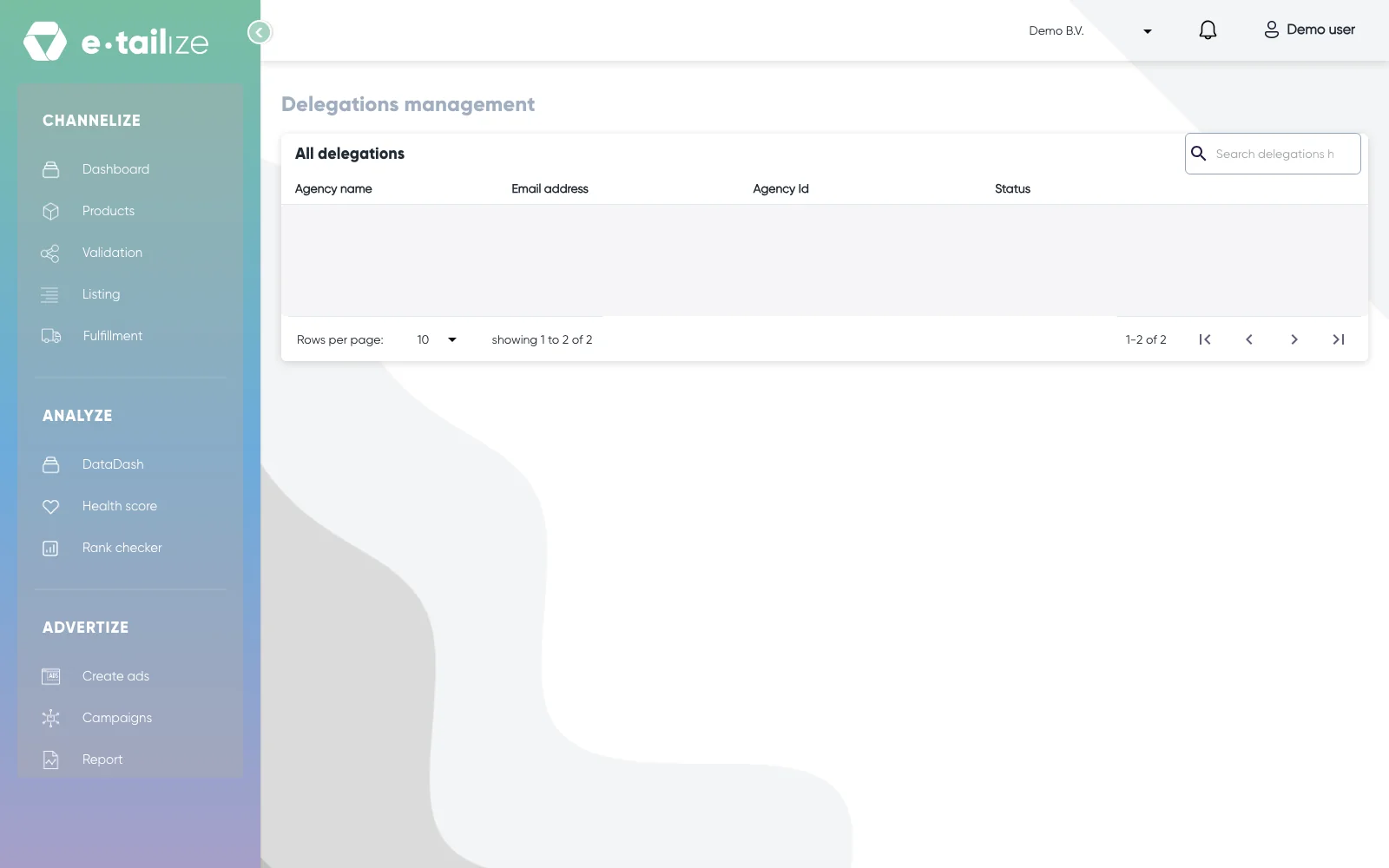
The page "Delegations management" with the table "All delegations" and the box "Search delegations here" above it Find the invite row under "All delegations". It reads "Invite marketing agency".
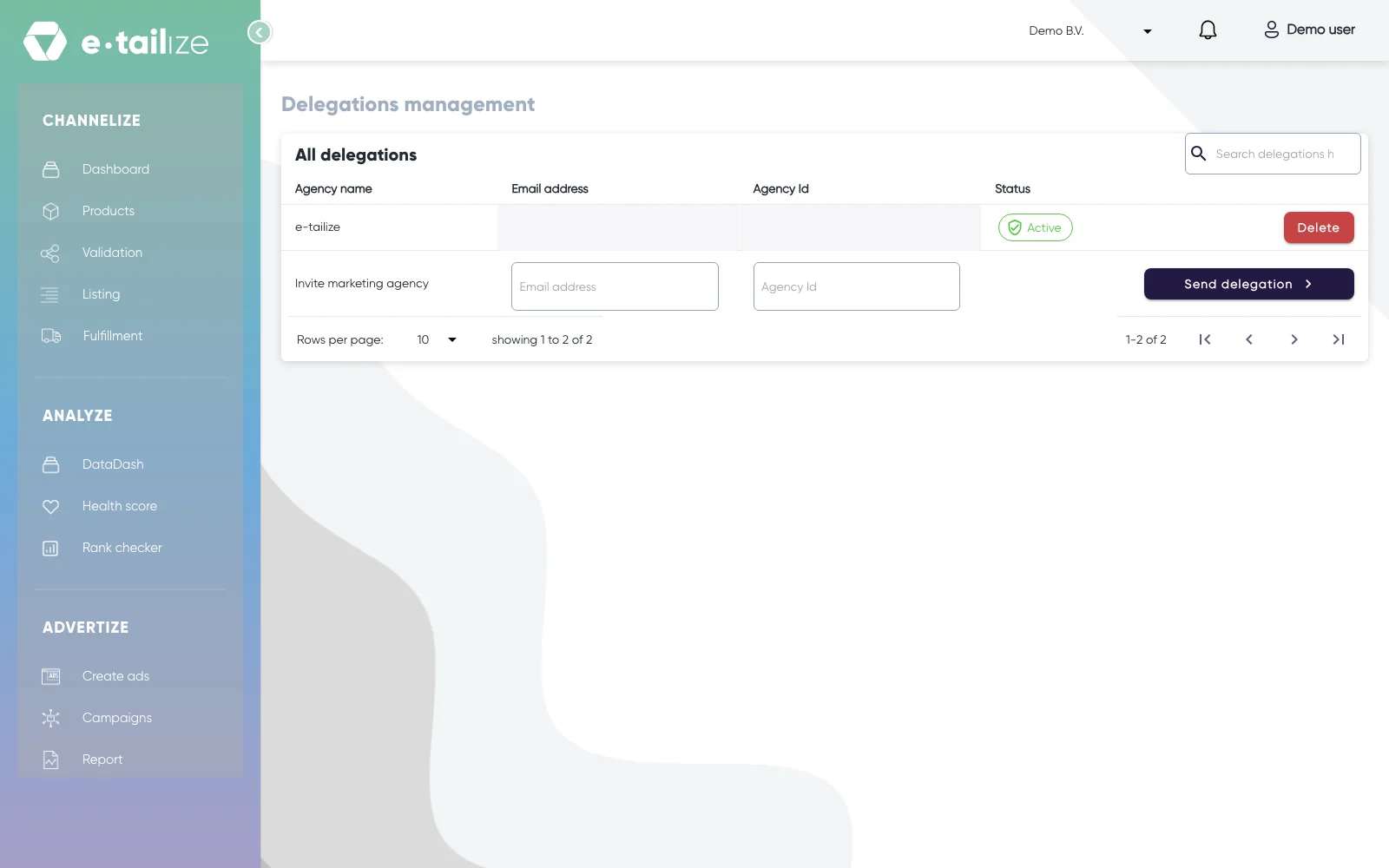
The invite row "Invite marketing agency" with its "Email address" and "Agency Id" boxes and the button "Send delegation" Fill in the agency's e-mail address in the address box on that row.
Fill in the "Agency Id" the agency gave you in the box next to it.
Click "Send delegation".
Read the "Status" column on the agency's row to follow where the invitation stands.
What happens next
The agency appears in the table with its name, its e-mail address, its "Agency Id" and its "Status". The row starts on "Pending" and turns "Active" once the agency accepts.
The buttons on a row follow that status. On a "Pending" row you get "Resend". On an "Active" row you get "Pause", and on a paused one "Resume". "Delete" takes the row out of the table.
The delegation stands on its own, so it does not touch your team members and it does not change anyone's admin rights.
If you are the agency
The invitation does not reach you by e-mail. It appears on your own "Delegations management" page, so you open that page yourself and the company that invites you tells you it sent one. That company sits there on a "Pending" row with two buttons: "Accept" and "Revoke". Both ask you to confirm first, and "Accept" turns the row "Active".
Common problems
The pair is not accepted. Sending gives "marketing agency could not be found with the specified account id and email address" when the e-mail address and the "Agency Id" do not sit on the same agency account. Check both with the agency and send again.
The agency is already in the table. Sending a second time gives "There is already an active delegation to this marketing agency". Work on the row that is there.
FAQ
Do I have to make the agency an admin?
No. A delegation is separate from the "Admin" tick box in "Team management", so you invite the agency here and leave your team list alone.
Can I invite more than one agency?
Yes. Every delegation is its own row in "All delegations", with its own status.
Where does an agency find its "Agency Id"?
On its own "Account management" page, next to the business details, where the app writes it after "Account ID". Only the agency can read it there, so ask them for it.
Related
Was this useful?