On this page
Before you start
Validation is the check between your marketplace tabs and your listing. Per marketplace and per category it counts how far your products are, and it gives you the buttons that move them on.

Steps
Click "Validation" in the left sidebar.
Click the tile of the marketplace connection you want to work on.
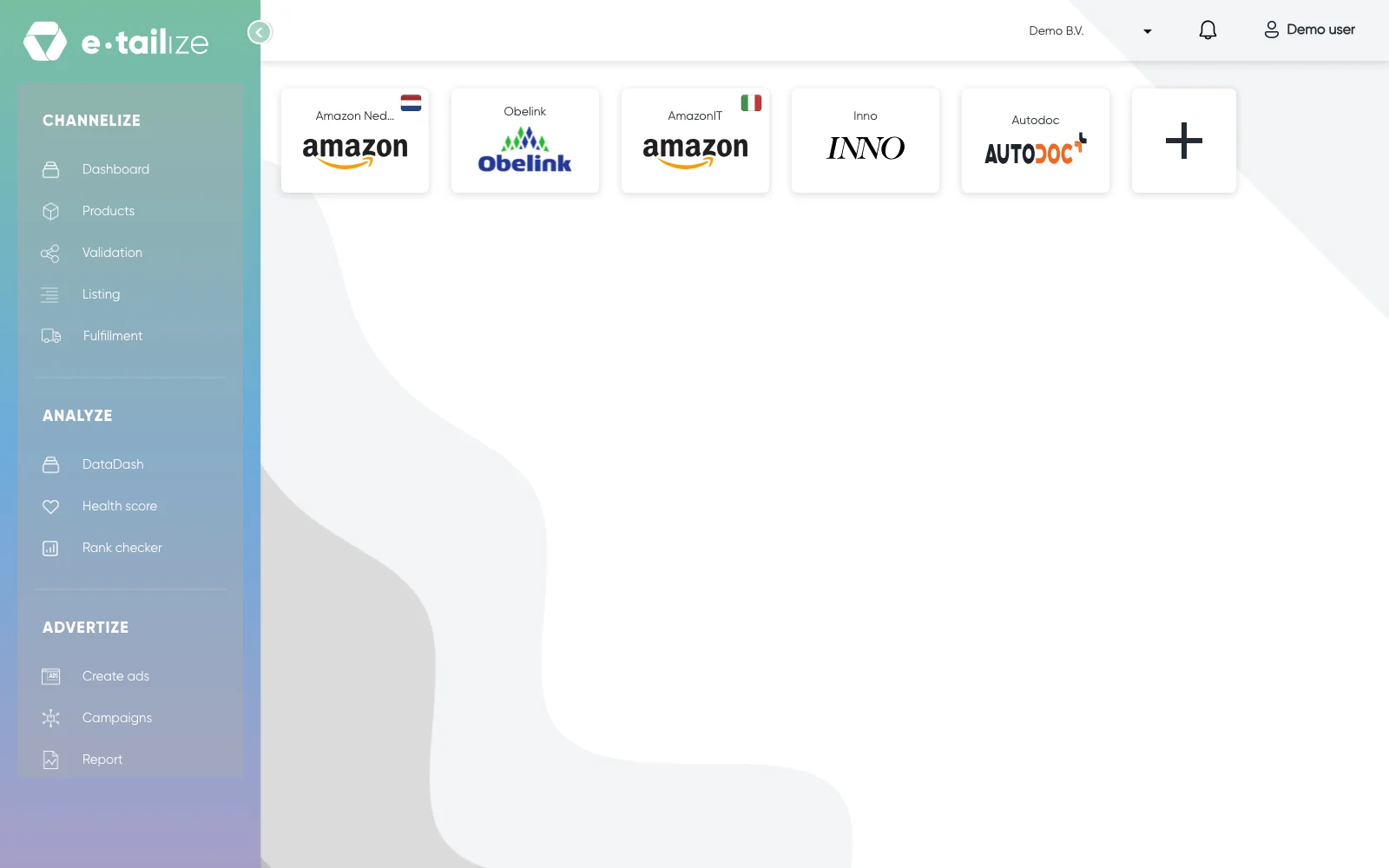
The Validation page with one tile per marketplace connection Check the heading, "Validate tabs for [marketplace] content listing", and the line under it: "Validations will be created for the selected connection: [your connection name]".
Read the cards under "Select marketplace category". One card per category mapping, titled "[your category] | [marketplace category]", each with a status bar, five counts and its own buttons. The box "Start typing to filter categories" narrows them down.
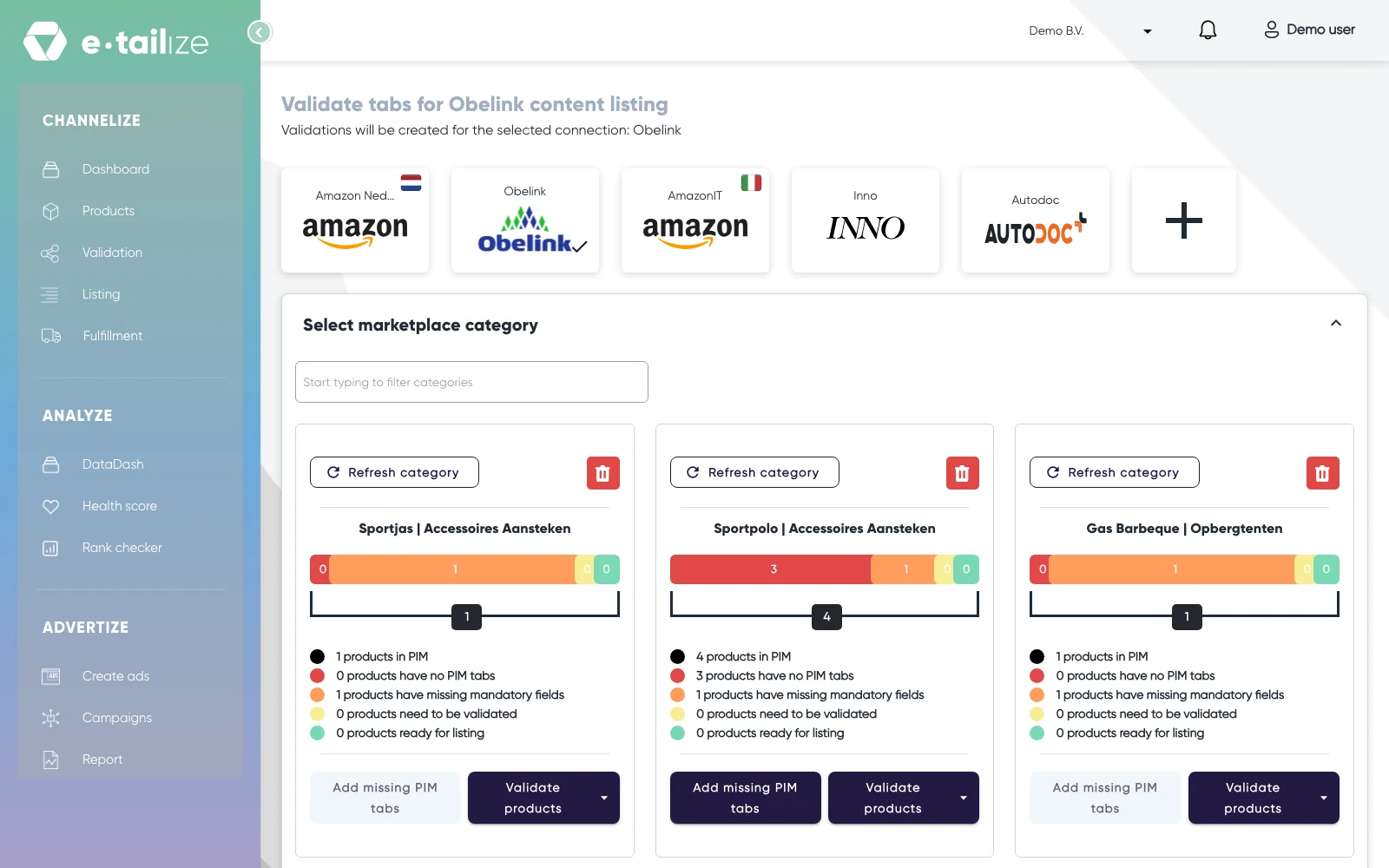
One card per category mapping, with the filter box above them and five counts on each
| Legend line | Colour | What it means |
|---|---|---|
| "N products in PIM" | black | the total, under the bar |
| "N products have no PIM tabs" | red | no tab for this marketplace yet |
| "N products have missing mandatory fields" | orange | the tab exists, fields are empty |
| "N products need to be validated" | yellow | filled in, waiting for validation |
| "N products ready for listing" | green | validated, ready to list |
Products move from red to orange to yellow to green as you fix them, the same four colours as the status dots on your products page.
Common problems
A listing error about a field you cannot see on the tab. Marketplaces change their category definitions, and your version tab was created against the old one. Click "Refresh category". The card notes "Marketplace field sync is processing for this category" while it runs. Afterwards the new fields stand on the tabs: fill in the new mandatory ones and validate again.
The marketplace you need has no tile. The strip ends with a "+" tile that takes you to your connections. Once the connection exists, its tile stands here.
A card for a category you no longer sell. Its trash button opens "Delete confirmation" and removes the marketplace version of every product under that card.
FAQ
What does the Validation page do?
It counts your products per category by status and gives you the buttons that move them on: "Add missing PIM tabs", "Validate products" and "Refresh category".
How do I read a category card?
Your own category stands first, the marketplace category behind the pipe. The number under the bar is the total, and the coloured parts split it by status.
My products are green, what now?
Go to "Listing" and push them live, first the content and then the offers. Get a product live walks you through it.
Was this useful?