On this page
Before you start
Conrad is a technical marketplace, and it shows in the product data they ask for. Have the category, the title, the brand, the item number, the content information, the manufacturer's part number, the images and a full product description ready before you apply. Conrad charges a monthly subscription fee plus a commission on every item sold, and the current amounts are on their seller pages.
The main categories include:
- Computer & Office
- Multimedia
- Leisure, Car & Household
- Tools & Workshop
- Installation Technology & Lighting
- Cables & Connectors
- Measurement Technology & Energy
- Development Kits & Teaching Packages
- Active Components
- Passive Components
- Electromechanics
- Automation
Steps
Check whether your range fits these categories, and get your product data together, the manufacturer's part number included.
Collect your company details: company name, brand name, your first and last name, phone number, the marketplaces you sell on today, your revenue on those marketplaces and your webshop URL.
Apply to Conrad yourself with those details, through their website. Conrad reviews every application. Stuck? Expansion does it for you.
Create the API key in the Conrad back office and note your store id. Let us know in the app chat as soon as Conrad approves your seller account, then we make the link with Conrad.
Open "Connections" under "Settings" in the left menu, or click "New connection" on the "API connections" page, and pick "Marketplace".
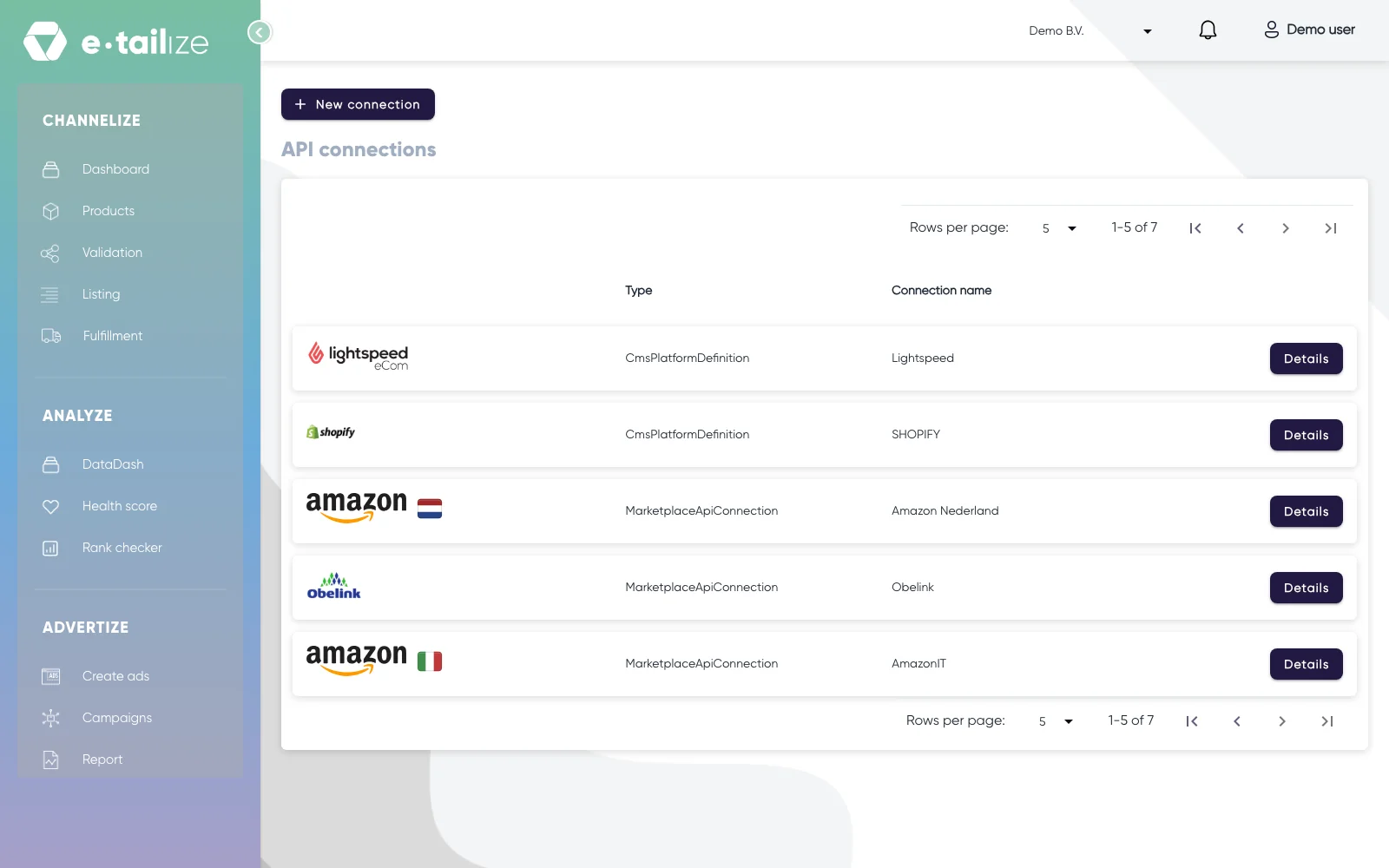
The "API connections" page, with "New connection" above the connections you already have Click the Conrad logo in the grid. "Fill in required connection tokens" opens below it.
Fill in "Connection name", "API KEY", "Where do you offer your products?" and "Store Id", then click "Save".
Add the Conrad tab to your categories, validate and list. Get a product live walks through that screen step by step.
What happens next
Conrad decides on your application. Acceptance leans on your product range, your current sales and your customer satisfaction scores, so a complete application with real product data behind it is the only thing you can steer.
Once the connection stands, your Conrad orders come into e-tailize under "Fulfillment" and then "Orders", with the same "Open", "Processing" and "Closed" filters as your other channels.
Common problems
"Invalid response from e-tailize"
Check three things against your seller account: the API key, the "Store Id" and the country you picked. All three right and the message stays? Then ask in the app chat and name the marketplace, the exact message and the "Store Id" you used.
Products will not validate on missing attributes
Conrad works with technical attributes per category, and a missing part number or content detail blocks a product. Open the Conrad tab of a blocked product, fill the fields the screen marks and validate again.
FAQ
Do I need the manufacturer's part number?
Yes, keep it at hand. It is one of the fields Conrad expects in your product data, next to the brand, the item number and the content information.
What if my range is not in those categories?
The list above is not exhaustive, so a range outside it can still fit. Ask in the app chat whether your range fits Conrad.
Was this useful?