On this page
Before you start
You build the file yourself, in a spreadsheet. The first row holds your column names, every row below it is one product, and you save the result as a CSV file.
Your column names are free: you connect each column to a field yourself with the "Select column" dropdown under "Map csv columns to e-tailize". This page is about what goes in the file. The upload and the mapping screen are in Import products with a CSV file.
Steps
Put your column headers in the first row and one product per row underneath.
Fill the EAN column on every row, because existing products are matched on EAN. A row without an EAN is still imported and creates a fresh product each time you upload the file.
Add a column for each field you want filled, using the table below.
Write image links as URLs in their own column, not as pictures in the sheet. The import page notes that you can upload up to 25 images per product.
Separate your values with a semicolon or a comma. Both work, and a price may use a decimal comma.
Save the sheet as CSV and upload it under "Upload csv".
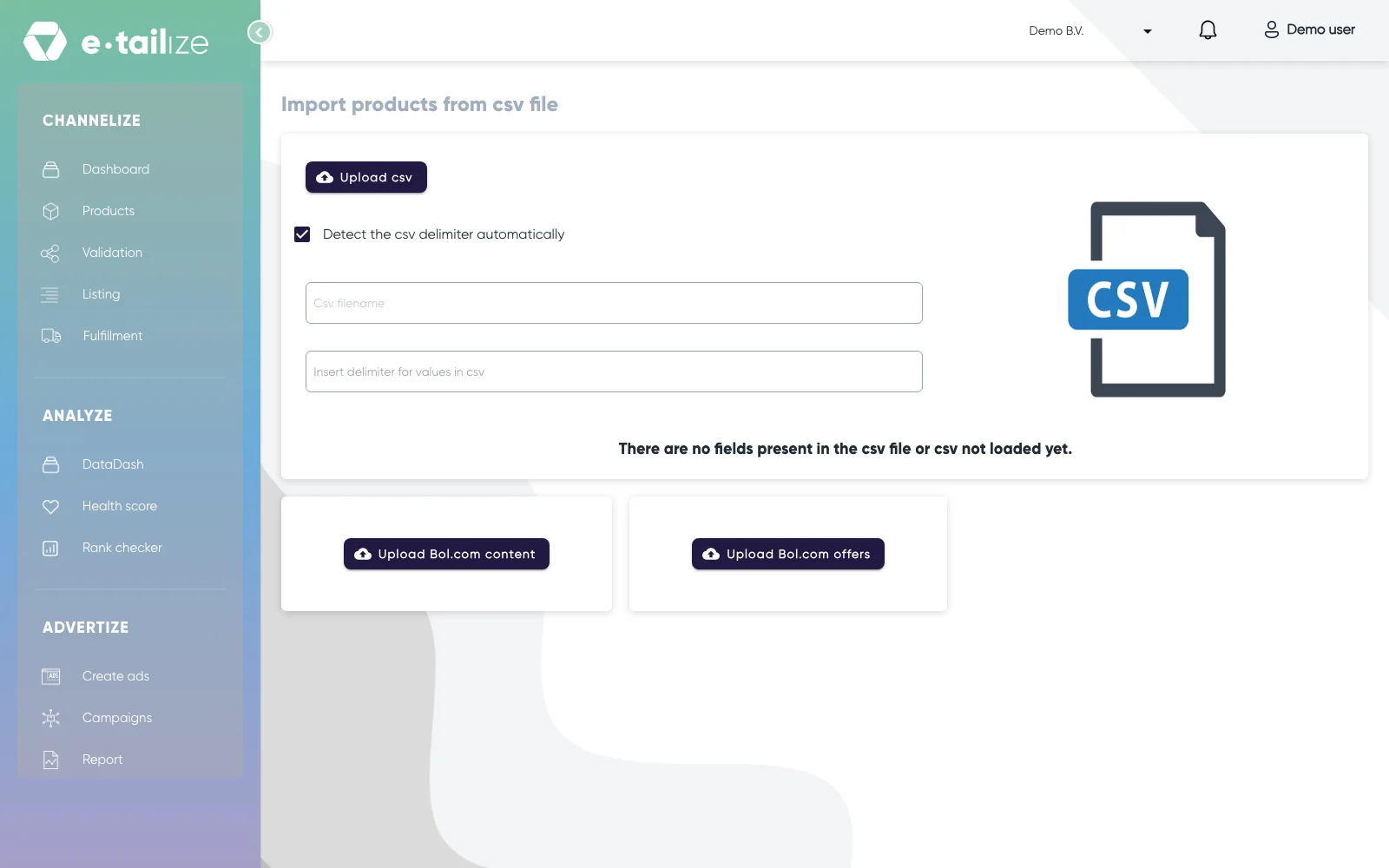
The page "Import products from csv file" with "Upload csv", the ticked checkbox "Detect the csv delimiter automatically", the fields "Csv filename" and "Insert delimiter for values in csv", and the buttons "Upload Bol.com content" and "Upload Bol.com offers"
These are the e-tailize fields you can point a column at. The app writes the data type behind each field name. The image fields show "Unknown" as their type, and you put URLs in those columns.
| Group | Fields | Type |
|---|---|---|
| Identifiers | "Ean", "Sku", "Gtin" | String |
| Stock | "Stock" | Number |
| Grouping | "Family", "Category" | String |
| Content | "Main Title", "Main Short Name", "Main Description", "Main Short Description" | String |
| Attributes | "Color", "Manufacturer", "Designer", "Material", "What Is In The Box" | String |
| Price | "Base Price" | Decimal |
| Product size | "Product Width", "Product Height", "Product Weight", "Product Size", "Product Diameter" | String |
| Package size | "Package Width", "Package Height", "Package Weight", "Package Length" | String |
| Warranty | "Warranty Time", "Warranty Exception" | String |
| Costs | "Commission", "Packing Price", "V A T", "Buy In Price", "Storage Cost", "Shipping Cost", "Advertising Per Unit" | Decimal |
| Images | "Primary Image", "Images" | Unknown |
What happens next
The columns you mapped fill the standard fields on the product. Columns you did not map can still be kept: tick them under "Custom fields", where "Select all fields" takes the lot, and they come back under "Imported custom fields". A column that is neither mapped nor ticked is not imported.
After the import a summary appears with "Processed rows", "Products added", "Products updated" and "Products empty EAN". Your file lands in your product data in e-tailize. Getting those products onto a marketplace is a separate step.
Common problems
"EAN mapping is required!" No column is pointed at "Ean". Map your EAN column and import again.
"Please select an image import option". Pick "Skip images", "Import only for new products" or "Replace existing images" under "Image settings for import" first.
"There are no fields present in the csv file or csv not loaded yet." Your file did not parse into columns. Leave "Detect the csv delimiter automatically" ticked and save the sheet as CSV again with a semicolon or a comma as separator.
FAQ
Do my column names have to match the e-tailize field names?
No. The mapping step connects any column name to any field, so an export from another system usually works as it is.
Semicolon or comma?
Both. "Detect the csv delimiter automatically" is ticked by default and works out the separator for you. Leave it ticked, and if your file does not parse into columns, save the sheet as CSV again with a semicolon or a comma as separator.
Can I leave a column empty?
Yes, with one exception. If you mapped a "Base Price" column, every row of that column must hold a number. One empty cell there blocks the import with "Base price column contains invalid decimal value.", so either fill the column completely or do not map it.
What about a file exported from bol?
That one is not a normal CSV upload. Use the "Upload Bol.com content" or "Upload Bol.com offers" button, which needs a bol connection in your project. e-tailize converts the file and maps its columns for you.
Related
Was this useful?